10
Remote control
This section includes an overview of the remote
control.
Overview
Control your home theater with the remote
control.
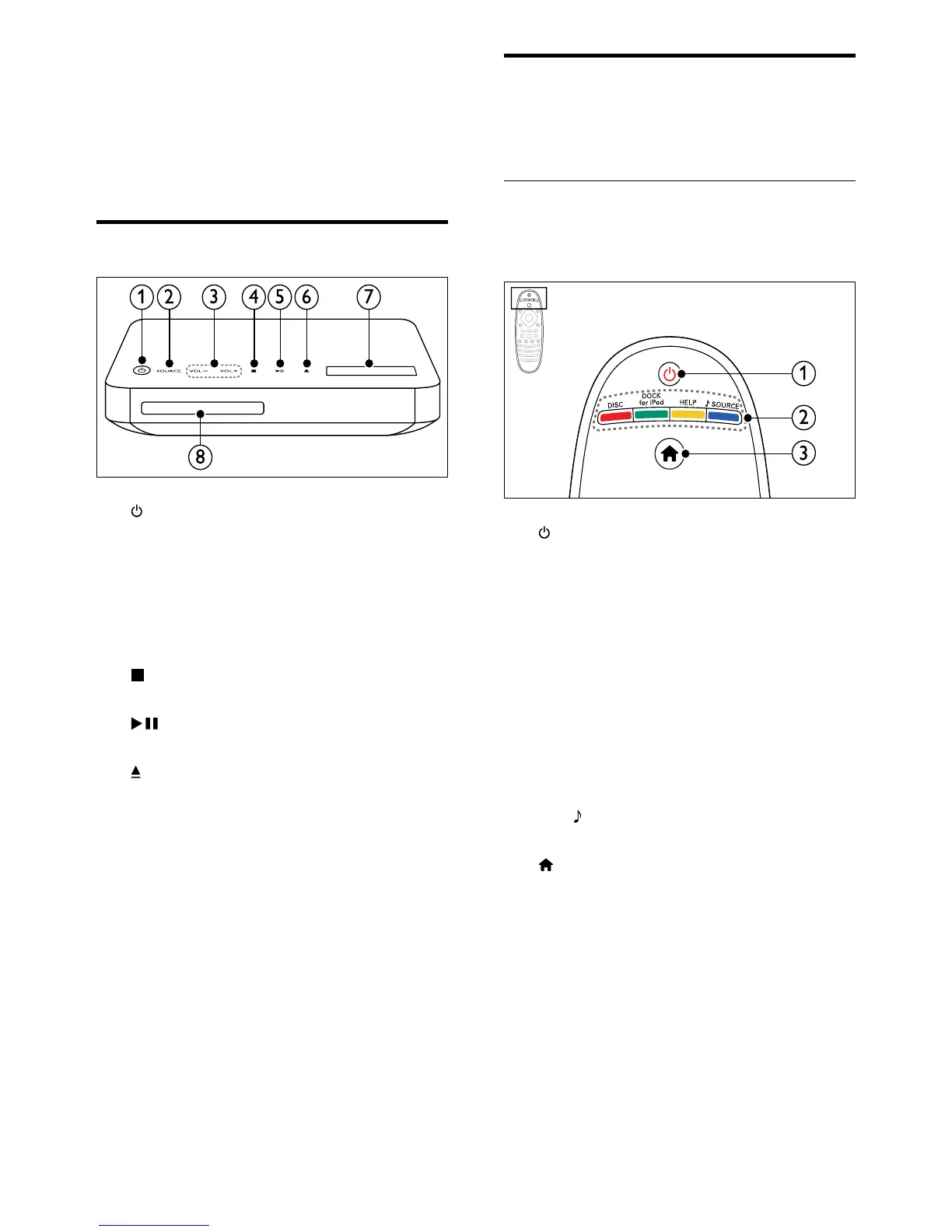
a (Standby-On)
• Switch the home theater on or to
standby.
• When EasyLink is enabled, press
and hold for at least three seconds
to switch all connected HDMI CEC
compliant devices to standby.
b Source buttons / Color buttons
• Color buttons: Select tasks or options
forBlu-raydiscs.
• DISC: Switch to disc source.
• DOCK for iPod: Switch to Philips dock
for iPod or iPhone.
• HELP: Access the onscreen help.
• SOURCE: Select an audio input
source or radio source.
c (Home)
Access the home menu.
5 Your home theater
Congratulations on your purchase, and welcome
toPhilips!Tofullybenetfromthesupportthat
Philips offers, register your home theater at www.
philips.com/welcome.
Main unit
a (Standby-On)
Switch the home theater on or to standby.
b SOURCE
Select an audio or video source for the
home theater.
c VOL +/-
Increase or decrease volume.
d (Stop)
Stop play.
e (Play/Pause)
Start, pause or resume play.
f (Open/Close)
Open or close the disc compartment, or
eject the disc.
g Display panel
h Disc compartment
EN


 To Next Page