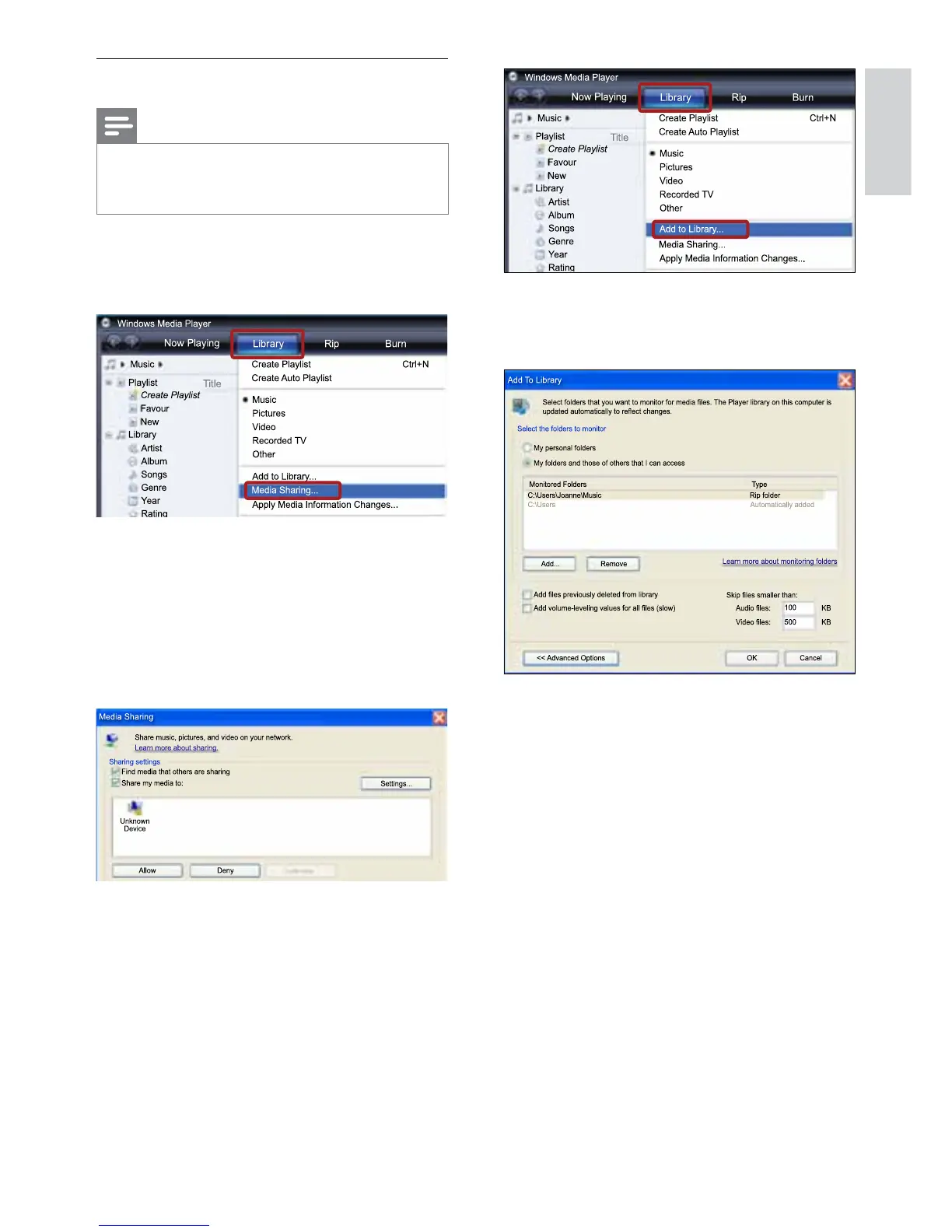
» The Add to Library screen is displayed.
» If necessary, select Advanced options to
display a list of monitored folders.
7 Select My folders and those of others I can
access, and then click Add.
8 Follow the onscreen instructions to add the
otherfoldersthatcontainyourmediales.
Microsoft Windows Media Player 11
Note
•
Depending on your version of Microsoft
Windows, the screens might look different to
the following screens.
1 Start Windows Media Player on your PC.
2 Click the Library tab, and then select Media
Sharing.
3 ThersttimeyouselectMedia Sharing on
yourPC,apop-upscreenappears.Check
the Share my media box and click OK.
» The Media Sharing screen is displayed.
4 In the Media Sharing screen, make sure
that you see a device marked as Unknown
Device.
» Ifyoudon’tseeanunknowndevice
after a minute or so, check that your PC
rewallisnotblockingtheconnection..
5 Select the unknown device and click Allow.
» A green tick appears next to the device.
6 By default, Windows Media Player shares
from these folders: My Music, My Pictures,
and My Videos.Ifyourlesareinother
folders, select Library > Add to Library.
EN


 To Next Page