2-1
Software Version Check & Upgrade
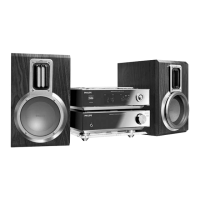
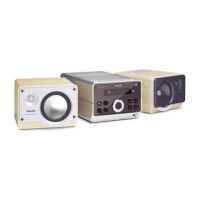
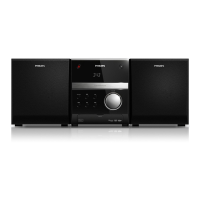
MCD772 Vxx
Upgrade software
Software check
3.Press SYSTEM on the remote open menu, press Left or Right to select “Preference
Page”, TV screen showing as below:
Press Up or Down to select “Default” on remote, Press OK to exit reset.
Software upgrade finish.
Input password “811502” on remote, TV screen showing as below:
Upgrade File detected
--Preference Page--
TV type PAL
Audio CHI English
Subtitle CHI French
Disc menu CHI Spanish
Parental Chinese
Japanese
Default Korean
Russian
Tjai
Upgrade?
Press PLAY to start
Upgrading
CPU version check
1.Downloading the software form Philips support website
1.Keep press PLAY/PAUSE and STOP buttons,plug into the power cord at one time,
TV showing as below:
2.Load the CD Disc or USB with software,when it is loading,
the TV screen showing as below:
Waiting half to one minute,till the TV screen showing disappear.
Turnoff electrical source and reopen.
http://www.philips.com/support
Ver :
Date
Time
Region code
MCD772 / xxxx
mm dd yyyy
hh : mm : ss
x


 To Next Page