Access Control [DVD]
Some DVDs may not be suited for children.With Access
Control you can limit the scenes to be shown.This feature
will not work if the disc is not provided with access control
information. Philips cannot guarantee the availability of
Access Control with all discs, and therefore denies any
liability associated with unintended watching of discs. Make
sure your discs play according to your Access Control
settings before you allow children to access to the Streamium
System.
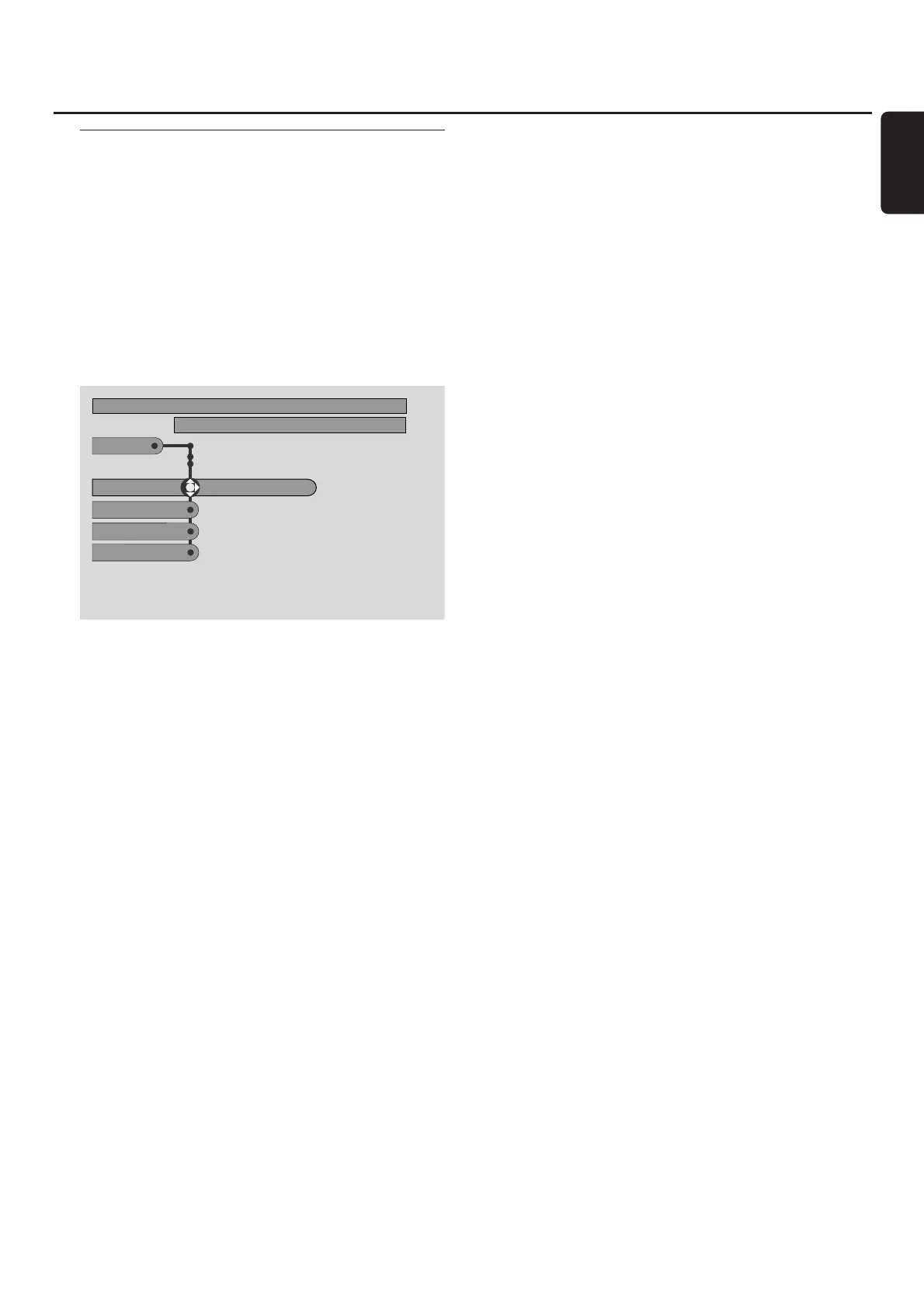
1 Press SYSTEM MENU on the remote control.
2 DVD: Select Setup ➜ Access.
3 Press 4 to select Enter PIN. Next, press 2.
4 Use the number buttons to enter the four digit Pin code.
When using the Streamium System for the first time, enter
“0000”.
00
To exit the menu without entering the PIN code, press
SYSTEM MENU.
5 Press 4 repeatedly to select either Parental Level,
Change Pin or Disc Lock. Press 2 to enter the selected
menu.
Parental Level
DVDs may contain alternative scenes that conform to the
Parental Level, or movie rating, that you select.The Parental
Level may apply to the complete disc or to certain scenes
on the disc. Follow the steps below to set the Parental
Level at which you want the discs to play.
● Press 3 or 4 or the number buttons (0-8) to select a
rating, then press 2OK.
00
Select “0” (– –) to deactivate Parental level. Or choose a
rating between 1-8; discs or scenes with the same rating or
lower will play. Higher rated discs or scenes will not play
unless you enter your four digit code. Follow the directions
given by the disc to enter your code and start playback.
Change PIN
1 Use the number buttons to enter the current Pin code.
➜ Enter New Pin appears.
2 Use the number buttons to enter the new Pin code.
➜ Confirm Pin appears.
3 Enter the new Pin code again to confirm it.
➜ The Pin code is changed.
Note: Sometimes, the system will ask you to enter your code
twice to confirm the code.This is normal.
Disc Lock
Use Disc Lock to disable viewing of a specific disc,
regardless of its rating. A DVD disc must be loaded in the
disc tray.
1 Press 2 repeatedly to select
➜ On: Disc Lock is switched on. Locked discs will not play
unless you enter your four digit code.
➜ Off: Disc Lock is switched off.
2 Next, press 2OK.
Note: Lock/unlock each side of two sided DVDs and each
volume of multi-volume (Super) Video CDs.
If you forget your Pin Code
1 When asked to enter the PIN code, press 9.
2 Press DVD repeatedly to select a disc tray with no disc.
3 Press SYSTEM MENU.
4 Select Setup ➜ Acess ➜ Enter PIN. Next, press 2.
5 Press 9 4 times.
➜ Not possible now appears.
➜ Enter New Pin appears.
6 Use the number buttons to enter the new Pin code.
➜ Confirm Pin appears.
7 Enter the new Pin code again to confirm it.
➜ The Pin code is changed.
Access Control
37
English



 To Next Page