10 EN
• If necessary, tap to return to the
Home screen.
• Make sure that the page isn't lled.
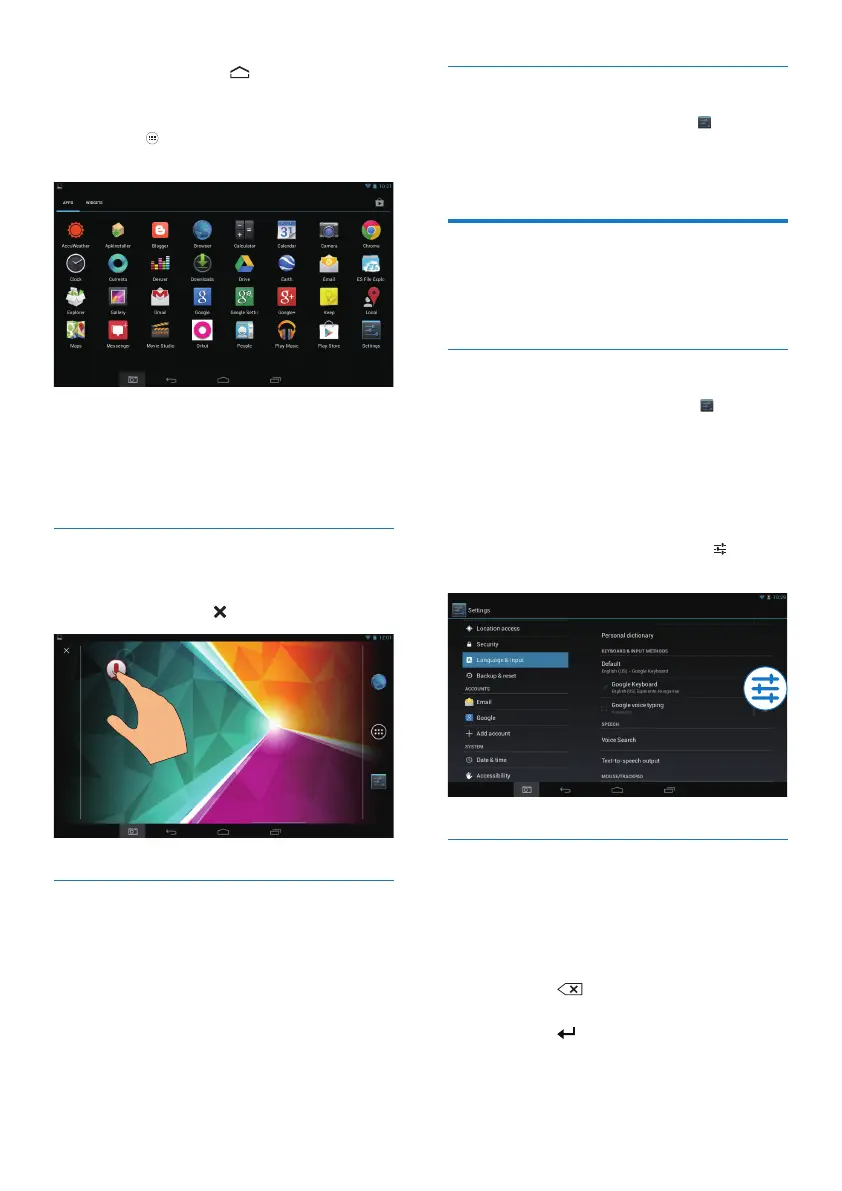
• Tap . Tap APPS or WIDGET to open
the list of apps or widgets.
2 Tap and hold an icon or widget until the
page is displayed.
» The icon or widget is added to the
selected page.
Delete items
1 Tap and hold an item to unlock.
2 Drag the item to .
Relocate items
1 Tap and hold an item to unlock.
2 Drag the item to a space on the page.
3 Release the item.
» The item moves to the space.
Add wallpapers
1 From the Home screen, go to > Display
> Wallpaper.
2 Select your options.
Text entry
With the onscreen keyboard, you can enter
text in multiple languages.
Select input methods
1 From the Home screen, select Settings
> Language & input.
2 Select your input methods:
Google Keyboard: for multiple languages
Google voice typing: for text input through
voice
3 To select your input options, tap next to
the input method.
Enter text
1 Tap the text box to show the onscreen
keyboard.
2 Tap on the keys to enter text.
To delete the entry before the cursor,
• Select .
To move to the next line,
• Select .



 To Next Page