11EN
Use the Google Keyboard
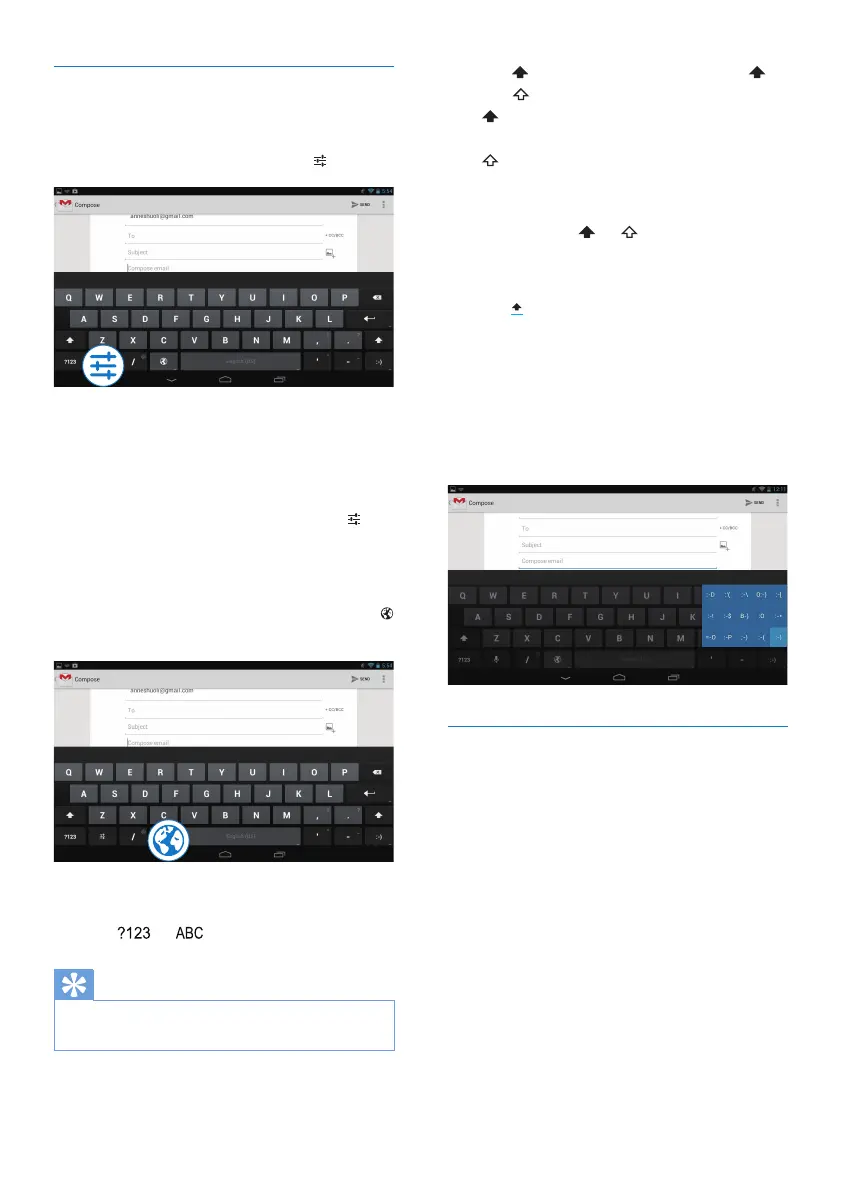
Select keyboard settings or input
languages
• On the onscreen keyboard, tap .
Switch between selected input
languages
1 Add to the option list the languages that
you often use.
a On the onscreen keyboard, tap
>Input languages.
b Tap the checkbox to select languages.
2 On the onscreen keyboard, tap and hold
to select a language.
Switch between letters and numbers/
symbols
• Tap or .
Tip
• On the numeric/symbol keyboard, tap ~\{ to switch
between numbers/symbols and more symbol choices.
Switch between upper and lower cases
• Tap repeatedly to switch between
and .
: The next letter you enter is in upper
case.
: All letters you enter are in lower case.
To switch to the input mode of all upper
cases,
1 Tap and hold or .
» The button changes to blue.
2 When a click sounds, release the button.
» is displayed.
» All letters you enter are in upper case.
Switch to other options on a button
• Tap and hold the button that is marked
with a symbol at the lower/upper right
corner.
» A pop-up screen is displayed.
Edit text
You can cut, copy, and paste the text that you
have entered.
Copy or paste the selected text
1 Tap and hold the text until the pop-screen
is displayed.
» Current word is selected, with marks
for start and end positions.
2 Drag the marks to select or change the
start/ end positions.
• Tap Select all to select all the text.



 To Next Page