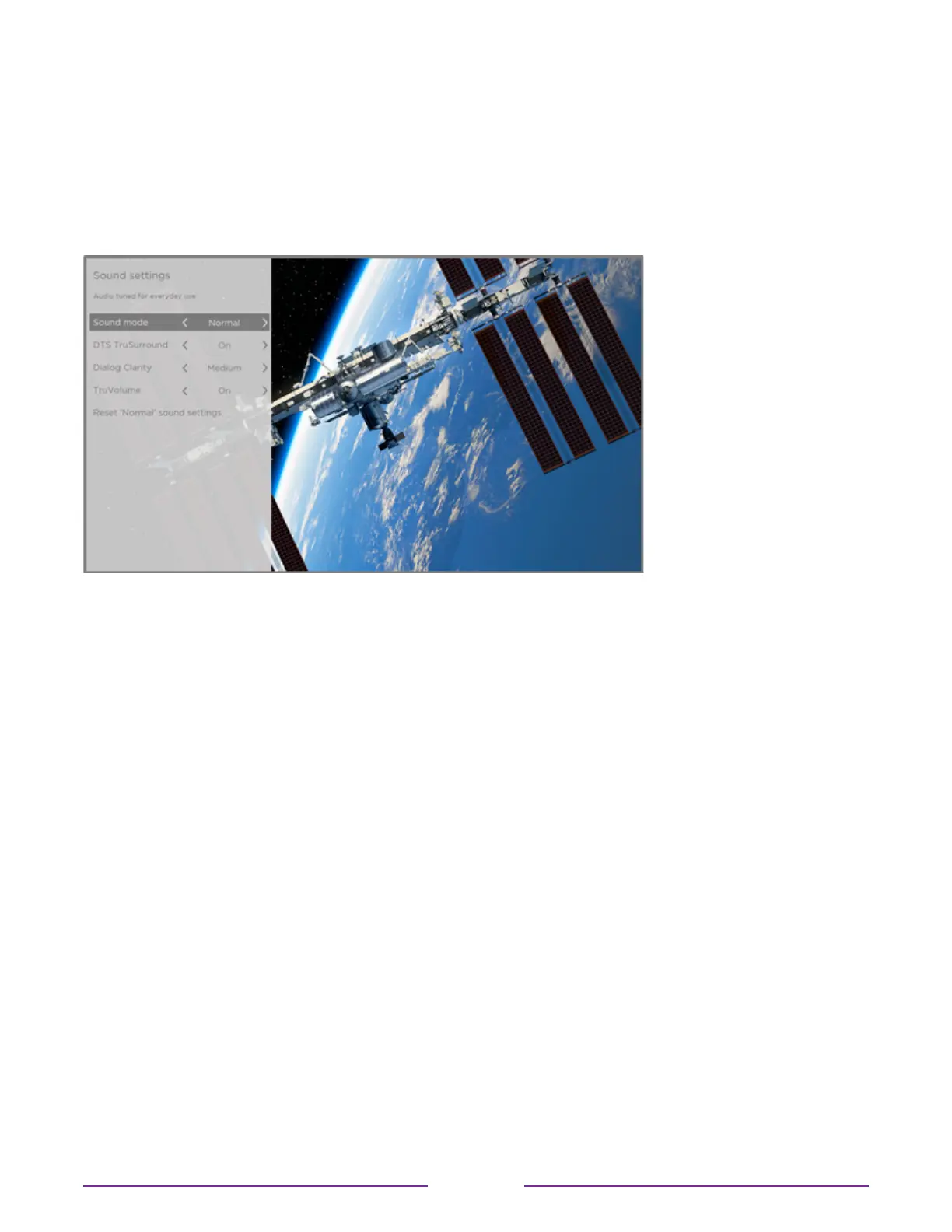
Sound settings – DTS® TruSurround / DTS® Studio Sound
(select models only)
Each TV input has separate settings for fine tuning sound quality. All of the settings in this
menu apply only to the currently-selected input. To access the DTS® settings, first press
STAR
to display the Options menu, then select Soundsettings.
Sound settings menu for models with DTS® TruSurround/Studio Sound
Tip: Some streaming channels assign STAR
to a dierent function, meaning it will not open
the Options menu. In these cases, use a dierent streaming channel to configure DTS® Studio
Sound. The selected settings remain active for all streaming channels.
Sound settings menu– DTS® TruSurround / DTS® Studio Sound
•
Soundmode – Select from among various preset sound modes to improve speech, make
music sound its best, boost bass or treble, or simulate a theater. Use Resetaudiosettings,
described below, to return the input’s current settings to their original values.
•
DTSTruSurround–Simulates surround sound that otherwise would require installation of
a surround sound audio system. Sometimes, the eect interferes with dialog clarity. Use
the Dialogclarity option to compensate.
•
DialogClarity– Available only when DTSTruSurround is On. Choose among Low,
Medium, and High settings to improve the clarity of dialog when you are using the
TruSurround feature.
•
TruVolume– Minimizes annoying volume fluctuations in programs.
•
Resetsoundsettings– Returns DTSTruSurround, DialogClarity,and
TruVolumesettings, to their default settings for the selected Soundmode.
75










 To Next Page