EasyManua.ls Logo

Philips SRP2008B/86 - Setting Up for Different Device Types; Improving Key Functionality

Philips SRP2008B/86
28 pages
Print Icon
To Next Page IconTo Next Page
To Previous Page IconTo Previous Page
Loading...
2.3.1
Setting
up
the
remote
control
for
other
devices
1
Make
sure
the
device
is
turned
on,
fully
operational
and
able
to
respond
to
remote
control
commands.
E.g.
insert
a
disc
in
the
DVD
player
/
recorder
or
a
video
cassette
in
the
VCR.
2
Then
follow
steps
2
to
6
of'Setting
up
the
remote
control
for
yourTV.
Make
sure
to
use
the
correct
device
selection
key:
©,
E9,
Q,
ED.
®
or
2.3.2
Improving
keys
When
correctly
set
up,the
remote
control
should
be
able
to
operate
all
your
devices,
However
when
using
the
remote
control
for
the
first
time
it
might
occur
that
some
keys
do
not
yet
function
as
expected.
In
this
case
you
can
have
the
remote
control
search
for
alternatives.
Note
Improving
keys
is
not
possible
when
the
code
was
found
during
full
database
search
(with
code
'9,9,9,9’),
During
initial
setup
1
Make
sure
the
receiving
device
is
able
to
respond.
Eg.when
you
try
to
repair
the
Play
key
for
your
DVD
player
make
sure
to
insert
a
DVD
into
the
DVD
player
Otherwise
the
Play
key
is
not
able
to
function,
2
Press
the
key
that
does
not
function,
keep
it
pressed
and
immediately
release
it
when
the
device
responds.
Repeat
this
for
every
key
that
does
not
function.
if
the
key
still
does
not
function
as
expected,
try
pressing
it
again
for
a
longer
period
oftime.
After
initial
setup
1
Make
sure
“^e
receiving
device
is
able
to
respond.
E.g.
when
you
try
to
repair
the
Play
key
for
your
DVD
player
make
sure
to
insert
a
DVD
into
the
DVD
player
otherwise
the
Play
key
is
not
able
to
function.
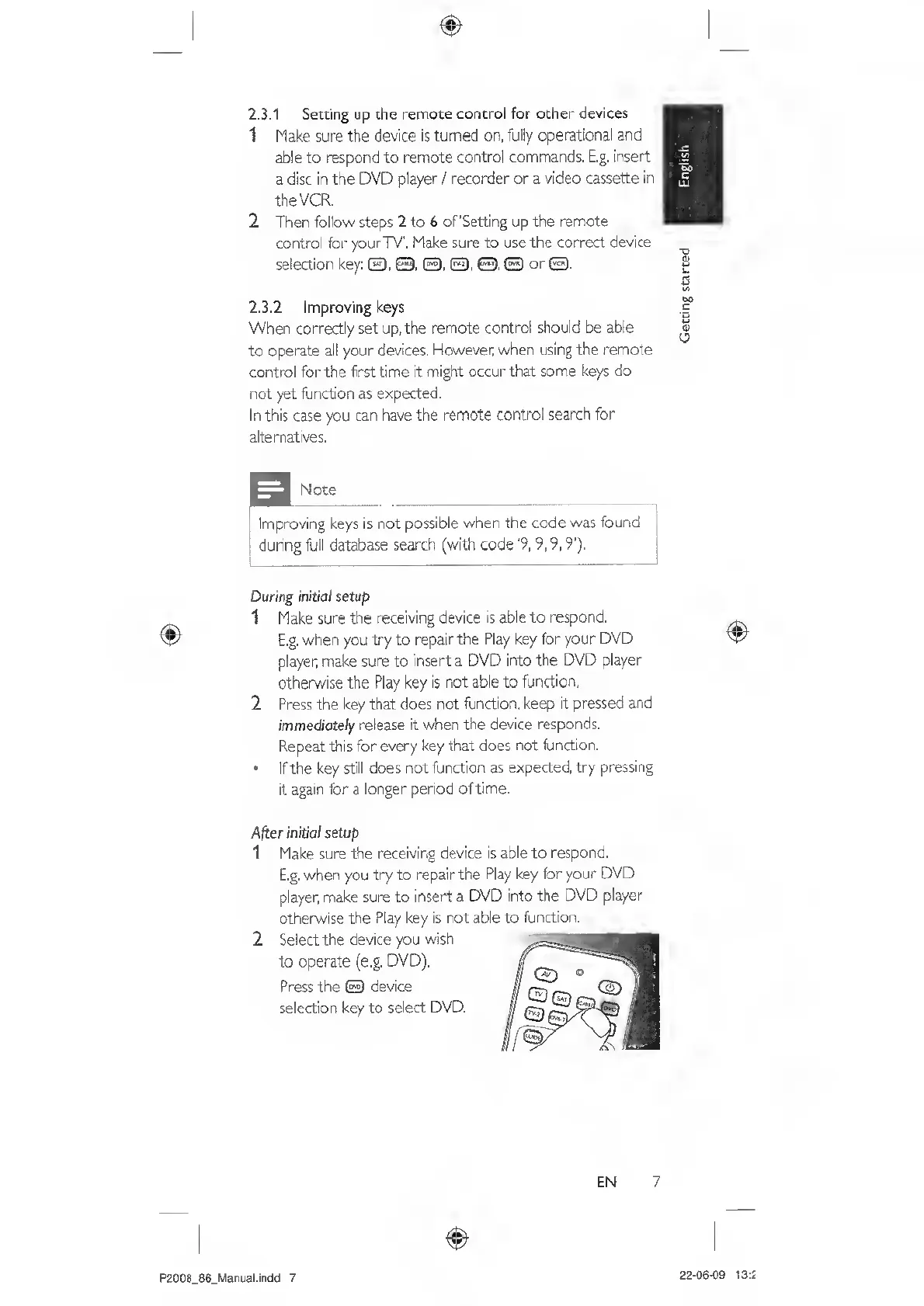
2
Select
the
device
you
wish
to
operate
(e.g.
DVD),
Press
the
®
device
selection
key
to
select
DVD.
EN
7
P2008_86_Manual.indd
7
22-06-09
13:2
Getting
started

Related product manuals