V40 109 V0.12 20040621
DDC Instructions (Continued)
22
109B6 CRT
Go to cover page
Step 6: Save DDC data
Sometimes, you may need to save DDC data as a text file for using
in other IC chip. To save DDC data, follow the steps below:
1. Click (Save) icon (or click "file"-> "save as") from the tool bar
And give a file name as shown in Fig. 25.
The file type is EDID46 file (*.ddc) which can be open in WordPad.
By using WordPad, the texts of DDC data & table (128 bytes, hex
code) can be modified. If DDC TEXTS & HEX Table are completely
correct, it can be saved as .ddc flie to re-load it into DDC IC for DDC
Data application.
2. Click .Save
Step 7: Exit DDC program
Pull down the File menu and select Exit as shown in Fig. 26.
3. Click (Write EDID) icon from the tool bar to write DDC data.
4. Confirm Serial Number in User Mode
1) Press the button to turn off the monitor. Press the button
again to turn on the monitor.
2) Press the button to bring up the OSD main menu.
3) Press the button to select Extra Controls, press the button to
confirm your selection.
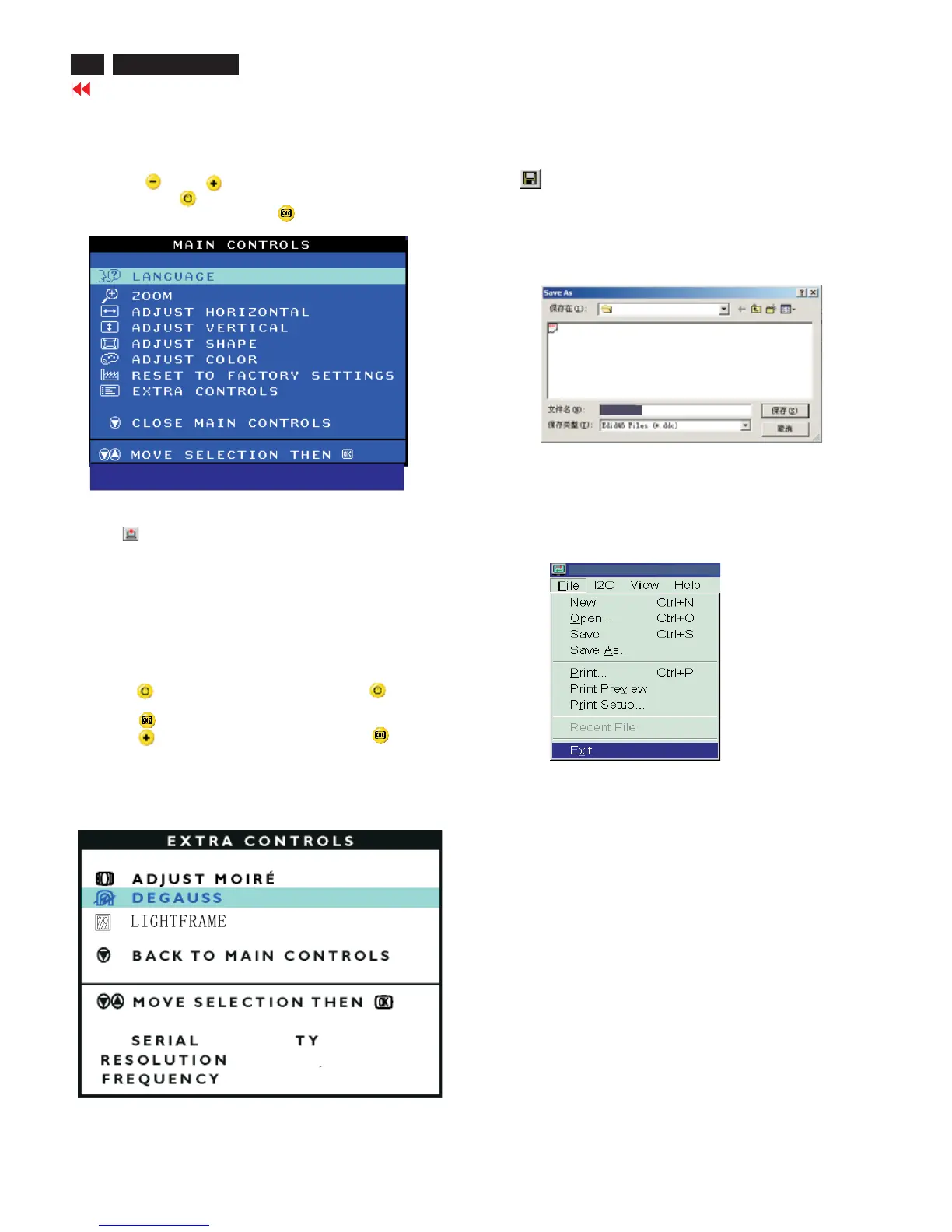
4) Confirm the Serial Number ''TY 000130'' is updated as shown in
Fig. 25.
Fig. 26
2. Access Factory Mode
2). [Push " " & " " buttons at the same time and hold it
] + [Press power " " button untill comes out "Windows screen"]
=>thenreleaseallbutton,thenpress ,waituntiltheOSDmenu
(below OSD menu) come on the Screen of the monitor (see Fig. 23).
1). Turn off monitor.
Fig. 23
000812
Fig. 25
109E-DDC
107T6-DDC
109E6
000130
NO
1280X1024
80K/75HZ








 To Next Page