FL SWITCH 2000 / FL NAT 2000
50 / 226
PHOENIX CONTACT 108997_en_04
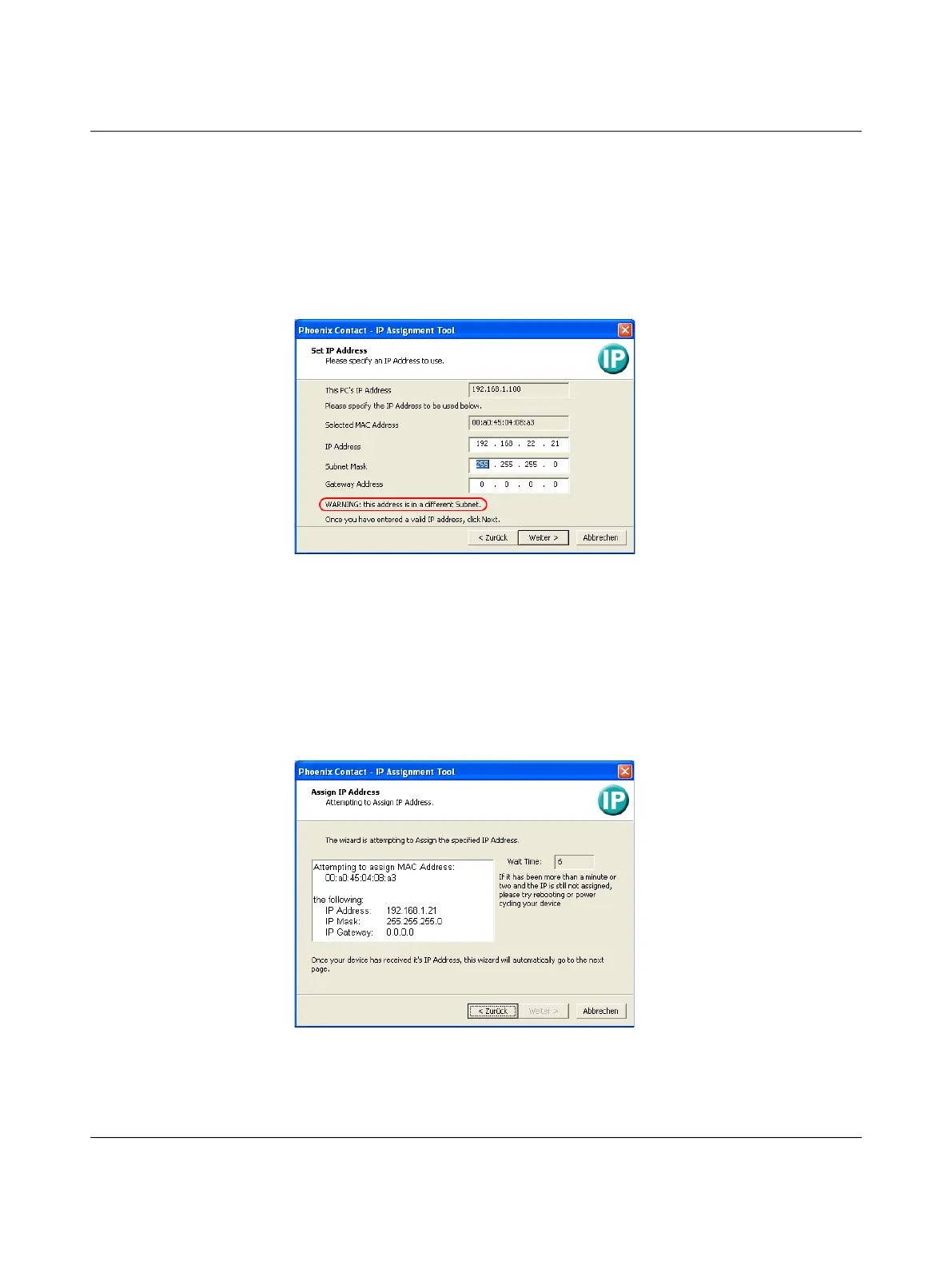
Step 4: “Set IP Address”
The following information is displayed in the window that opens:
– IP address of the PC
– MAC address of the selected device
– IP parameters of the selected device
(IP address, subnet mask, and gateway address)
– Any incorrect settings
Figure 45 “Set IP Address” window with incorrect settings
• Adjust the IP parameters according to your requirements.
If inconsistencies are no longer detected, a message appears indicating that a valid
IP address has been set.
• Click on the “Weiter” (Next) button.
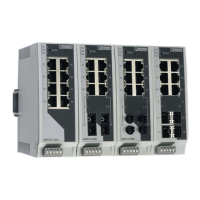
Step 5: “Assign IP Address”
The program attempts to transfer the set IP parameters to the device.
Figure 46 “Assign IP Address” window
Following successful transfer, the next window opens.



 To Next Page