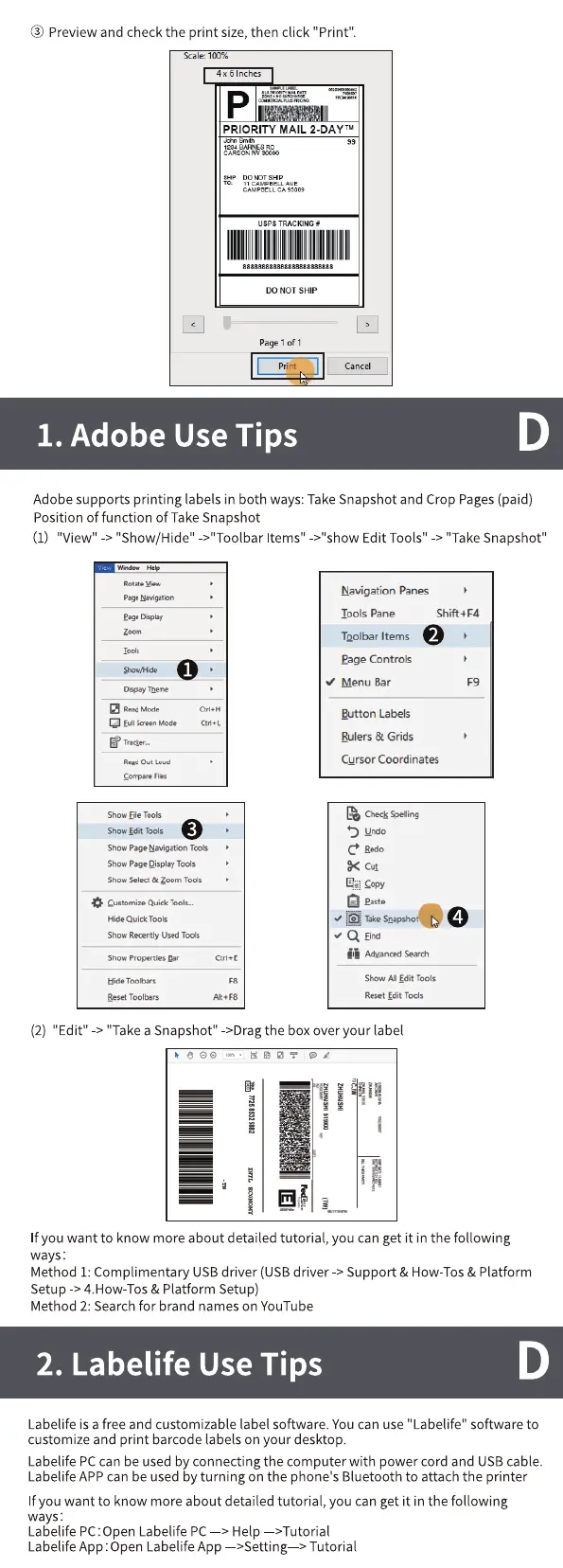
@ Previewand check the print size,then click "Print".
Scale: 100%
4 x 6 Inches
PRIORITY MAIL 2-DAYTM
1234
CARSON NV
CAMPBELL AVE
CAMPBELL CA
Lisps TRACKING
888888888888888888888888
(2) "Edit"
DO NOT SHIP
Page I of I
Print
1. Adobe Use Tips
Cancel
Adobe supports printing labels in both ways:TakeSnapshotand Crop Pages(paid)
Position of function of Take Snapshot
(1)
"View" -> "Show/Hide" ->"Toolbar Items" ->"show Edit Tools" -> "Take Snapshot"
Navigation Panes
Tools pane
TQ01barItems
Shift+F4
o
Z ReadMede
Show Eie Tools
Show
Show Navigaton TOOS
Show
Show Solet & Zoom
Customize Quid
Quick TOO'
Show R«ently used
Show
Reset
page Controls
Menu Bar
putton Labels
Rulers & Grids
Cursor Coordinates
Che« Speling
cut
Easte
Take
Q Eirc
o
Ctrl+t
Adyanced Search
SHOW
Roet
-> "Take a Snapshot" ->Drag the box over your label
f you want to know more about detailed tutorial, you canget it in the following
ways:
Method 1: Complimentary USB driver (USB driver -> Support & How-Tos & Platform
Setup -> 4.How-Tos & Platform Setup)
Method 2: Search for brand names on YouTube
2. Labelife Use Tips
Labelife is a free and customizable label software. You can use "Labelife" software to
customize and print barcode labels on your desktop.
Labelife PCcan be used by connecting the computer with power cord and USB cable.
LabelifeAPPcan be used by turning on the phone's Bluetooth to attach the printer
If you want to know more about detailed tutorial, you can get it in the following
ways:
Labelife pc:open Labelife PC—> Help —>Tutorial
Labelife App:Open Labelife App —>Setting > Tutorial


 To Next Page