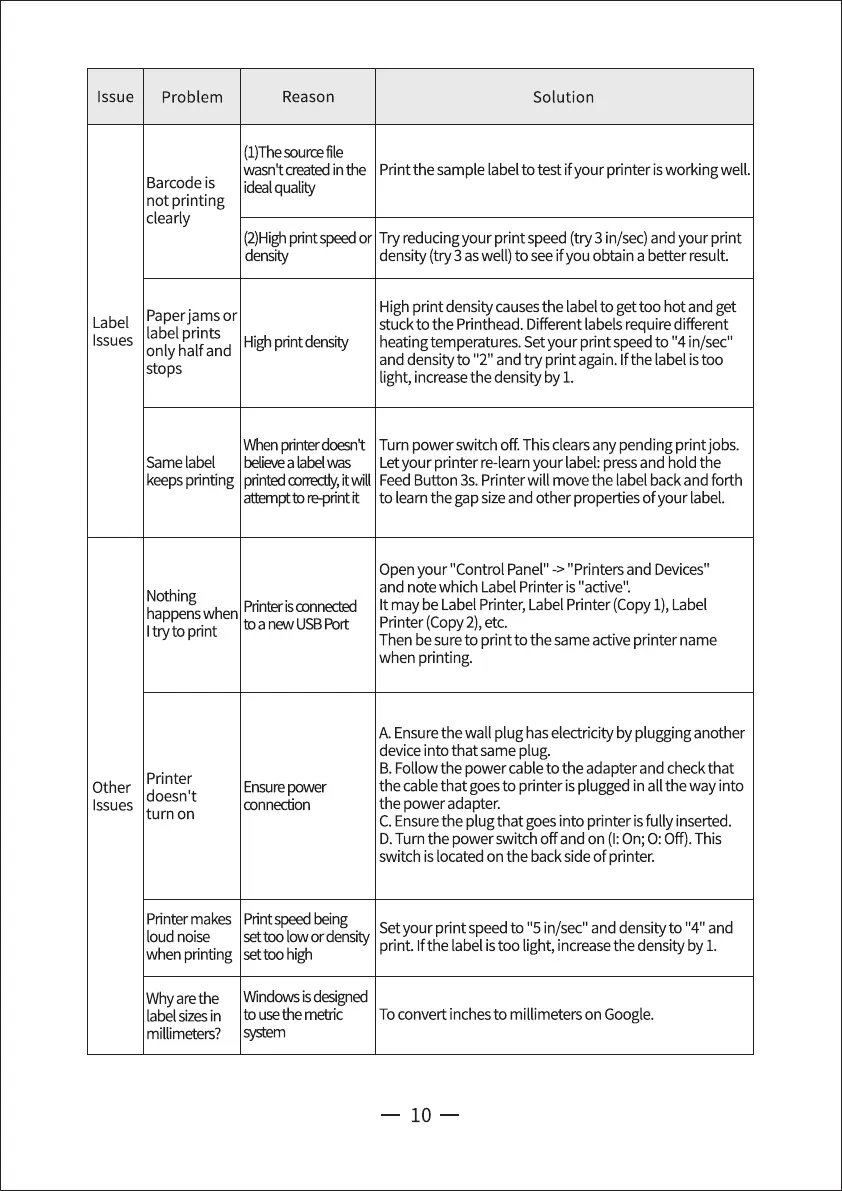
Issue
Problem
Barcode is
not printing
clearly
Reason
(1)Thesourcefile
Solution
wasntcreatedinthe Print the sample label to testifyour printer isworkingwell.
idealqualiW
(2)Highprintspeedor Try reducing your print speed (try 3 in/sec)and your print
density
Paperjams or
Label
label prints
Issues
Highprintdensity
only half and
stops
Whenprinterdoesnt
Same label believe a label was
keepsprinting printedcorrectly,itwill
attemptto reprint it
Nothing
Printer is connected
happenswhen
I try to print
Printer
Other
doesn't
Issues
turn on
Printer makes
loud noise
when printing
Whyarethe
label sizes in
millimeters?
to a new USB Port
Ensurepower
connection
Printspeedbeing
settoo low or density
settoo high
Windowsisdesigned
to use the metric
system
density (try 3 aswell) to see ifyou obtain a better result.
High print density causesthe label to get too hot and get
stuck to the Printhead. Different labelsrequire different
heatingtemperatures. Setyour print speedto "4 in/sec"
and densityto "2" and try print again.Ifthe label istoo
light, increasethe density by 1.
Turn power switch off. This clearsany pending printjobs.
Letyour printer re-learnyour label: pressand hold the
Feed Button 3s. Printer will move the label back and forth
to learnthe gapsizeand other properties ofyour label.
Open your "Control Panel" ->"Printers and Devices"
and note which Label Printer is "active".
It may be LabelPrinter,Label Printer (Copy1), Label
Printer (Copy2), etc.
Then besureto print to the same active printer name
when printing.
A. Ensurethe wall plug has electricity by plugging another
device into that same plug.
B.Follow the power cableto the adapter and checkthat
the cable that goesto printer is plugged in all the way into
the power adapter.
C.Ensurethe plug that goesinto printer isfully inserted.
D.Turn the power switch off and on (I:On;O:Off). This
switch is located on the back sideof printer.
Setyour print speedto "5 in/sec" and densityto "4" and
print. Ifthe labelistoo light, increasethe density by 1.
To convert inchesto millimeters on Google.
10


 To Next Page
 Loading...