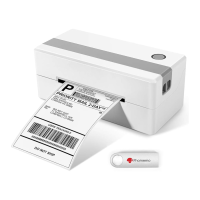
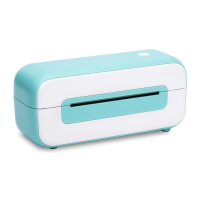
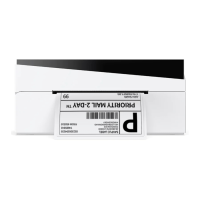
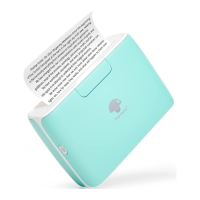
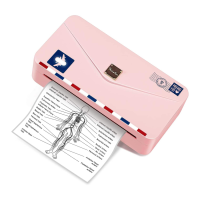
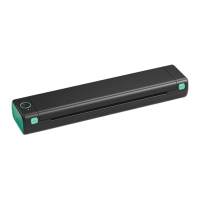
The Phomemo PM246S is a thermal label printer designed for various operating systems, offering a quick and efficient solution for printing labels. This quick start guide provides comprehensive instructions for setup, installation, and basic operation, ensuring users can maximize the printer's capabilities.
Function Description:
The Phomemo PM246S is a direct thermal label printer that allows users to print labels from their computer or Chromebook. It is compatible with a wide range of label types, including direct thermal labels and thermal continuous labels. The printer is designed for ease of use, with features like automatic label identification and a dedicated label editor called "Labelife" for customizing labels and cropping PDF files. The device is suitable for both personal and professional use, capable of handling various labeling tasks efficiently.
Important Technical Specifications:
- Printing method: Thermal
- Resolution: 203 DPI
- Max printing speed: 150mm/s
- Label width: 1.57"x4.7"
- Label thickness: 0.08~0.2mm
- Connection: USB
- Input voltage: 100~240V
- Power adaptor: 24V/2A
- Support Paper: Direct thermal labels, Thermal continuous labels
- Support operating system: Windows (x86/x64/arm), macOS, Linux (Ubuntu/CentOS), ChromeOS
- Printing life: About 1,000,000 labels
Usage Features:
- Easy Power On: The printer connects to power via an adapter and cable. Users are advised to switch the power to 'O' (OFF) before connecting the power cable and then turn on the printer.
- Label Feeding: To feed labels, open the printer cover and insert the label with the printing side facing up. Close the cover, and the printer will automatically catch the label.
- Automatic Label Identification: Press and hold the FEED button (on the top cover) until the blue light blinks twice, then release it. The printer will automatically identify the label type and size.
- Self-Test Page: To print a self-test page, press and hold the FEED button until the blue light blinks once, then release it. This helps verify print clarity and correctness.
- Computer Connectivity: The printer connects to a computer via a USB cable. Users should connect the USB cable to both the printer and the computer, then turn on the printer.
- Driver Installation:
- Windows: Drivers are fully compatible with Windows computers, including those with ARM processors. Users can obtain the driver from the included USB disk or download the latest version from the Phomemo website (https://phomemo.com/pages/download-center-pm-246s-new). The installation process is guided by prompts.
- Mac: Similar to Windows, Mac users can install drivers from the USB disk or the Phomemo website. The installation wizard guides users through the process.
- ChromeOS: Installation for ChromeOS involves adding the "Labelife" extension from the Chrome Web Store. After installation, users connect the printer to Chrome, select "PM246S," and pair it.
- Label Editor (Labelife): Phomemo provides a free application called "Labelife" for customizing labels. It offers editor tools and PDF cropping functionalities. The application can be installed from https://labelife.itaricartridge.com. Users can customize new labels within the Labelife interface.
- Printer Preference Setup:
- Windows: Users can set paper size by navigating to Settings > Devices > Printers & Scanners, then managing "Phomemo PM-246S" and accessing "Printing preferences." From there, they can go to "Page Setup" to create new page dimensions. Printing darkness and speed can also be adjusted under the "Option" tab in printing preferences.
- Mac: When ready to print, users can click "Show Details" to access printer settings. Under "Paper Size," they can manage custom sizes or set specific paper dimensions. Printer speed and darkness can be adjusted in the "Printer Features" section.
Maintenance Features:
- Firmware Updates: To ensure optimal performance, it is recommended to keep the printer's firmware updated. This can be done through the Labelife application by navigating to "Help" > "Firmware updates." The application will check for and install the latest updates.
- Technical Support: Phomemo emphasizes customer support. Users can contact the technical team via phone (+1 855 957 5321), website (www.phomemo.com), email (support@phomemo.com), WhatsApp (+86 139 2808 8284), or YouTube channel (https://www.youtube.com/channel/UC5t52R9QarUIICgo9FfxgtQ). A QR code is also provided for WhatsApp communication.
- Accessory Replacement: In case of missing accessories, users are advised to contact customer support for assistance. If the self-test page print is unclear or incorrect, a new replacement service is offered.

 Need help?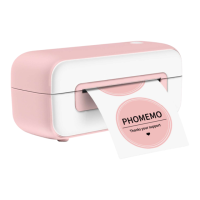

 To Next Page
 General