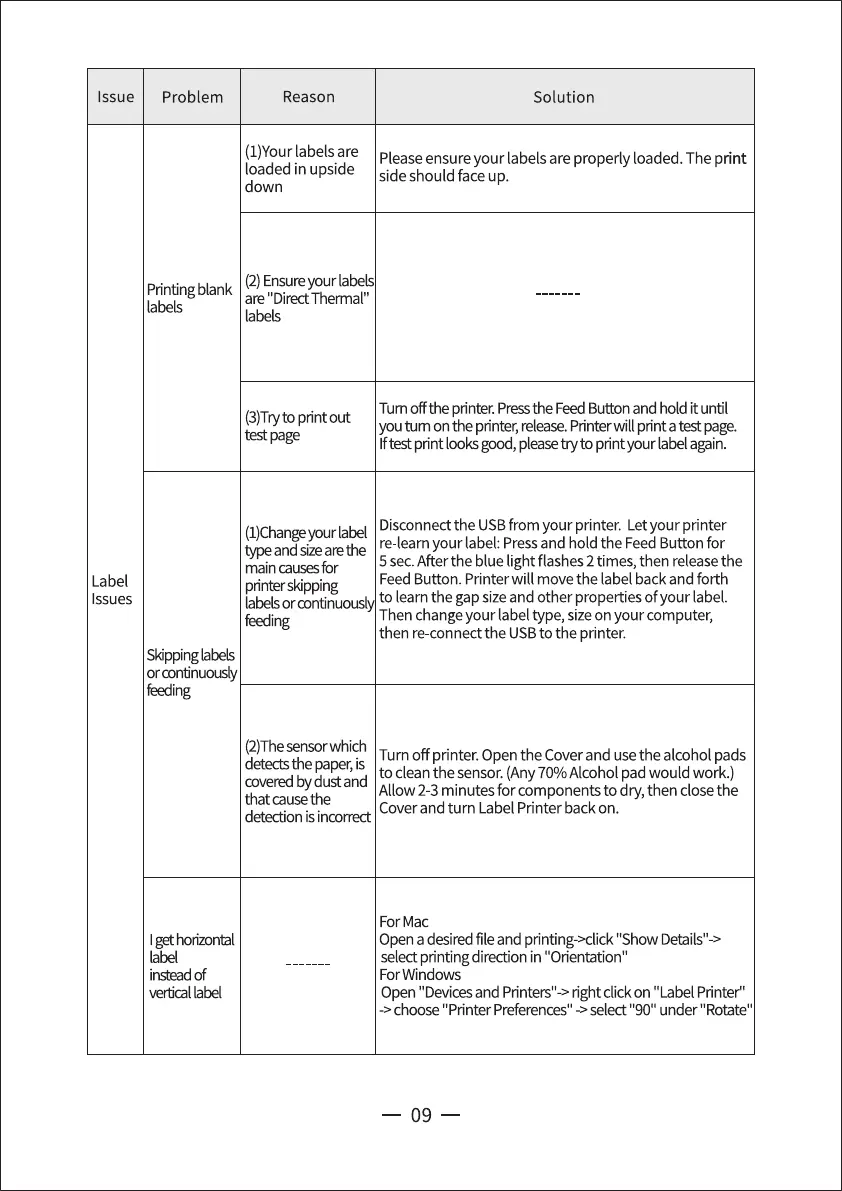
Issue
Problem
Reason
(1)Yourlabels are
loaded in upside
down
(2)Ensureyour labels
Printingblank
are "Direct Thermal"
labels
Label
Issues
labels
(3)Trytoprint out
test page
(1)Changeyourlabel
ype andsizearethe
main causes for
printerskipping
labels or continuousl
feeding
Skippinglabels
or continuously
feeding
(2)Thesensorwhich
deteds the paper,is
coveredby dust and
that cause the
detection is incorrect
Igethorizot%l
label
instead of
vertical label
Solution
Pleaseensure your labels are properly loaded. The print
side should face up.
Turnoff the printer.Pressthe FeedButton and hold it until
youtum on the printer,release.Printerwill printa testpage.
Iftestprint looksgood, pleasetry to pnntyour labelagain.
Disconnectthe USBfrom your printer. Letyour printer
re learn your label: Pressand hold the FeedButton for
5 sec.After the blue light flashes2 times, then releasethe
Feed Button. Printer will move the label back and forth
to learn the gap sizeand other properties ofyour label.
Then change your labeltype, sizeon your computer,
then re-connectthe USBto the printer.
Turn off printer. Openthe Coverand usethe alcohol pads
to clean the sensor.(Any70% Alcohol pad would work.)
Allow 2-3 minutes for components to dry, then closethe
Cover and turn Label Printer back on.
For Mac
Opena desiredfile and printing->click "ShowDetails"->
selectprinting direction in "Orientation"
For Windows
Open"Devicesand Printers"->right clickon "Label Printer"
-> choose "Printer Preferences" -> select "90" under "Rotate"
09


 To Next Page