13. Signal Generator Icon – The currently
selected signal will be represented in this icon,
whether it be a sine wave, triangle wave, sweep,
etc. Push this icon to access the signal genera
-
tor setup menu.
14. Signal Generator Frequency – This op
-
tion allows users to adjust the frequency of
the outgoing signal between 20 Hz and 20
kHz without having to enter the signal genera
-
tor setup. When using the sweep signal, this
area will give a real-time update on the current
frequency being sent from the signal generator
output. When white noise or pink noise are
selected, the currently selected ‘lter mode’ will
be indicated here – whether it’s at, 1/3 octave
or 1 octave.
15. Signal Generator Level – As with the above
option, users can adjust the signal generator’s
output signal level without entering the signal
generator setup menu. The signal level can be
adjusted between 4 dBu and -40 dBu for all of
the built-in signals.
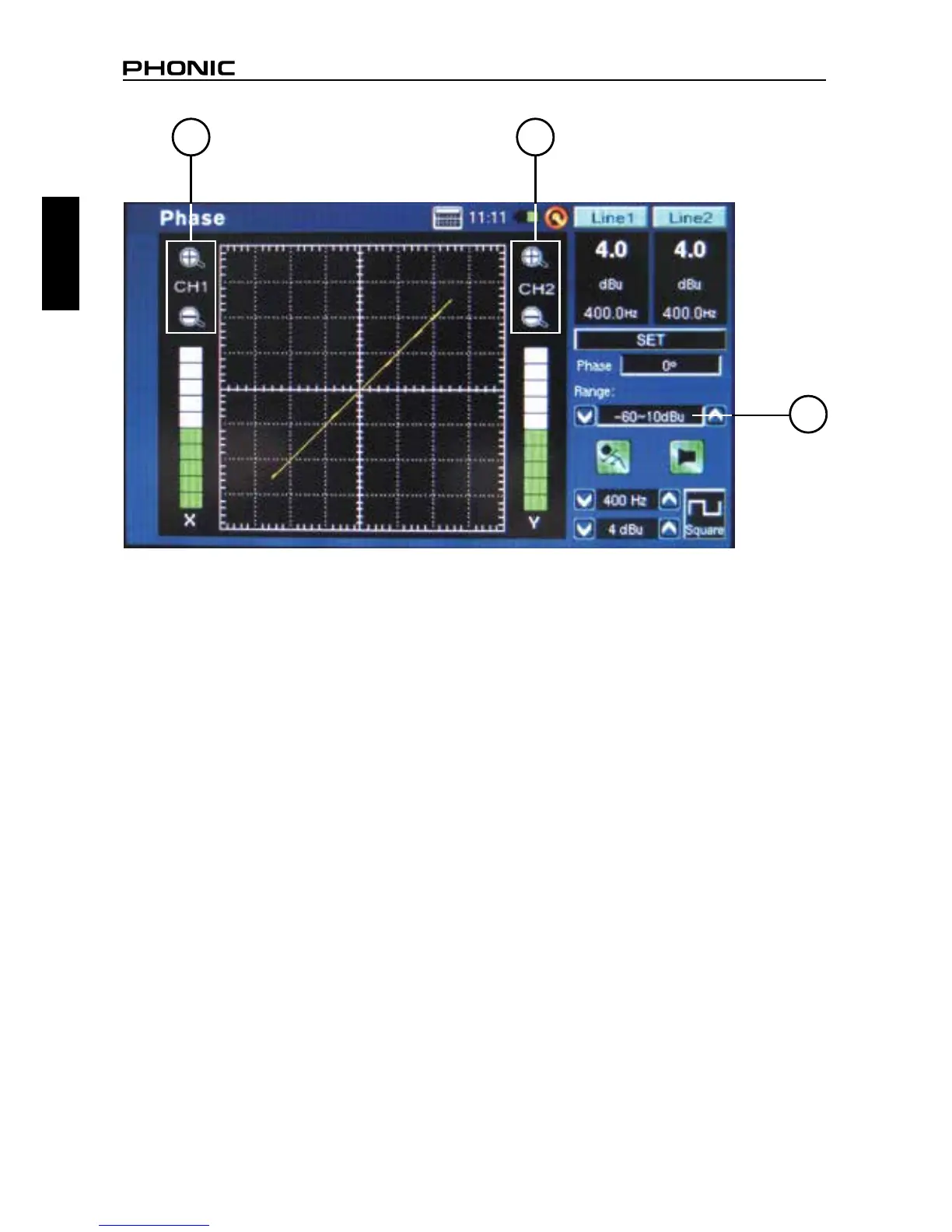
16. Zoom Icons – Featured on functions like
Phase and Scope, these + and – icons will allow
users to zoom in and out on their current results.
In the case of the Phase meter, these icons will
allow users to zoom in on the X and Y axis of
the accompanying graph.
17. Range Level – Featured on the Phase,
Scope and Polarity functions, the range allows
users to switch between a variety of dB SPL,
dBu, dBV and Voltage ranges, depending which
unit is currently selected.
16 16
17


 To Next Page