Setup 8
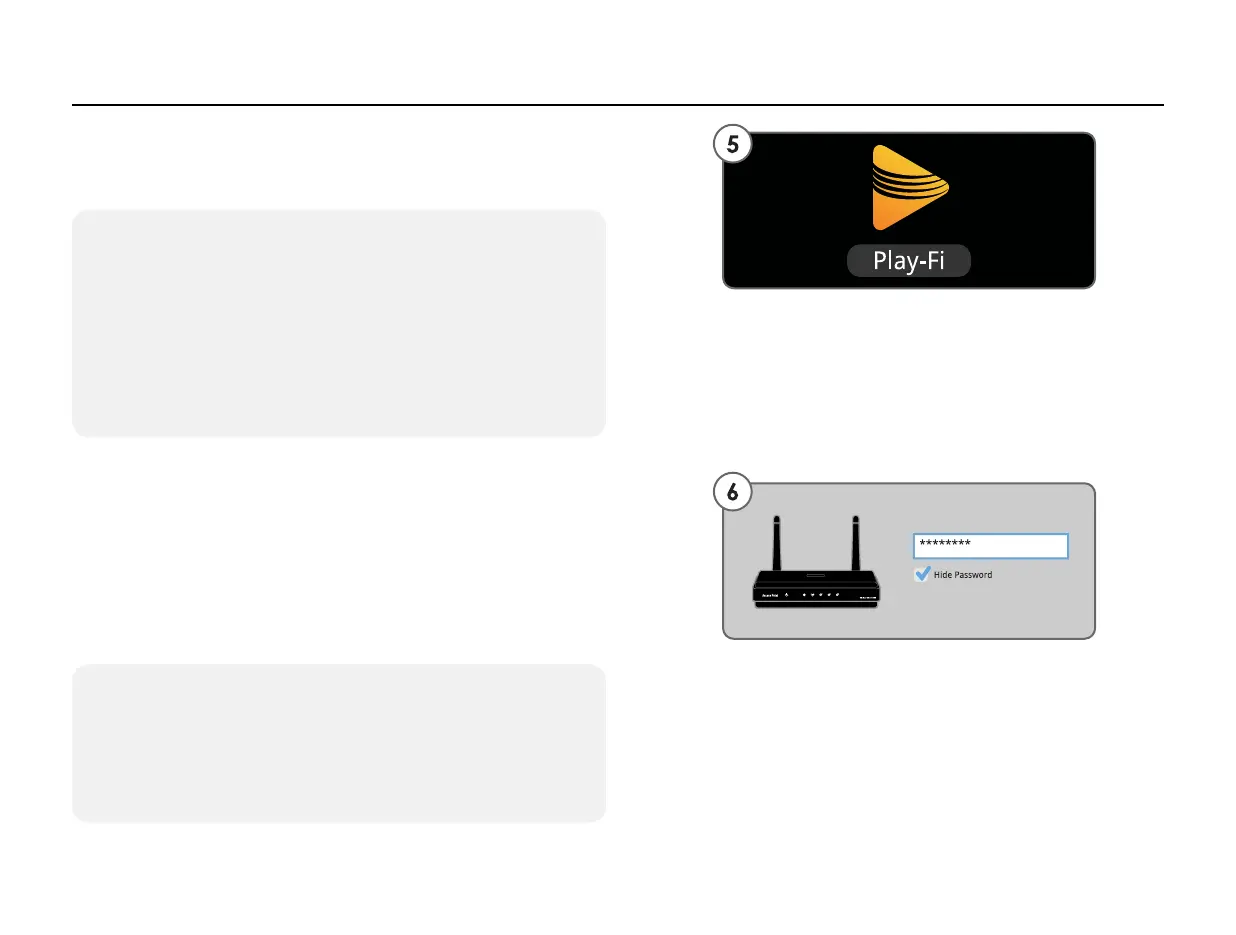
5. Launch the Play-Fi App and it will detect any
PS1 Speakers in Standard Wi-Fi Setup Mode.
6. The Play-Fi App will ask you to enter your
Wi-Fi network’s password (if required). After
connecting, your PS1 Speaker may perform a
software update. This may take several minutes.
Do not unplug your Speaker, turn off your Android
device, or leave the network during the update.
- Continued on next page
Standard Wi-Fi Setup - Steps 5-6
Manually Enabling the Speaker’s Wi-Fi Setup Mode
If this is not your rst time setting up, if you’re in a new
location, or if you want to change from one network
to another, hold down the Wi-Fi button on the PS1
Speaker for 8 seconds. You will hear one chime and
then a second chime. When you hear the second
chime release the button. The Wi-Fi light will begin
pulsing indicating that Wi-Fi Setup Mode is active.
Alternative Network
If you want to set up a PS1 Speaker to connect to a
network other than the one you’re currently connected
to, press the Alternative Network button on the Enter
Network Password screen.


 To Next Page