Displaying the “AV System
Settings” screen
1 Press the HOME button to display the
“Top Menu” screen.
2 Touch [Settings].
The “Settings Menu” screen appears.
3 Touch [AV Settings].
The “AV System Settings” menu appears.
4 Touch the item that you want to
change the setting.
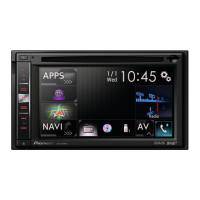
AVIC-F20BT
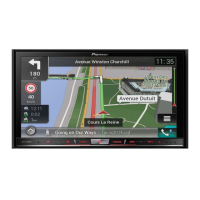
AVIC-F920BT, AVIC-F9210BT, AVIC-F9220BT
p You can only adjust “Wide Mode” when se-
lecting an AV source with video.
# Touch
.
Returns the previous screen.
Setting video input 1 (AV1)
You can switch this setting according to the
connected component.
p This setting applies to mini-jack input.
1 Display the “AV System Settings”
screen.
= For details, refer to Displaying the “AV Sys-
tem Settings” screen on this page.
2 Touch [AV1 Input].
Each touch of [AV1 Input] changes the set-
ting as follows:
! iPod: iPod connected with the USB Inter-
face cable for iPod (CD-IU50V)
! Video: External video component
! Off: No video component is connected.
p Use AV1 Input when connecting CD-IU50V
(sold separately) through the external video
component.
Setting video input 2 (AV2)
You can switch this setting according to the
connected component.
p This setting applies to RCA inputs
(AUDIO INPUT and VIDEO INPUT) on the
back of the system.
1 Display the “AV System Settings”
screen.
= For details, refer to Displaying the “AV Sys-
tem Settings” screen on this page.
Engb
144
Chapter
27
Customising preferences



 To Next Page
 Loading...