Controlling the rest of your system 03
15
En
English
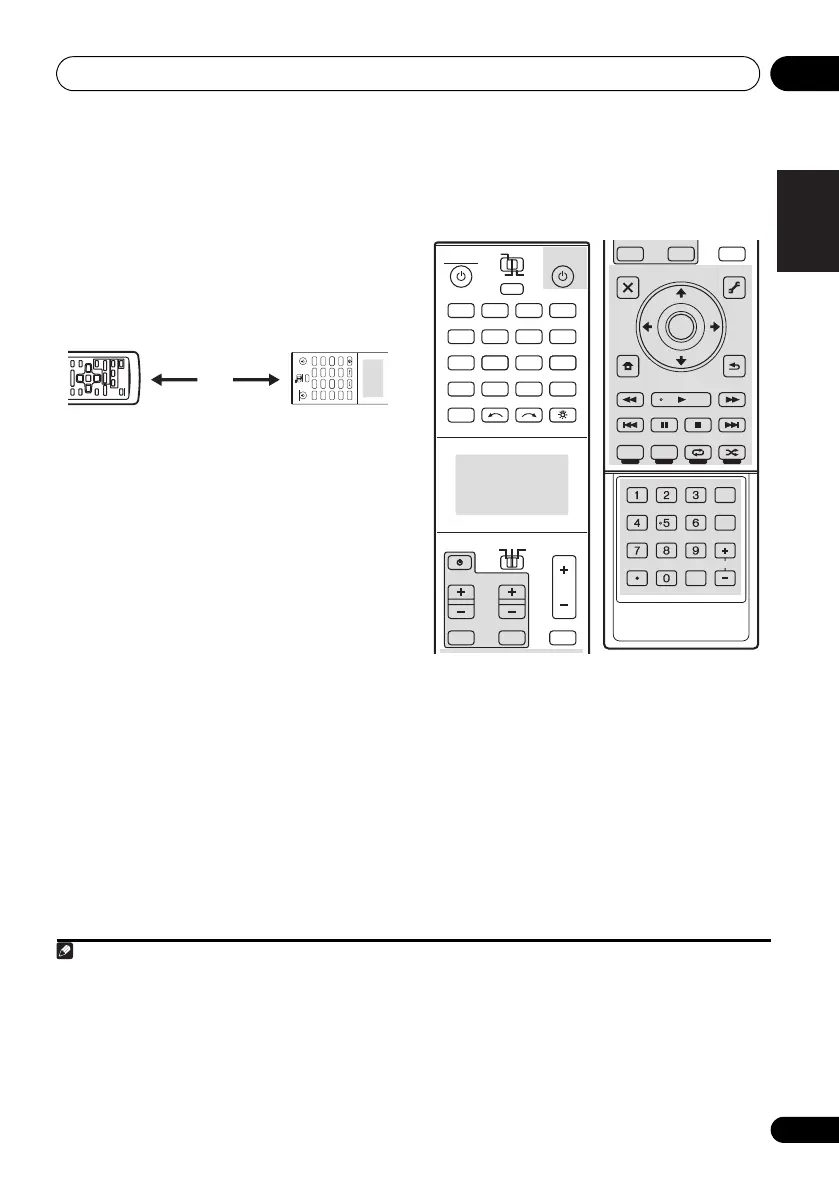
4 Point the two remote controls towards
each other, then press the button that will be
doing the learning on this receiver’s remote
control.
PRESS KEY lights continuously to indicate the
remote is ready to accept a signal.
• The remote controls should be 3 cm
(1 inch) apart.
5 Press the corresponding button on the
other remote control that is sending
(teaching) the signal to this receiver’s remote
control.
For example, if you want to learn the playback
control signal, press and hold briefly. The
remote display will shows OK if the operation
has been learned.
1
If for some reasons the operation hasn’t been
learned the remote display shows ERROR
briefly, and then display PRESS KEY again. If
this happens, keep pressing the (teaching)
button as you vary the distance between the
two remotes, until the remote display shows
OK.
2
Certain buttons represent operations that
cannot be learned from other remote controls.
The buttons available are shown below:
6 To program additional signals for the
current component repeat steps 4 and 5.
To program signals for another component,
exit and repeat steps 1 through 5.
7 Press and hold
MULTI OPERATION
for a
couple of seconds to exit and store the
operation(s).
Note
1 Note that interference from TVs or other devices will sometimes result in the remote control learning the wrong signal.
2 • Some commands from other remote controls cannot be learned, but in most cases the remotes just need to be
moved closer together or farther apart.
• If the remote display shows MEMORY FULL, it means the memory is full. See Erasing one of the remote control
button settings on page 16 to erase a programmed button you’re not using to free up more memory (note that some
signals may take more memory than others).
• Depending on the type of command that has been learned, operation may not be possible with RF two-way
communications. In this case, operate using IR signal transmission. For instructions on switching between the IR and
RF modes, see Operating other components by RF communications on page 7.
DVD
RECEIVER SOURCE
MAIN
MULTI
OPERATION
ZONE2 3
iPod
USB
OPTION
MULTI CH
ADAPTER
NET RADIO
INPUT SELECT LIGHT
CD
PHONO
AUX
VIDEO
CD-R
IN
TUNER
HMG
BD
TV
HDMIDVR
BDR
12
3 cm (1 inch)
DVD
RECEIVER SOURCE
MAIN
MULTI
OPERATION
ZONE2
SOURCE
TV
RECEIVER
3
iPod
USB
OPTION
MULTI CH
ADAPTER
NET RADIO
INPUT SELECT LIGHT
CD
PHONO
AUX
INPUT MUTE MUTE
VOL
VOL
TV CONTROL
CH
VIDEO
CD-R
IN
TUNER
HMG
BD
TV
HDMIDVR
BDR
12
AUDIO
PARAMETER
TOP MENU
BAND
iPod CTRL PTY SEARCH
CATEGORY
LIST
TOOLS
HOME
MENU
STATUS
THX PQLSMPX MEMORY
PHASE CTRL CH LEVEL
T.EDIT
GUIDE
VIDEO
PARAMETER
INPUT MUTE
TUNE
TUNE
PRESET PRESET
MUTE
PGM MENU
STEREO
SIGNAL SEL SLEEP AUDIO
INFO
DIMMER
A.ATT
CLR
SBch MCACC
HDMI OUT
D.ACCESS
ENTER
CLASS
DISP
CH
AUTO/ALC/
DIRECT
STANDARD ADV SURR
ENTER
RETURN
CU-RF100.book Page 15 Wednesday, March 17, 2010 6:13 PM


 To Next Page