Controlling the rest of your system 03
17
En
English
3 Press the input function button of the
component for which you want to check the
preset code, then press
ENTER
.
The brand name and preset code appears in
the display for three seconds.
Renaming input function names
manually
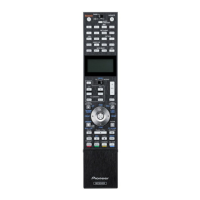
You can customize the names that appear on
the remote display when you select an input
function (for example, you could change the
name of DVR/BDR to DVR-LX61).
1 While pressing
MULTI OPERATION
, press
HOME MENU
.
The remote display shows SETUP MENU.
2Use
/
to select ‘
RENAME
’
,
then press
ENTER
.
The remote display prompts you for the button
of the input function you want to rename.
3 Press the input function button you want
to rename then press
ENTER
.
1
4Use
/
to select ‘
NAME EDIT
’, then
press
ENTER
.
To reset the button to its original (default)
name, select NAME RESET above.
5 Edit the name of the input function in the
remote control display, pressing
ENTER
when
you’re finished.
Use / to change the character and /
to move forward/back a position. The name can
be up to 14 characters.
Direct function
•Default setting: ON
You can use the direct function feature to
control one component using the remote
control while at the same time, using your
receiver to playback a different component.
This could let you, for example, use the remote
control to set up and listen to a CD on the
receiver, and then use the remote control to
rewind a tape in your VCR while you continue
to listen to your CD player.
When direct function is on, any component you
select (using the input function buttons) will be
selected by both the receiver and the remote
control. When you turn direct function off, you
can operate the remote control without
affecting the receiver.
1 While pressing
MULTI OPERATION
, press
HOME MENU
.
The remote display shows SETUP MENU.
2Use
/
to select ‘
DIRECT FUNC
’
,
then
press
ENTER
.
The remote display prompts you for the button
of the input function you want to control.
3 Press the input function button for the
component you want to control, then press
ENTER
.
2
4Use
/
to switch direct function
ON
or
OFF
, then press
ENTER
.
The remote display shows OK to confirm the
setting.
Multi Operation and System Off
The Multi Operation feature allows you to
program a series of up to 6 commands for the
components in your system. For example, you
could turn on your TV, turn on your DVD player
and start playing the loaded DVD using only
two buttons on the remote control.
Note
1The TV CONTROL name can be changed when the remote control operation selector switch is switched to TV. To
change the names of the input functions, set the remote control operation selector switch to SOURCE.
2 You can’t use direct function TUNER, HMG NET RADIO, ADAPTER PORT and iPod USB.
CU-RF100.book Page 17 Wednesday, March 17, 2010 6:13 PM


 To Next Page