Controlling the rest of your system03
14
En
Selecting preset codes directly
1 While pressing
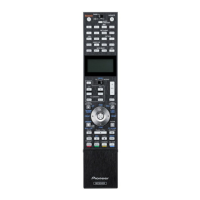
MULTI OPERATION
, press
HOME MENU
.
The remote display shows SETUP MENU.
2Use
/
to select ‘
PRESET RECALL
’, then
press
ENTER
.
3 Press the input function button for the
component you want to control, then press
ENTER
.
When assigning preset codes to TV CONTROL,
set the remote control operation selector
switch to TV here.
The remote display shows the component you
want to control (for example DVD or TV).
1
4Use
/
to select the first letter of the
brand name of your component, then press
ENTER
.
This should be the manufacturer’s name (for
example, P for Pioneer).
5Use
/
to select the manufacturer’s
name from the list, then press
ENTER
.
6Use
/
to select the proper code from
the list, then try using this remote with your
component.
The code should start with the component type
(for example, DVD 020). If there is more than
one, start with the first one.
2
To try out the remote control, switch the
component on or off (into standby) by pressing
SOURCE. If it doesn’t seem to work, select
the next code from the list (if there is one).
• If you can’t find or properly enter a preset
code, you can still teach the remote
individual commands from another remote
control (see Programming signals from
other remote controls below).
7 If your component is controlled
successfully, press
ENTER
to confirm.
The remote display shows OK.
Programming signals from other
remote controls
If the preset code for your component is not
available, or the available preset codes do not
operate correctly, you can program signals
from the remote control of another component.
This can also be used to program additional
operations (buttons not covered in the presets)
after assigning a preset code.
3
1 While pressing
MULTI OPERATION
, press
HOME MENU
.
The remote display shows SETUP MENU.
2Use
/
to select ‘
CODE LEARNING
’,
then press
ENTER
.
The remote display prompts you for the
component you want to control (for example
DVD or TV).
3 Press the input function button for the
component you want to control, then press
ENTER
.
PRESS KEY blinks in the remote display.
4
Note
1 You can’t assign TUNER, HMG NET RADIO, ADAPTER PORT and iPod USB. Preset codes can be assigned to the
OPTION 1 and OPTION 2 buttons. U.S. and Canadian models only: Note, however, that Sirius is pre-assigned to
OPTION 1, XM to OPTION 2, and if other preset codes are assigned, Sirius and XM operations can no longer be
performed. If you accidentally assign other codes to one of these buttons, it is possible to reset that button only (see
Resetting the input assignment of one of the input function buttons on page 16).
2 • When using a Pioneer HDD recorder, please select PIONEER DVR 450, 451 or 452.
• When using a Pioneer flat panel TV released prior to summer 2005, please select preset code 644.
3 The remote can store about 200 preset codes (this has been tested with codes of Pioneer format only).
4 • You can’t assign TUNER, HMG NET RADIO, ADAPTER PORT and iPod USB.
• The TV CONTROL buttons (TV, TV VOL +/–, TV CH +/–, MUTE and INPUT) can only be learned after the operation
selection switch is set to TV.
CU-RF100.book Page 14 Wednesday, March 17, 2010 6:13 PM


 To Next Page