Network Settings
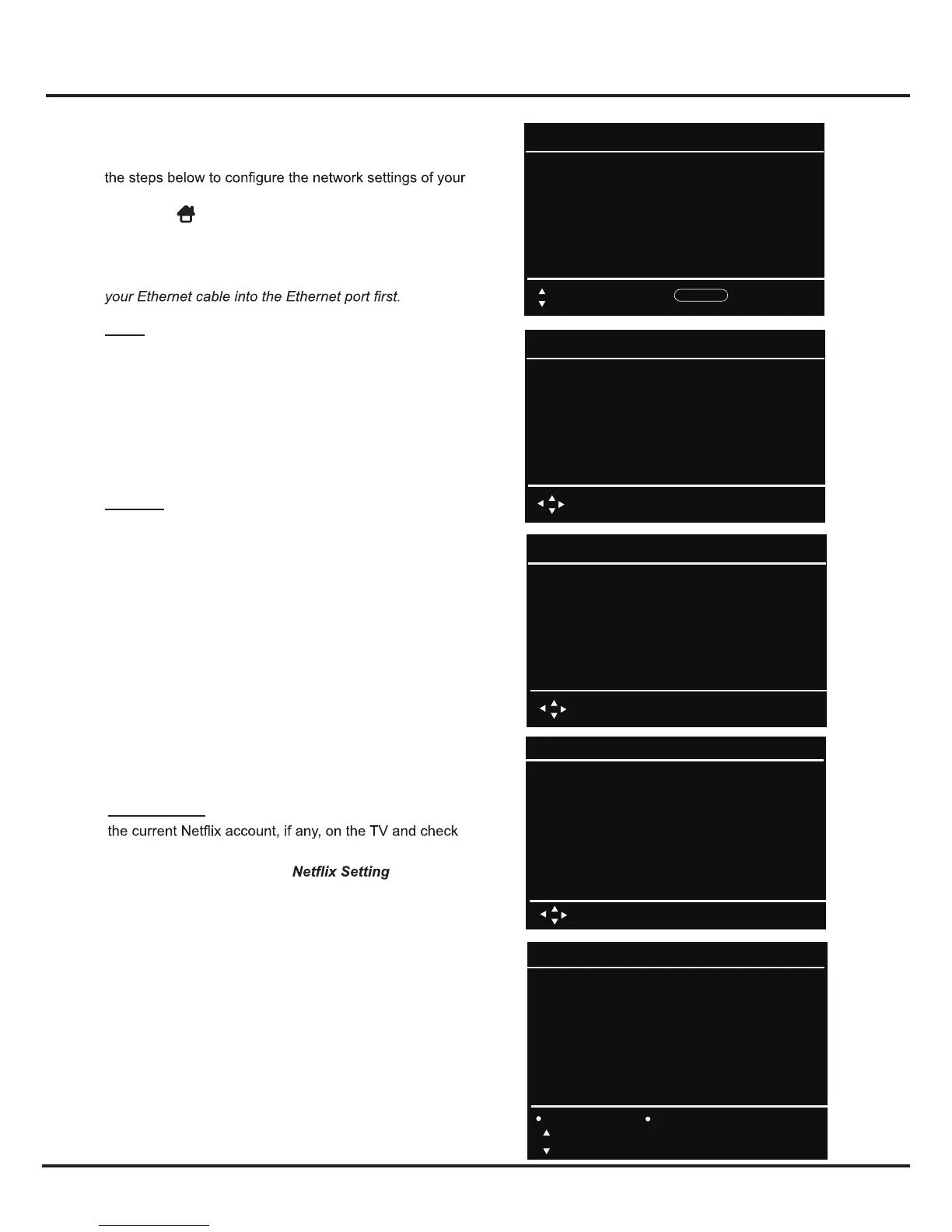
After you connect your home network to the TV, follow
TV.
Press the
button on the remote and then
select TV > Settings > Network. Your TV set supports
both wired and wireless network connection.
Note: For wired network connection, you need to insert
Wired: Press OK to enter. You can set IP address either
DHCP or Static.
- Set IP Address DHCP: Press OK to get the
IP address.
- Set IP Address Static
: Press OK to enter and
then input info about IP, NetMask,
Gateway
, and
DNS.
input characters, press ▲/▼/◄/► to select numbers,
and press Return after choose.
.
Wireless
: Press OK to enter. You can search for all
available wireless networks and select one from them,
or manually input info about the SSID of your network.
You can also check the status of your wireless network.
- Wireless On
: Choose Bass station
to search for
After the searching is complete, select an accessible
wireless network to connect. For some wireless
network, you need to input the right password to
access.
- Wireless input: Choose Bass station to enter and then
press ▲/▼ to choose other (Hidden Wireless)
-
Wireless Status
: Press OK to display the info about the
status of your wireless network.
Netflix Setting: Press OK to enter. You can deactivate
the ESN (electronic serial number) of this TV set.
Note: For some models, the
option is
not available.
- Deactivate: Press OK to enter, press ◄/► and then
press OK to deactivate the current Netflix account on
the TV.
Connections and Setup
10
Network
Wired
Wireless
Select
Return
Configuration:DHCP
IP 0.0.0.0
Netmask 0.0.0.0
Select
Return
Wireless:On
Base Station
MAC Address
Return
Gateway 0.0.0.0
DNS 0.0.0.0
OK
Base Station
office-2.4G
Return
Disconnect Refresh View Detail
Select
Configuration:Static
IP 0.0.0.0
Netmask 0.0.0.0
Select
Return
Gateway 0.0.0.0
DNS 0.0.0.0
OK
Select
To
all available wireless networks. This may take a few
seconds.
CH Return


 To Next Page