- You may need a webcam to achieve some of
the above functions. Webcam is not a standard
accessory, you may need to buy separately. Some
external devices like webcam, smart phone, game
handle and external wireless adapter may not be
supported.
Pre-installed Apps
These are recommended apps. Highlight an app and
press OK to open it.
Notes:
- The pre-installed apps or items cannot be deleted.
And the apps (regardless of order) listed in the
some models, certain apps are not available.
Homepage
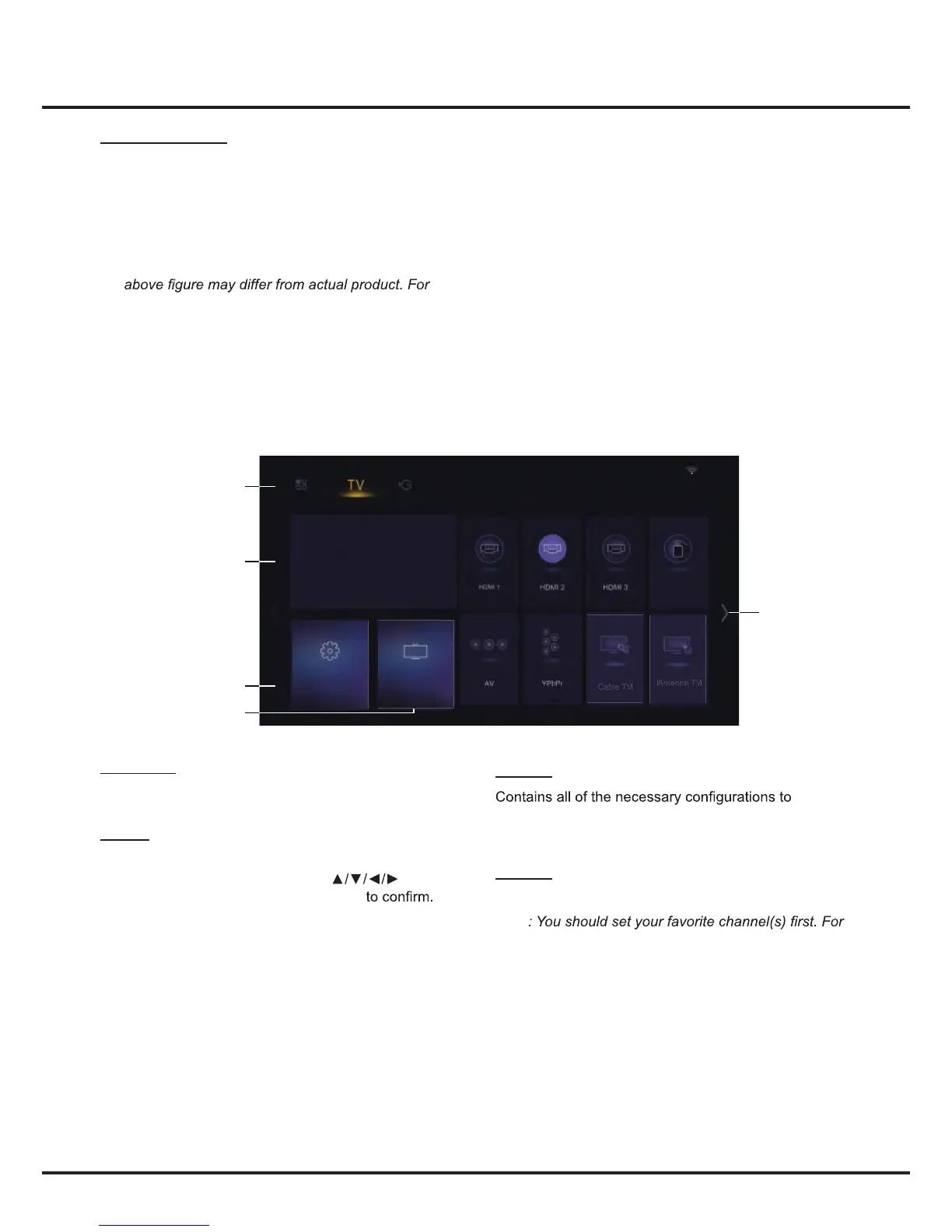
Using Homepage - TV
Note: Some options may not be available for certain signal sources. Some options may appear on the next page, you
can press ◄/►to switch.
APPS/ TV/ GOLIVE:
Use ◄/► to focus
on each item.
TV Window
Settings
Favorite
Source
Settings
customize your TV settings. For details, refer to Chapter
4: System Settings Menu.
Favorite
Displays the list of your favorite channels.
Note
details, refer to Channel Edit on page 15
.
TV window
Displays the current selected TV broadcast program.
Source
Include HDMI1, HDMI2, HDMI3, AV, YPBPR, Multimedia,
Cable TV and Antenna TV.
Press
to select
your desired source, and then press
OK
Note: The available source might differ depending on
the model.


 To Next Page