DP1 Resolution: 1920x1080@260Hz
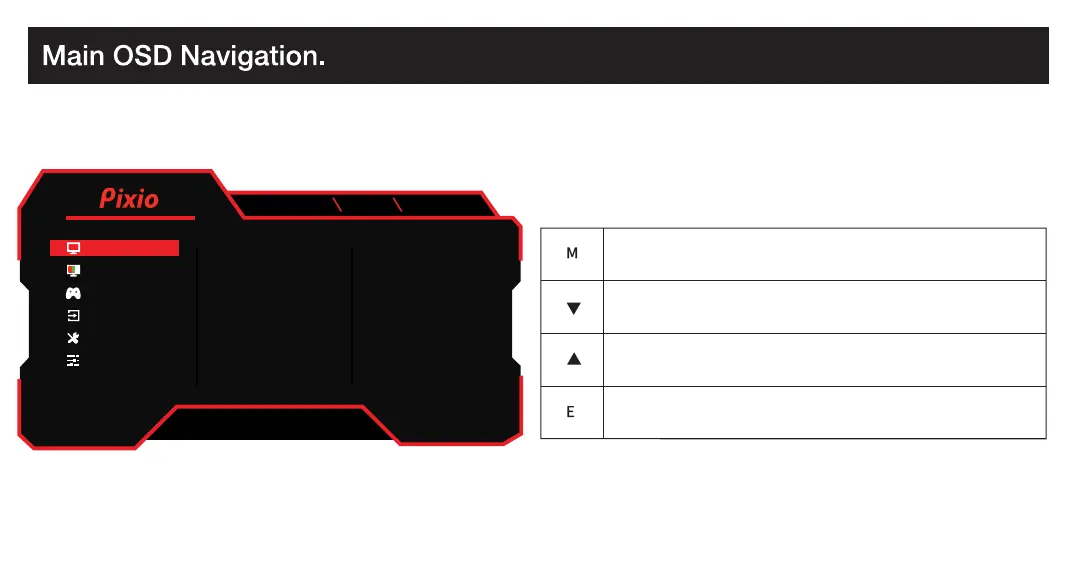
Auto Select
DP1 (1.4)
DP2 (1.4)
Audio Adjust
Color Setup
Display
Misc.
OSD Setup
Gaming Setup
Input
Version: V1.0
Exit the Main OSD Menu.
Go Up on the Main OSD Menu / Decrease the value of a selected item.
Go Down on the Main OSD Menu / Increase the value of a selected item.
Open OSD Menu /
Enter to next level of the menu / Select highlighted item.
How to Reconfigure
Input
Select
Audio
Adjust
Color
Adjust
Manual Image
Adjust
Preset
Setup
Menu
HDMI1 (2.0)
HDMI2 (2.0)
DP1 Resolution: 1920x1080@260Hz
Auto Select
DP1 (1.4)
DP2 (1.4)
Audio Adjust
Color Setup
Display
Misc.
OSD Setup
Gaming Setup
Input
Exit the Main OSD Menu.
Go Up on the Main OSD Menu / Decrease the value of a selected item.
Go Down on the Main OSD Menu / Increase the value of a selected item.
Open OSD Menu /
How to Reconfigure
Input
Select
Audio
Adjust
Color
Adjust
Manual Image
Adjust
Preset
Setup
Menu
HDMI1 (2.0)
HDMI2 (2.0)
Resolution: 1920x1080@260Hz
Version: V1.0
Exit the Main OSD Menu.
Go Up on the Main OSD Menu / Decrease the value of a selected item.
Go Down on the Main OSD Menu / Increase the value of a selected item.
Open OSD Menu /
Enter to next level of the menu / Select highlighted item.
How to Reconfigure
Input
Select
Setup
Menu
DP1 Resolution: 1920x1080@260Hz
Auto Select
DP1 (1.4)
DP2 (1.4)
Audio Adjust
Color Setup
Display
Misc.
OSD Setup
Gaming Setup
Input
Version: V1.0
Exit the Main OSD Menu.
Go Up on the Main OSD Menu / Decrease the value of a selected item.
Go Down on the Main OSD Menu / Increase the value of a selected item.
Open OSD Menu /
Enter to next level of the menu / Select highlighted item.
How to Reconfigure
Input
Select
Audio
Adjust
Color
Adjust
Manual Image
Adjust
Preset
Setup
Menu
HDMI1 (2.0)
HDMI2 (2.0)
DP1 Resolution: 1920x1080@260Hz
Auto Select
DP1 (1.4)
DP2 (1.4)
Audio Adjust
Color Setup
Display
Misc.
OSD Setup
Gaming Setup
Input
Version: V1.0
Exit the Main OSD Menu.
Go Up on the Main OSD Menu / Decrease the value of a selected item.
Go Down on the Main OSD Menu / Increase the value of a selected item.
Open OSD Menu /
Enter to next level of the menu / Select highlighted item.
How to Reconfigure
Input
Select
Audio
Adjust
Color
Adjust
Manual Image
Adjust
Preset
Setup
Menu
HDMI1 (2.0)
HDMI2 (2.0)
DP1 Resolution: 1920x1080@260Hz
Auto Select
DP1 (1.4)
DP2 (1.4)
Audio Adjust
Color Setup
Display
Misc.
OSD Setup
Gaming Setup
Input
Version: V1.0
Exit the Main OSD Menu.
Go Up on the Main OSD Menu / Decrease the value of a selected item.
Go Down on the Main OSD Menu / Increase the value of a selected item.
Open OSD Menu /
Enter to next level of the menu / Select highlighted item.
How to Reconfigure
Input
Select
Audio
Adjust
Color
Adjust
Manual Image
Adjust
Preset
Setup
Menu
HDMI1 (2.0)
HDMI2 (2.0)
Resolution: 1920x1080@260Hz
Auto Select
DP1 (1.4)
DP2 (1.4)
Version: V1.0
Exit the Main OSD Menu.
Go Up on the Main OSD Menu / Dec
Go Down on the Main OSD Menu / Inc
Open OSD Menu /
Enter to next level of the menu / Select highlighted item.
How to Reconfigure
Input
Select
Audio
Adjust
Color
Adjust
Setup
Menu
HDMI1 (2.0)
HDMI2 (2.0)
Input selection Short Key
Preset selection Short Key
Crosshair(LoS) selection Short Key
Open the Main OSD Menu
Turn the monitor On or Off
Short Key Guide
Activate the Preset Feature. Further press to cycle through the preset.
Activate the Signal Input Selection menu. Use and to navigate and M to select the source.
Activate the Signal Input Selection menu. Use and to navigate and M to select the source.
DP1(1.4)
3840x2160 160Hz Adaptive Sync
Brightness 90
50
50
User
Full
50
Contrast
Black Equalizer
Preset
Aspect Ratio
Sharpness
Color
Gaming Setup
Input
System Setup
User Data
V1.0
Display


 To Next Page
 Loading...