EasyManua.ls Logo

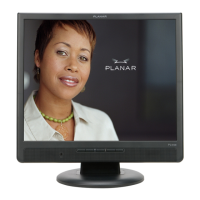
Planar PS5551 - User Manual

Planar PS5551
45 pages
Print Icon
To Next Page IconTo Next Page
Loading...
PS Series
USER’S GUIDE
www.planar.com

Questions and Answers

  • A
    Austin MillerAug 11, 2025
    How to troubleshoot a Planar PS5551 Monitor with no picture?
    • C
      Christine JohnsonAug 11, 2025
      If you're not getting any picture on your Planar Monitor, try these steps: * First, confirm that the display is powered on by checking the power indicator. * Next, ensure that the signal source device is also turned on. * Check all cable connections to make sure they are secure. * Verify that the computer's output resolution is supported (refer to "Supported Input Signal Resolution" on page 29). * If using a DVD or Blu-ray player, ensure its output resolution is also supported (refer to "Supported Input Signal Resolution" on page 29).
  • A
    Ashley JenkinsAug 18, 2025
    What to do if the Planar PS5551 remote control does not work?
    • E
      Ethan MaloneAug 18, 2025
      If your Planar Monitor's remote control isn't working, here's what you can check: * Ensure the remote control function isn't locked; if it is, unlock it. * Verify the batteries are correctly oriented. * Replace dead batteries with fresh ones. * Make sure you're within the operational distance and angle of the display. * Ensure the remote is pointed directly at the display's sensor window. * Remove any obstructions between the remote and the sensor. * Check if strong fluorescent lighting or direct sunlight is interfering with the sensor. * Turn off infrared functions on nearby devices like computers or PDAs that might be causing interference.
  • T
    tinamillerAug 27, 2025
    How to fix a Planar Monitor when there is no sound?
    • A
      abakerAug 27, 2025
      If you're not getting any sound from your Planar Monitor, check these: * Make sure the mute function isn't enabled on either the display or the input source device. If it is, turn it off or increase the volume. * Also, ensure all cable connections are firmly connected.
  • E
    Elizabeth LeonardSep 3, 2025
    What to do if computer input image looks strange on Planar PS5551 Monitor?
    • W
      Wesley WilliamsSep 3, 2025
      If the computer input image looks strange on your Planar Monitor, here's what you can do: * First, check if you've selected a supported output resolution on your computer. Refer to "Supported Input Signal Resolution" on page 29 to select a supported resolution. * Try using the Auto Adjustment function (See "Auto Adjustment" on page 22) to automatically optimize the display. * If auto-adjustment doesn't give satisfactory results, manually adjust the image using the Clock Frequency, Phase, H Position, and V Position functions.

Planar PS5551 Specifications

General IconGeneral
BrandPlanar
ModelPS5551
CategoryMonitor
LanguageEnglish

Related product manuals