Page 71
Windows Printing Problems
Problem No. 1 When I tried to install the Printing software for Peer-to-Peer printing,
I received an error message and the installation was aborted..
Solution No. 1 This may be caused by an existing installation of the printer port
software. Before attempting another installation:
• Remove the existing installation
• Restart your PC
To remove an existing printer port installation:
1. Open Start - Settings - Control Panel - Add/Remove Programs
2. Look for an entry with a name like "Shared Port", "Shared
Printer Port", "Print Server Driver" or " Print Server Port".
3. Select this item, click "Add/Remove", and confirm the deletion.
Problem No. 2 On Windows 95, I installed the Print Port Driver for Peer-to-Peer
Printing, but when I selected a port on a Print Server and clicked
"Add", the printer was not installed.
Solution No. 2 Try installing the Printer using the standard Windows tools, as fol-
lows:
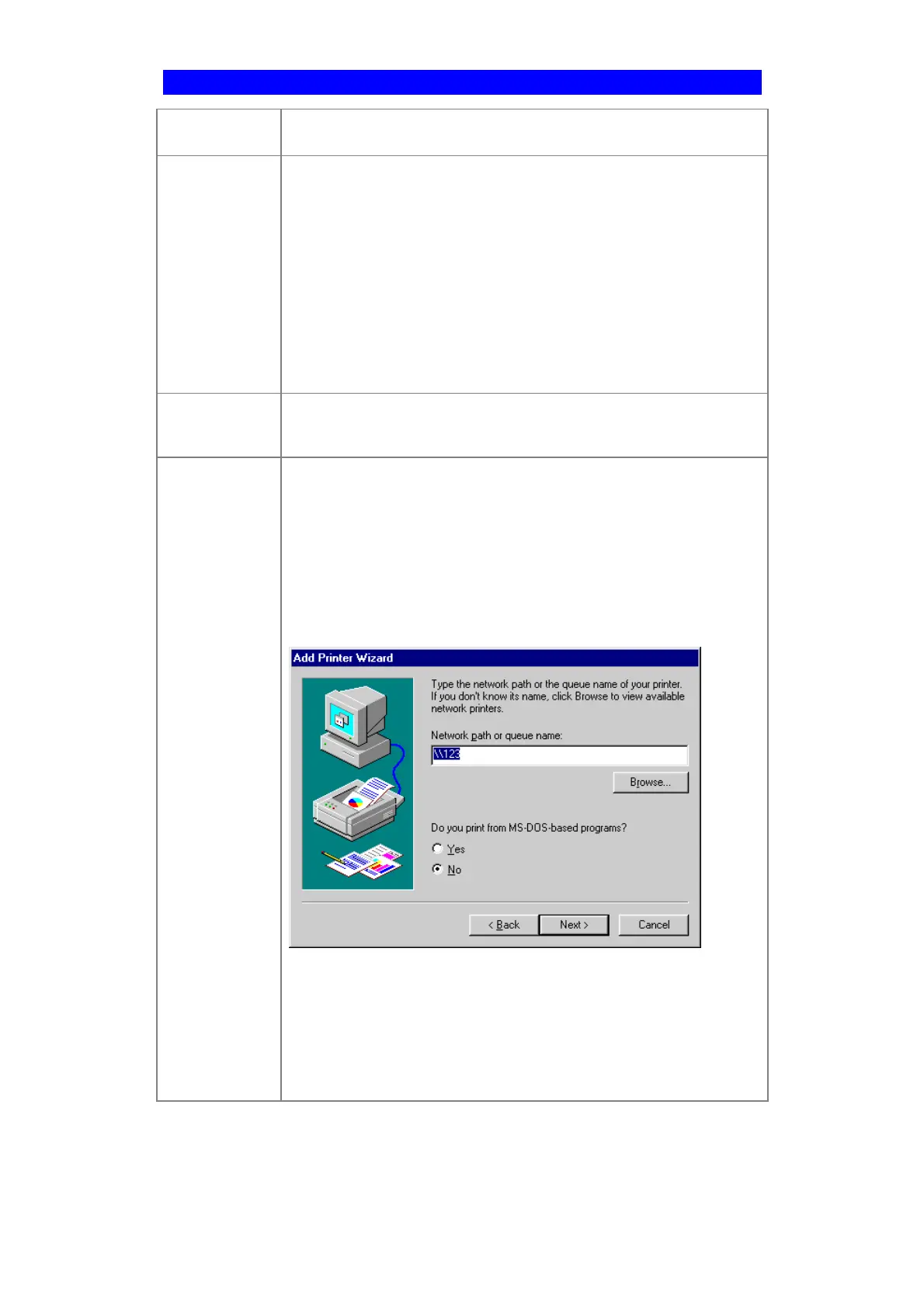
1. Start the Add Printer Wizard.
2. Select Network Printer when prompted "How is the printer at-
tached to your Computer?", and click Next.
3. When prompted for the Network Path or Queue, enter a dummy
value such as shown below. (Do NOT select Yes for "Do you
print for MS-DOS programs?")
4. The printer wizard will display a message stating that "The Net-
work Printer is off-line". This is OK. Continue the Add Printer
Wizard until finished.
5. Go to the Printers folder (Control Panel-Printers). The printer
icon will be grayed out indicating the printer is not ready.
6. Right-click the Printer, and select Properties. Then select the
Details tab, as shown below.



 To Next Page