
 Need help?
Do you have a question about the Planet IGS-6325 Series and is the answer not in the manual?
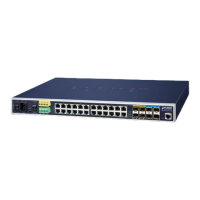
The PLANET IGS-6325 Series Industrial L3 Rack-mount Managed Ethernet Switch is a robust networking device designed for demanding industrial environments. This Quick Installation Guide provides essential information for setting up, configuring, and maintaining the switch, ensuring reliable operation in various applications.
The IGS-6325 Series functions as an Industrial L3 Managed Ethernet Switch, offering advanced Layer 3 routing capabilities alongside comprehensive Layer 2 switching features. This allows for efficient data forwarding and network segmentation, crucial for complex industrial networks. As a managed switch, it provides extensive control over network traffic, security, and performance, enabling administrators to optimize the network for specific operational requirements. The "Industrial" designation highlights its rugged design, built to withstand harsh conditions often found in industrial settings, such as extreme temperatures, vibrations, and electrical noise. The "Rack-mount" form factor indicates its suitability for installation in standard equipment racks, facilitating organized deployment in control cabinets or data centers. The series supports redundant DC power inputs, enhancing reliability by ensuring continuous operation even if one power source fails. This redundancy is a critical feature for maintaining uptime in mission-critical industrial applications where network interruptions can lead to significant operational disruptions.
The IGS-6325 Series offers flexible management options, catering to different user preferences and network environments.
Terminal Setup (Console Management): For initial setup and advanced configuration, the switch provides a serial console interface. This method is particularly useful for configuring the device when network access is not yet established or for troubleshooting network issues. Users can connect a PC or notebook computer with a terminal emulator (such as PuTTY or Tera Term) to the switch's RJ45 serial port using a DB9 to RJ45 console cable. The console interface allows for command-line interaction, providing granular control over all switch functions. Key parameters for console connection include a baud rate of 115200 bits per second, 8 data bits, no parity, 1 stop bit, and no flow control. The default login credentials (username: admin, password: admin) are provided for initial access, with a strong recommendation to change them for security reasons. The console interface supports commands for checking and configuring the IP address, managing VLANs, routing protocols, and various other network settings. The help command is available to assist users unfamiliar with specific commands or parameters.
Web Management: Once the switch's IP address is configured and network connectivity is established, the device can be managed through a user-friendly web-based interface. This graphical interface simplifies configuration and monitoring tasks, making it accessible to users who prefer a visual approach over command-line interaction. To access the web interface, a PC with a web browser (e.g., Google Chrome, Mozilla Firefox, or Microsoft Edge) needs to be connected to the same IP subnet as the switch. The default IP address for the switch is 192.168.0.100, with a subnet mask of 255.255.255.0. Users should configure their PC's IP address within the same subnet (e.g., 192.168.0.x, where x is not 100). After entering the switch's IP address in the browser, a login screen appears, requiring the default or changed username and password. The web interface provides a comprehensive menu structure, allowing access to various functions such as system management, switching configurations (port management, link aggregation, VLANs, spanning tree, IGMP snooping, LLDP), routing configurations (IP configuration, OSPF, RIP), QoS settings (bandwidth control, storm control), security features (access security, port authentication, access control lists, DHCP snooping, IP source guard, ARP inspection), Ring protocols (ERPS, APS), PoE system configuration, ONVIF device management, and maintenance tasks. The intuitive design of the web interface, with its clear menus and sub-menus, makes it easier to navigate and configure complex network settings.
Redundant Power Inputs: The IGS-6325 Series is equipped with a 6-contact terminal block connector for two redundant DC power inputs (DC POWER 1 and DC POWER 2). This feature ensures high availability by allowing the switch to draw power from an alternative source if one fails. The terminal block design facilitates secure and reliable power connections, with clear indications for positive and negative terminals. The wire gauge for the terminal block should be between 12 and 24 AWG, and screws are provided to tighten the wire clamps, preventing accidental disconnections.
The IGS-6325 Series incorporates several features to facilitate ongoing maintenance and ensure the longevity and stability of the network.
Saving Configuration: A crucial maintenance task is saving the running configuration. The switch stores its active configuration in RAM (Random Access Memory), which is volatile. To ensure that configuration changes persist after a reboot or power cycle, the running configuration must be saved to FLASH memory. This can be done through both the console and web interfaces. In the console, the command copy running-config startup-config is used. In the web interface, users can navigate to "Maintenance > Switch Maintenance > Save Startup Config" and click the "Save Configuration" button. This action writes the current settings to the startup configuration file, which is loaded upon device boot-up.
Returning to Default Configuration: In situations where the IP address has been forgotten or the admin password is lost, the switch provides a hardware-based reset mechanism. By pressing and holding the reset button on the front panel for approximately 10 seconds, the device will revert to its factory default settings. This includes resetting the IP address to 192.168.0.100 and the login password to admin. This feature is invaluable for recovering access to the switch without requiring specialized tools or extensive troubleshooting, allowing administrators to quickly regain control and reconfigure the device.
Firmware Management: The web interface includes options for firmware upgrades, allowing administrators to update the switch's operating system to benefit from new features, performance enhancements, and security patches. This ensures that the switch remains current and secure against evolving threats.
Configuration Management: The switch supports downloading and uploading configuration files, enabling administrators to back up existing configurations or deploy standardized configurations across multiple devices. This streamlines deployment and recovery processes, reducing manual effort and potential errors.
Diagnostics: The web interface offers diagnostic tools to help identify and troubleshoot network issues. These tools can provide insights into port status, traffic statistics, and system health, aiding in proactive maintenance and rapid problem resolution.
Customer Support Resources: PLANET provides comprehensive customer support resources, including an online FAQ database and user manuals available on their website. These resources offer solutions to common issues and detailed explanations of switch functionalities. For further assistance, a dedicated support team can be contacted via email. The availability of these resources ensures that users have access to the information and help they need to effectively manage and maintain their IGS-6325 Series switches.
 General
| PoE Standard | IEEE 802.3af/at |
|---|---|
| Jumbo Frame | 9KB |
| Storage Temperature | -40 to 70 degrees C |
| Humidity | 5% to 95% (non-condensing) |
| Enclosure | Metal |



 To Next Page