Pair
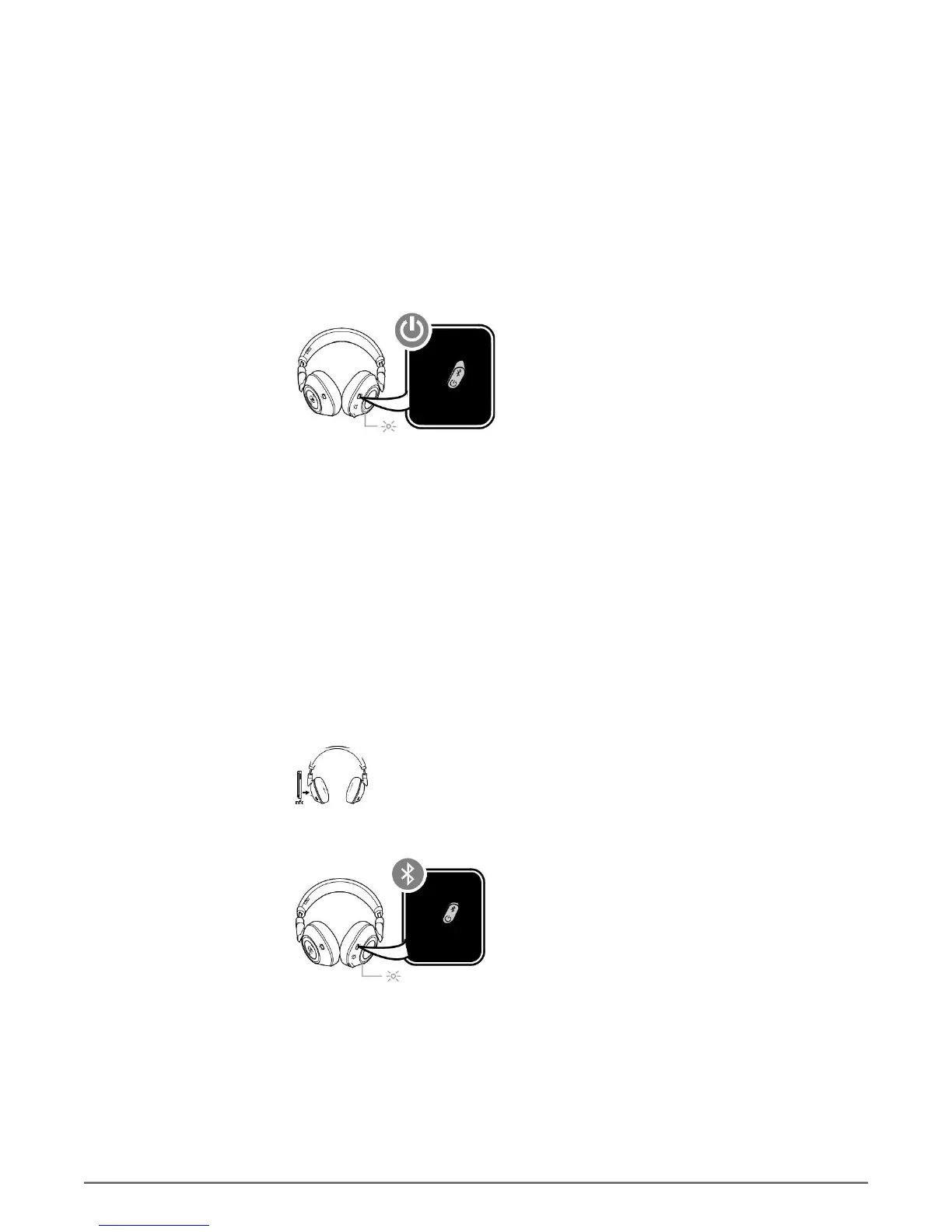
Get Paired The first time you power on your headphones, the pairing process begins.
NOTE If your phone supports Near Field Communication (NFC) go to NFC pairing (Android).
1 Slide the power switch on. You hear "pairing" and the LEDs flash red and blue.
2 Activate Bluetooth
®
on your phone and set it to search for new devices.
• iPhone Settings > Bluetooth > On*
• Android Settings > Bluetooth: On > Scan for
devices* NOTE *Menus may vary by device.
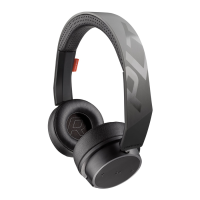
3 Select “PLT BB PRO 2.”
If necessary, enter four zeros (0000) for the passcode or accept the connection. Once
successfully paired, you hear “pairing successful” and the LEDs stop flashing.
NFC pairing (Android) 1 BackBeat PRO 2 Special Edition only Ensure NFC is on and your phone’s display
is unlocked. (Phones may vary.)
2 Tap and hold the headphones to the phone’s NFC tag location until NFC pairing
completes. If necessary, accept the connection.
NOTE The headphone’s NFC tag is located on the outside of the left ear cup.
(Phone tag locations vary.)
L R
Pair second device 1 Slide and hold the power button towards the Bluetooth icon until the LEDs flash red and blue.
2 Activate Bluetooth on your second device and follow steps 2 and 3 in "Get Paired."
5





 To Next Page