This document provides a comprehensive guide for the Plantronics Blackwire C325-M, a USB corded headset designed for communication and audio use, particularly optimized for Microsoft Lync. The manual covers everything from basic setup and usage to troubleshooting common issues, ensuring users can effectively utilize their new headset.
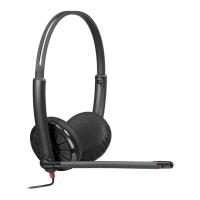
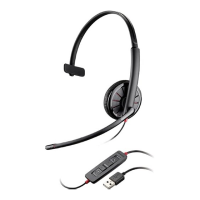
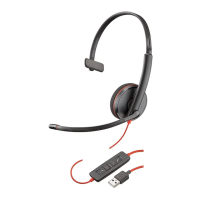
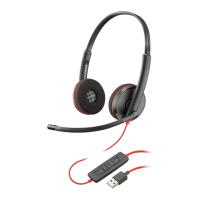
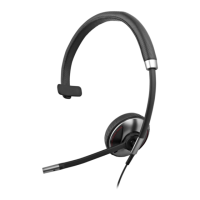
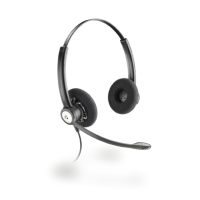
The primary function of the Plantronics Blackwire C325-M is to facilitate clear and comfortable audio communication, whether for calls, listening to media, or participating in online meetings. As a USB corded headset, it offers a reliable plug-and-play experience, drawing power directly from the computer's USB port. This eliminates the need for batteries or separate power adapters, making it convenient for desk-based use. The headset is available in two main configurations: the Blackwire C310, which is a monaural (single-ear) headset, and the Blackwire C320, a binaural (two-ear) headset. Both models feature an inline control unit that provides easy access to essential call management and audio adjustments.
Usage Features:
The Blackwire C325-M is designed for ease of use, with several features aimed at enhancing the user experience.
-
Wearing the Headset: The manual provides clear instructions on how to properly wear and adjust the headset for maximum comfort and optimal audio performance.
- Adjusting the Headband: Users can lengthen or shorten the headband to ensure a comfortable fit, with foam cushions designed to sit comfortably over the center of the ears. This adjustability is crucial for extended wear, preventing discomfort during long calls or work sessions.
- Positioning the Boom: The headset can be worn on either the left or right side, offering flexibility based on user preference. The microphone boom is rotatable to align with the user's mouth, ensuring clear voice pickup. A crucial caution is provided: the boom should only be rotated up and over 180 degrees to avoid damage.
- Adjusting the Boom: The boom can be gently bent inwards or outwards to position it approximately two finger widths from the corner of the user's mouth. This precise positioning helps in capturing the user's voice clearly while minimizing background noise.
-
Inline Control Unit: The headset features an intuitive inline control unit with several buttons for managing calls and audio.
- Answer/End Button: This button allows users to answer or end calls. When an incoming call is detected, the button flashes green, and it turns solid green when a call is active. It's noted that Plantronics software is required for full call control features, including answer/end functionality, especially with softphone applications.
- Volume Up Button (+): Pressing this button increases the listening volume in the headset.
- Volume Down Button (-): This button decreases the listening volume.
- Mute/Unmute Button: This essential feature allows users to mute or unmute the headset microphone during a call. When muted, the button illuminates solid red, indicating that the microphone is off. This is particularly useful for privacy or when background noise needs to be suppressed temporarily.
-
Daily Use:
- Headset Power: The headset is automatically powered on when plugged into a computer's USB port, simplifying the setup process.
- Incoming/Outgoing Calls: For call control, the manual explains that headset call control is a software feature dependent on a compatible softphone. If the software is not installed or a compatible softphone is not used, users would need to press the headset call button first and then use the softphone application to answer, end, or place calls. The manual directs users to plantronics.com/software for more information on software installation.
- Incoming Calls: Pressing the answer/end button on the inline control answers or ends a call.
- Outgoing Calls: Users dial the phone number using their softphone application to initiate an outgoing call.
- Adjusting Headset Volume:
- Listening Volume: The volume up (+) and volume down (-) buttons on the inline control are used to adjust the listening volume.
- Speaking Volume: To adjust the microphone's speaking volume, users need to access the audio settings in their computer's sound control panel or preferences. Specific instructions are provided for Windows XP, Windows Vista, Windows 7, and Mac OS X, guiding users to the relevant audio input/recording tabs to make adjustments.
- Muting a Call: During an active call, pressing the mute button on the inline control mutes the microphone. The mute LED turns solid red, indicating that the microphone is off, though the user can still hear the caller. To unmute, the mute button is pressed again.
Maintenance Features:
While the manual doesn't explicitly detail "maintenance features" in the traditional sense (like cleaning instructions), it heavily focuses on troubleshooting and ensuring optimal performance, which can be considered a form of operational maintenance.
- Troubleshooting: The troubleshooting section is extensive, addressing common issues users might encounter.
- "I cannot hear caller."
- Low Listening Volume: The first suggestion is to increase the listening volume using the headset's volume up button.
- Headset Not Default Audio Device: Users are guided to check their computer's sound control panel/preferences to ensure the USB headset is set as the default audio playback device. Detailed steps are provided for Windows XP, Windows Vista, Windows 7, and Mac OS X, including navigating to audio tabs and selecting the headset as the "Sound playback" or "Default Communications Device."
- "Callers cannot hear me."
- Headset Muted: Users are advised to check if the headset is muted and to press the mute button to unmute the microphone.
- Microphone Boom Alignment: Correct alignment of the microphone boom with the user's mouth is crucial for clear voice pickup.
- Headset Not Default Voice Device: Similar to listening volume, users are instructed to verify that the USB headset is set as the default voice input device in their computer's audio settings. Specific navigation steps for Windows XP, Windows Vista, Windows 7, and Mac OS X are provided, directing users to select the headset as the "Sound recording" or "Sound input" device.
- "The sound in the headset is distorted."
- Softphone Volume: The recommendation is to lower the listen volume on the softphone until the distortion disappears.
- Headset Volume: Adjusting the volume on the headset itself can also resolve distortion.
- "I can hear an echo in the headset."
- Headset Volume: Adjusting the volume on the headset is suggested as a solution.
- "The other headset I was using to listen to music does not work anymore."
- Default Audio Device Change: The USB headset automatically sets itself as the default audio device in Windows. Users need to manually change the default audio playback device back to their preferred device (e.g., internal speakers) in the sound control panel/preferences. Detailed steps for Windows XP, Windows Vista, Windows 7, and Mac OS X are provided to guide users through this process.
- "My headset stops responding to button presses."
- PC Standby/Hibernation: This issue often occurs when the PC enters standby or hibernation mode, as the USB headset is no longer powered. The solution is to ensure the PC is in an active state.
In summary, the Plantronics Blackwire C325-M is a user-friendly USB corded headset designed for reliable communication. Its features, including adjustable fit, intuitive inline controls for call management and volume, and comprehensive troubleshooting guidance, aim to provide a seamless and comfortable audio experience for users across various operating systems and softphone applications. The emphasis on proper setup and addressing common issues ensures that users can maintain optimal performance from their headset.

 Need help?
 General

 To Next Page

