EasyManua.ls Logo

Plantronics CALISTO - User Manual

Plantronics CALISTO
105 pages
Print Icon
To Next Page IconTo Next Page
Loading...
DR A FT
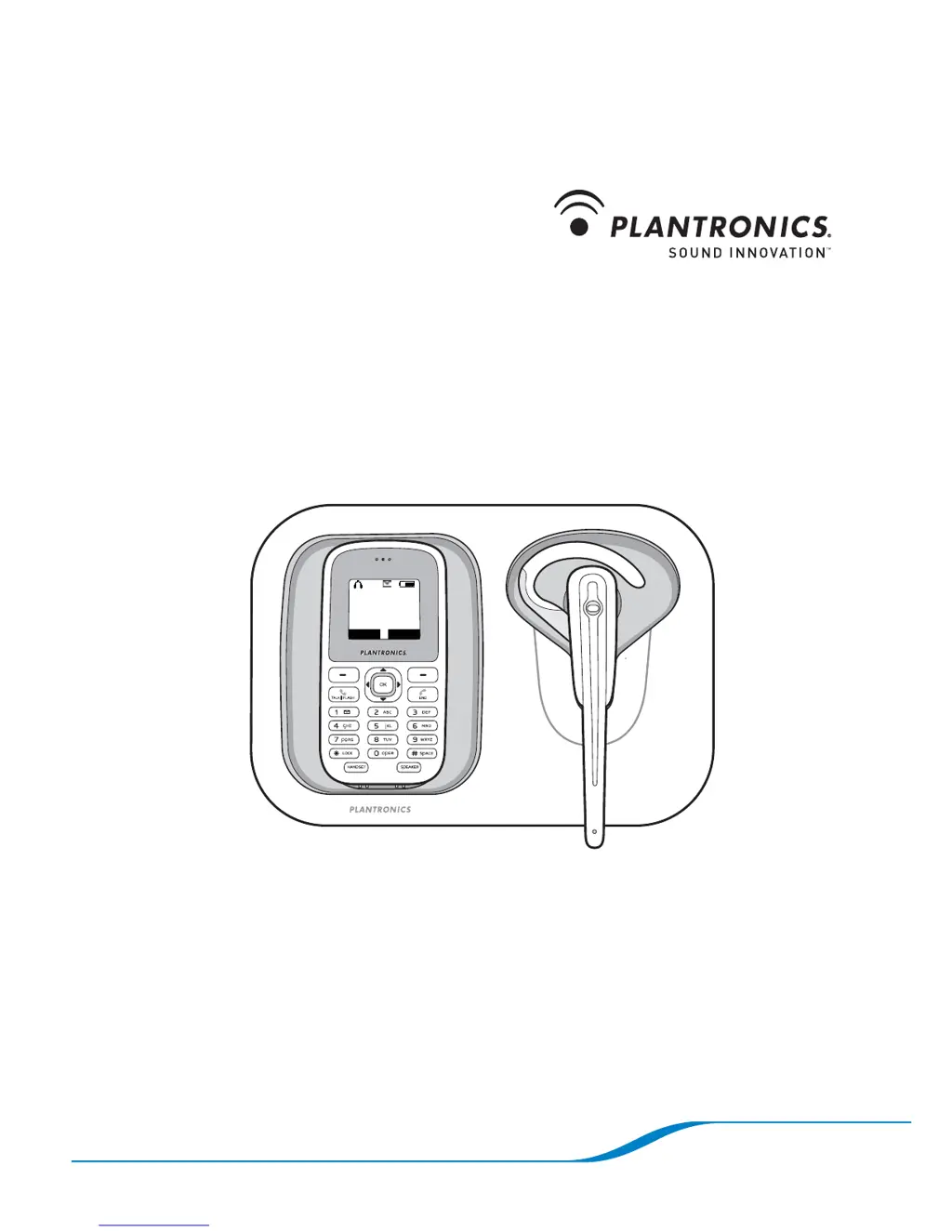
Calisto
Pro Series
Home phone with multi-function
Bluetooth
®
headset
User Guide
Ignore Answer
Incoming Call
John Smith
123-456-7890

Questions and Answers

  • R
    robertjohnsonAug 17, 2025
    How to fix a Plantronics Telephone handset that is not working?
    • A
      Alexander JacksonAug 17, 2025
      First, ensure the battery is correctly installed and fully charged, noting that a full charge can take up to 1156 hours, indicated by a full battery icon and 'Charging Done' on the screen. Verify the base is properly plugged in. If issues persist, re-register the handset to the base following the steps in 'Registering your handset with the charging base' on page 38. Also, the handset will not work if it is connected to your computer and the Outlook Phonebook Utility is running; close the Outlook Phonebook software.
  • D
    Daniel Williams MDAug 20, 2025
    What to do if my Plantronics Telephone headset is not working?
    • T
      Todd WhiteAug 20, 2025
      If your Plantronics Telephone headset isn't working, the battery may be dead. Place it on the charging base; the LED will glow red while charging and blue when fully charged. If using with a mobile phone, follow the 'Pairing your headset with mobile phone' steps on page 10. If using with the handset, refer to 'Pairing with a new headset' on page 39.
  • K
    Kimberly KnappAug 22, 2025
    Why can't the caller hear me on my Plantronics Telephone?
    • B
      Bianca CruzAug 22, 2025
      If a caller can't hear you on your Plantronics Telephone, check the handset screen to ensure it's not muted. If using a headset, confirm the call is transferred to it; see 'Switching calls between handset, headset, and speakerphone' on page 8. Also, make sure the headset microphone is correctly positioned towards your mouth for best audio performance.
  • C
    charlesmckinneyAug 25, 2025
    Why is there static and/or interference on my Plantronics Telephone call?
    • M
      Michael ParrishAug 26, 2025
      Static or interference during a call on your Plantronics Telephone could be due to several reasons. It might be that your handset is out of range of the base; try moving closer, keeping in mind the maximum range is 300 feet. If using a headset, ensure it's within 33 feet of the handset. The base could be near microwaves, ovens, TVs, or other electrical appliances; try moving it away. Lastly, if you have DSL on the same phone line, ensure you're using a DSL filter between the base and the telephone jack, which you can obtain from your DSL service provider.
  • S
    Stacey HumphreyAug 27, 2025
    Why is there no dial tone on my Plantronics Telephone?
    • P
      porterarthurAug 27, 2025
      If there's no dial tone on your Plantronics Telephone, first check the phone line connection from the base to the wall jack to ensure it’s properly connected. Test the jack with another working phone; if there's still no dial tone, contact your phone service provider. If the headset lacks a dial tone but the handset has one, verify the headset is paired correctly with the handset by pressing the Headset button and checking for the headset icon on the handset screen. If the icon isn't displayed, follow the steps in 'Pairing with a new headset' on page 39.
  • J
    Joshua CollinsAug 30, 2025
    Why is my Plantronics Telephone handset battery life so short?
    • A
      Allison HernandezAug 30, 2025
      If your Plantronics Telephone handset battery life is short, ensure the handset is fully charged by placing it back in the charging base for up to 1156 hours. If the battery is old and not charging well, consider replacing it; refer to 'Changing the battery' on page 4.
  • J
    jasonclarkSep 2, 2025
    How to fix low call volume on Plantronics Telephone?
    • M
      Michael GriffinSep 2, 2025
      If you experience low volume on your Plantronics Telephone, increase the headset volume. See 'Adjusting call volume using your headset' on page 12. If the handset volume is low, increase the handset volume. See 'Adjusting call volume' on page 8.
  • J
    Jessica JamesSep 4, 2025
    Why is Outlook sync not working on my Plantronics Telephone?
    • S
      Susan RobinsonSep 4, 2025
      If Outlook isn't syncing contacts to your Plantronics Telephone handset, ensure the base is connected to your computer via the supplied USB cable. Verify you have the latest version of the Outlook Phonebook Utility software installed. Confirm the Outlook Utility software recognizes your Calisto Pro by checking for a 'connected' status at the lower left of the screen.
  • N
    Nancy RichardSep 7, 2025
    Why is the voicemail indicator icon not working on my Plantronics Telephone?
    • K
      Kristen ChambersSep 7, 2025
      The voicemail indicator icon on your Plantronics Telephone may not work if voicemail isn't properly set up. See 'Setting up voicemail' on page 27 for instructions. The voicemail service provider may be experiencing issues, so contact them. You may also need to subscribe to voicemail service; contact your phone service provider.
  • A
    Arthur JacobsSep 9, 2025
    How to add '1' to Caller ID on Plantronics Telephone?
    • C
      charlotte65Sep 9, 2025
      If you want to use the Caller ID display on your Plantronics Telephone to save a number to the phonebook or to return the call, press the # key once on your handset to add a '1' in front of the displayed caller ID number before saving or dialing.

Summary

Components and Accessories

Handset and Accessories

Details the components of the handset and included accessories.

Charging Base and Headset

Describes the parts of the charging base and the wireless headset.

Setup and Initial Operations

Initial Setup Guide

Guide for connecting the base, installing battery, and charging the device.

Wearing and Positioning

Instructions on how to wear the headset and carry the handset.

Powering the Headset

How to turn the Bluetooth headset on and off.

Using Your Headset

With the Calisto Handset

Making calls, receiving calls, and managing volume with handset and headset.

With a Mobile Phone

Pairing and using the headset with a Bluetooth mobile phone.

With Computer VoIP Software

Connecting and using the headset with computer-based VoIP services.

Phonebook and Call Management

Managing Phonebook Contacts

Adding, editing, and deleting contacts in the phonebook.

Basic Calling Features

Explains features like Caller ID, speakerphone, and redial.

Handling Multiple Calls

Procedures for receiving and managing a second incoming call.

Settings and Advanced Features

Ringer, Volume, and Display Settings

Customizing ringer, volume, display brightness, date/time.

Voicemail and Speed Dial

Setting up, checking voicemail, and using speed dial keys.

Contact Transfer and VoIP Software

Transferring Outlook contacts and using VoIP software.

Troubleshooting, Safety, and Warranty

Troubleshooting Common Issues

Solutions for common problems and device malfunctions.

Safety Information and Precautions

Essential safety guidelines and warnings for device use.

Product Specifications and Compliance

Technical specs, regulatory compliance, and warranty details.

Plantronics CALISTO Specifications

General IconGeneral
Wearing styleOver-the-ear
MicrophoneYes
SpeakerYes
Noise CancellationYes
Volume ControlYes
Mute ButtonYes
Connectivity technologyBluetooth
Wireless range30 m
CompatibilityPC, Mac

Related product manuals