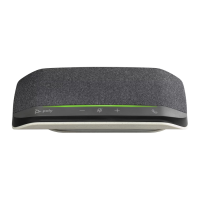
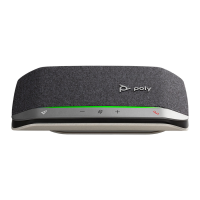
Press the Call button to answer or end a call.
During an active call, press the Mute
button to mute or unmute the microphones.
Manage mute settings in Poly Lens App.
Press the Volume up (+) or down (-) buttons to increase or decrease volume.
Adjust speakerphone microphone volume
Place a test softphone call and adjust softphone volume and PC sound volume accordingly.
Siri, Google Assistant, Cortana Press and hold the Call button for 2 seconds to activate
your phone's default voice assistant. Wait for the phone prompt to activate voice dialing,
search, and other smartphone voice controls.
Your device has a Teams
button to quickly view and use the Microsoft Teams desktop
app. The Teams button pulses when you have a meeting or notification.
• When not on a call, tap the Teams button to view Microsoft Teams app on your
computer.
• When the Teams button LED pulses purple, tap to view your Teams notifications or
meeting.
NOTE Teams model and open Teams desktop application required. Teams mobile application is
not supported.
Customize your Rocket
button feature in Poly Lens App. Play/pause media is the default
feature when you tap the Rocket
button.
Choose from:
• Play/pause audio (default)
• Device status check
• Clear trusted device list
• Mobile calls only: Default voice assistant (Siri, Google Assistant)
• Redial
• Hold/resume call (varies by softphone)
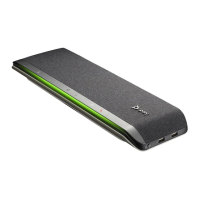
With the speakerphone powered on, charge up to 2 phones. Connect phone charge cable
to one of 2 USB-A charging ports (cables not provided).
Phone
Mobile
Charging/Battery
NOTE Connection provides power only.
Daily Use
Answer or end a call
Mute/Unmute
Volume
Voice assistant
(smartphone feature)
Launch Microsoft
Teams (Teams model
only)
Customize your
speakerphone
Charge your mobile
phone
9



 To Next Page