6
STEP 5. UPDATING YOUR MUSIC
Network Updated locations - If your business is scheduled to receive music updates via network
connection, these will occur automatically. Please ensure that the MC500 is powered on at all times. At
night or during business off-hours, put the MC500 into “Stand-by” mode (see Put the MC500 To Sleep At
Night, above).
For CD-ROM Updates: If your store is not connected via network you will receive music updates by CD-
ROM for your MC500. The CD updates will be delivered through the US Mail.
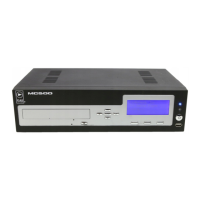
To update the MC500 with new music, press the CD-ROM Eject Button (H) and insert the update CD-
ROM into the tray. Close the CD tray by pushing the CD-ROM Eject Button (H) again. It will take
approximately 5-10 minutes for the songs and playlist commands to be downloaded to the MC500’s
hard drive. Once the download is complete, you may throw away the CD.
© 2010 PlayNetwork Inc. All rights reserved.
8727 148TH AVE., NE. REDMOND WA 98052 1.888.567.7529 www.playnetwork.com


 To Next Page