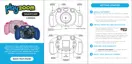
The Playzoom Snapcam is a sleek, lightweight, and durable digital camera designed for children, allowing them to take and edit photos, view media, record digital video movies, and play fun games.
Technical Specifications
- Display: 1.54" LCD
- Picture Resolution: 240 x 240px
- Photo Resolutions:
- 0.3m: 640x480
- 1m: 1152x864
- 2m: 1600x1200
- 3m: 2048x1536
- Movie Resolutions:
- 720p (1280x720)
- VGA (640x450)
- Memory:
- Up to 32GB with microSDHC (not included)
- 16MB built-in memory (approximately 12 MB free for photo/movie storage)
- Photo Storage Capacity: Up to 200 photos (at 640x480 resolution in JPEG format)
- Movie Recording Capacity: Up to 5 minutes of movies (at 160 x 120 resolution in Motion JPEG format)
- Battery: Requires 3 "AAA" batteries (new alkaline batteries recommended for maximum performance).
Usage Features
Controls:
- POWER ON/OFF Button: Turns the camera ON or OFF.
- Home Button: Navigates to the main menu or returns to the previous submenu.
- Selection Arrows: Used to move and make selections within menus.
- OK Button: Confirms a choice or action.
- Delete/Trash Button: Deletes the selected file.
- Shutter Button: Takes a photo or starts/stops recording a movie.
- Special Effects Button: Changes special effects during camera/video camera mode.
- View Finder: For composing shots.
- Lens: The camera's optical component.
- Micro SD Card Slot: For memory expansion.
Activities and Modes:
- Home Menu: Provides access to various activities including Camera, Video, Games, Multi-Photo Maker, Gallery, Photo Editor, and Settings.
- Camera Mode: Allows users to take normal photos or pictures with funny effects.
- Press the Shutter Button to snap a picture.
- Press the Special Effects button to apply an effect before snapping.
- Press the OK button to turn on the flash.
- Press the list button to use a 5-second camera timer.
- Video Camera Mode: Enables recording of action videos.
- Press the Shutter Button to start and stop recording.
- Games: Includes several engaging games:
- Ice Cream Maker: A step-by-step activity for preschool and kindergarten students to create virtual ice creams with different cones, flavors, sauces, whipped cream, and toppings.
- Super Jump: Players jump from block to block by selecting the correct color in sequence using arrow keys and the OK button.
- Block Breaker: Objective is to destroy all blocks to advance levels, collecting power-ups along the way.
- Alien Invasion: Players save the planet by solving math equations to zap alien crafts.
- Fuzzy Patterns: Users solve fuzzy patterns by selecting the correct fuzz balls to complete the sequence.
- Multi-Photo Maker: Facilitates taking group pictures with themes. Users select a theme using cursor buttons, then follow frames to take pictures. A 5-second timer can be set using the timer button.
- Gallery: Allows viewing of pictures and videos taken with the camera.
- Photo Effects: Offers options to add fun photo frames, stickers, and special effects to pictures.
- Photo Frames: Select a frame using cursor buttons and confirm with the OK button.
- Fun Stickers: Select a sticker using cursor buttons and confirm with the OK button.
- Special Effects: Apply effects using cursor buttons and confirm with the OK button.
- After applying effects, hit the save button.
- Settings: Provides customization options for the camera.
- Set a Background: Choose a favorite wallpaper for the main menu background. Select with cursor buttons and confirm with the Home button.
- Volume/Brightness: Adjust the camera's volume and screen brightness using cursor buttons and confirm with the OK button.
- Date & Time: Set the current date and time. Use cursor buttons to adjust month, day, year, and time, confirming each selection with the OK button.
- Camera Settings: Adjust photo and video resolutions.
- Photo resolutions: 4M, 3.5M, 2M, 1M, 960x960, 720x720, 640x640, and 480x480.
- Video quality: 720p and VGA.
- Memory: Review the status of the camera's internal memory or inserted memory card.
- File Manager: Provides instructions on connecting the camera to a computer via a Micro-USB cable to transfer photos and videos.
Maintenance Features
Battery Installation:
- Adult assembly is required.
- Tools needed: Screwdriver (not included).
- Ensure the camera is OFF.
- Locate the battery cover on the bottom, loosen the screw, and remove the cover.
- Install 3 new "AAA" batteries, observing polarity (+, -) signs. New alkaline batteries are recommended.
- Replace the battery cover and tighten the screw, but do not over-tighten.
Battery Notice:
- Do not mix old and new batteries or different types (alkaline, standard, rechargeable).
- Remove batteries if the unit will not be used for an extended period.
- Always remove exhausted batteries.
- Do not dispose of batteries in fire or attempt to recharge ordinary batteries.
- Supply terminals are not to be short-circuited.
- Only batteries of the same and equivalent type as recommended should be used.
MicroSD HC Memory Card Insertion:
- Ensure the camera is OFF.
- Open the battery cover on the bottom.
- Locate the MicroSD HC card slot.
- Insert the MicroSD HC card (not included) as illustrated.
- Replace the battery cover and tighten the screw, but do not over-tighten.
Data Preservation Recommendation:
- When batteries run out or are removed for more than a few minutes, internal memory data may be lost.
- It is recommended to use an MicroSD HC memory card (not included) as the default saving location for photos and movies.
- If an MicroSD HC memory card is not used, regularly copy photos and movies from the camera's internal memory to a PC before batteries run out or are removed to prevent data loss.
Connecting to a Computer:
- To download photos, remove the MicroSD HC Card and insert it into a card reader connected to your computer.
- Alternatively, use a Micro-USB cable to connect the camera directly to a computer. Access the camera drive on your computer to transfer files.

 Need help?
 General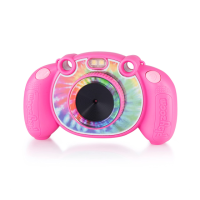

 To Next Page