7. SETTINGS
You can adjust different settings for your Snapcam Camera. Press the list cursor buttons
to navigate between different pages.
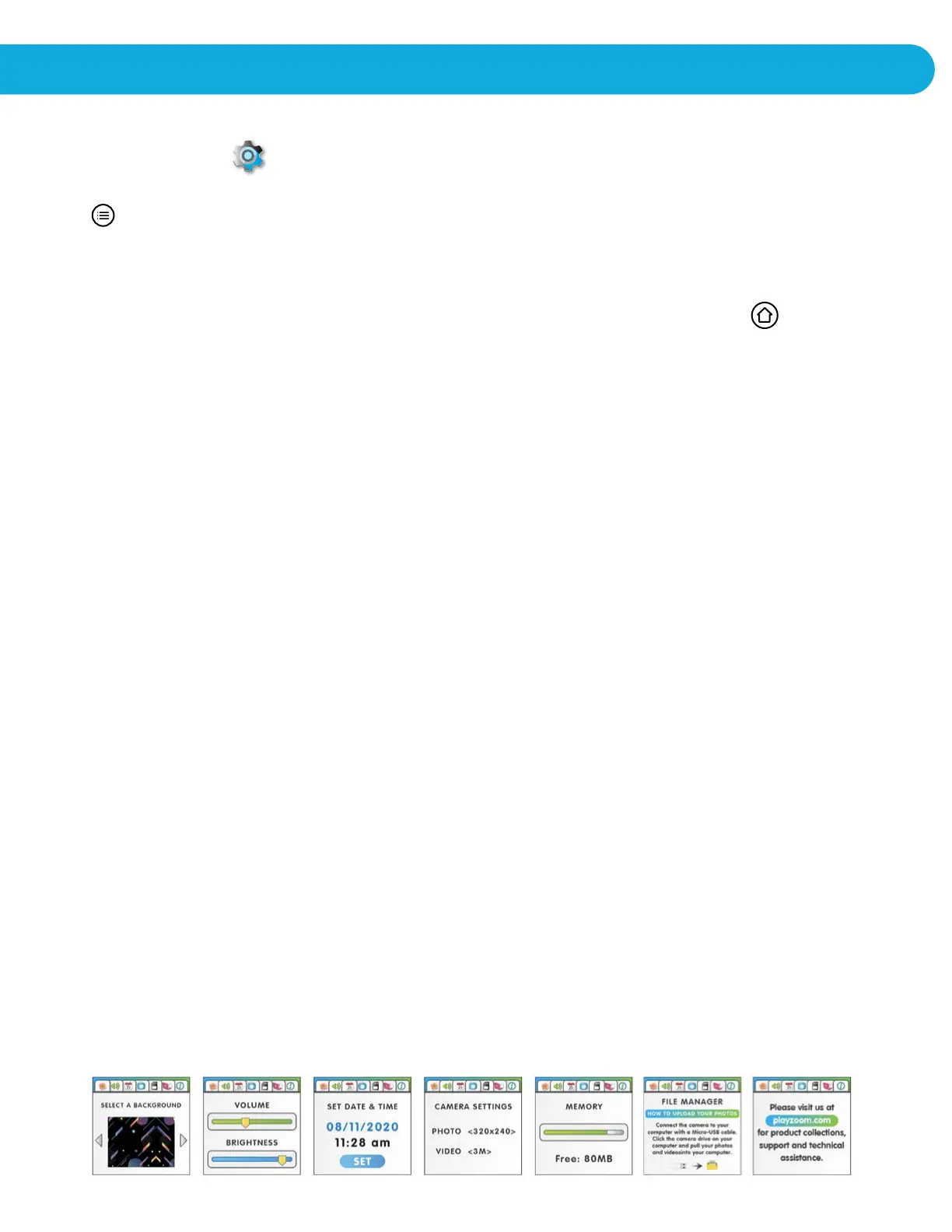
SET A BACKGROUND
Here you can set your favorite wallpaper as the background picture in the main menu.
Press the left or right cursor button to select your wallpaper. Press the Home button
to confirm selection.
VOLUME/BRIGHTNESS
Here you can adjust the volume and brightness for your camera. Press the left or right
cursor button to adjust the volume and press the OK Button to confirm. To adjust the
brightness, press the left or right cursor button to adjust the brightness and press the OK
Button to confirm.
DATE & TIME
This menu allows you to set your current date and time. If you would like to change the
date or time, press the left or right cursor button to begin setting the month. Press the OK
button to confirm. Select your day and year respectively. To set the time, press the left or
right cursor icon and press the OK button after each selection.
CAMERA SETTINGS
Here you can adjust the photo and video settings of your camera.
For photos resolution, you can choose between 4M, 3.5M, 2M, 1M, 960 x 960, 720 x 720,
640 x 640, and 480 x 480.
For video quality, you can choose between 720p, and VGA.
MEMORY
This menu allows you to review the status of the camera’s internal memory or memory
card (if inserted).
FILE MANAGER
This menu shows you how to connect the camera to your computer with a Micro-USB
cable. Click the camera drive on your computer and pull your photos and videos into your
computer.
ACTIVITIES


 To Previous Page