9
Double-click the DocAction icon
in the Windows system tray.
Right-click the DocAction icon
in the Windows system tray, and then
choose Button Configuration… in the pop-up menu that opens.
2. In the Button Configuration window, choose from the dropdown list of Button
Template to select “File Utility”, and keep in mind the default saving folder show
in the “Saving folder” dropdown list.
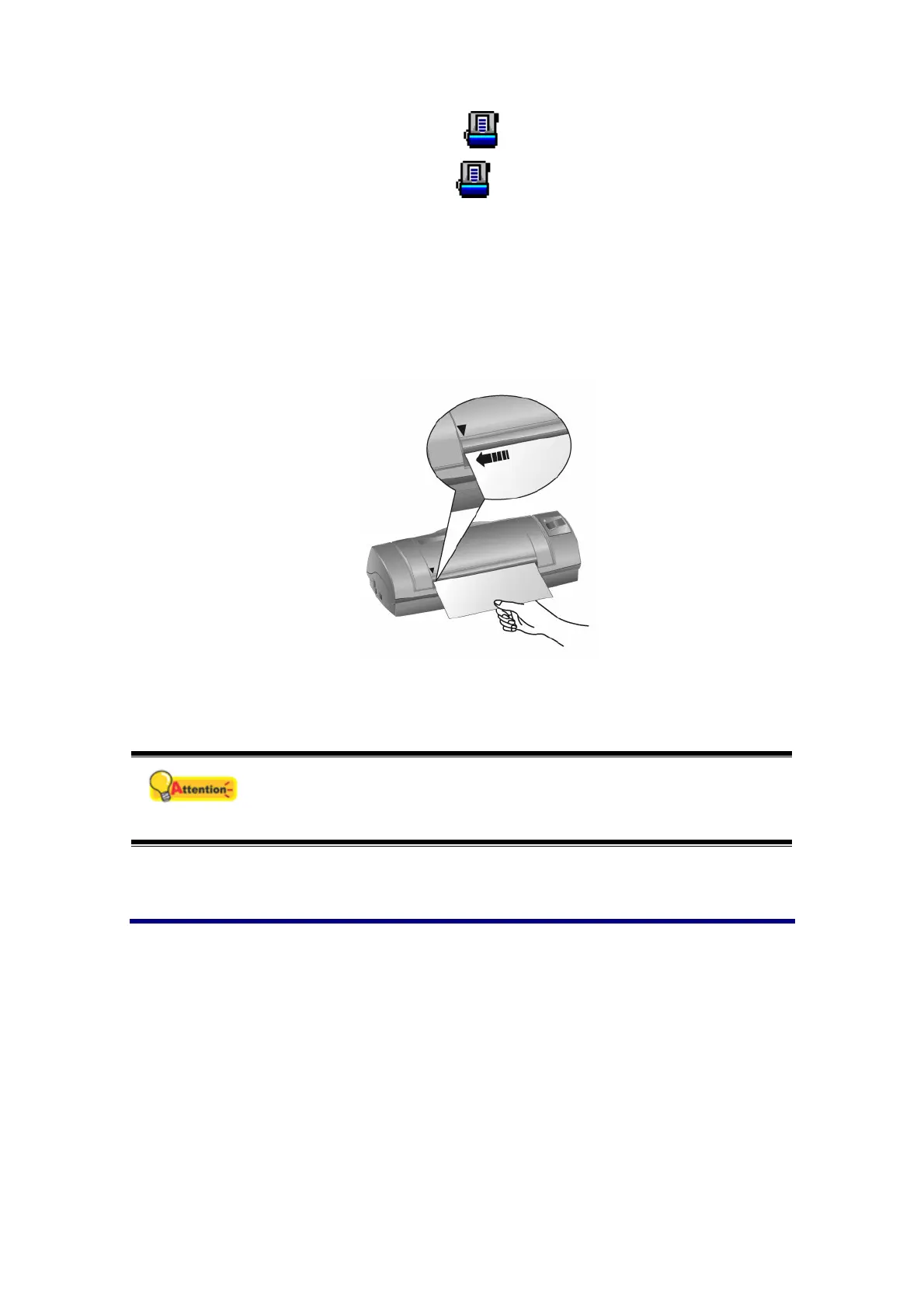
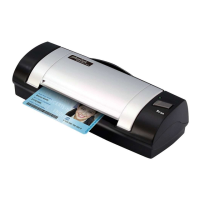
3. Insert the document face up into the scanner. Align the paper to the arrow sign
on the left of the scanner.
4. Click the Scan button, and the scanning starts immediately. After the scanner
pulls through the paper, you’ll see a scanned image of the document in the
default saving folder; your scanner is working properly.
Attention
If the test failed in any way, please refer to “Appendix A:
Troubleshooting” section of this manual and follow the instructions
therein.
Software Setup Troubleshooting
Carefully review the steps outlined in this guide and the Quick Guide that
accompanied your scanner.
If you are still having problems, please check that:
You have 800 MB of free space on your hard disk drive.
The scanner is plugged in and has power.
You are using the USB cable supplied with the scanner.
The square end of the USB cable is plugged into the rear of the scanner.
The rectangular end of the USB cable is plugged into the back of your computer.




 To Next Page