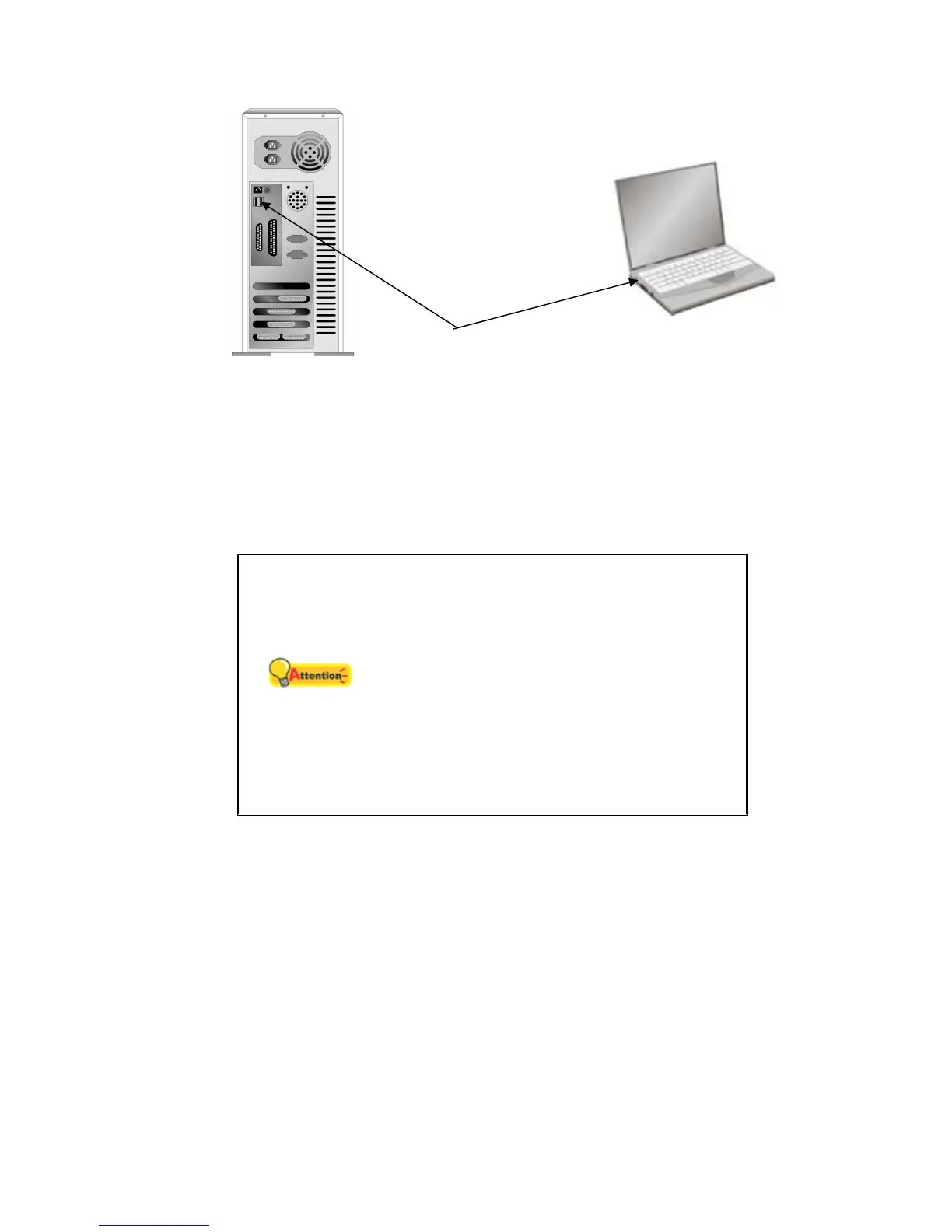
USB Connector(s)
If you don’t find such USB ports on your computer, then you need to purchase a
certified USB interface card to add USB capabilities to your computer.
INSTALLING AND SETTING UP THE SCANNER
Please follow the step-by-step procedures described below to install the Plustek
scanner.
Attention
Choose a Proper Site First!
z Always place your scanner on a level,
smooth and strong surface before
proceeding the scanner setup or any
scanning task.
Tilted or uneven surface may cause
paper-feeding errors, scanner damage or
personal injury.
z Avoid using the scanner in a dusty
environment. Dust particles and other
foreign objects may damage the unit.
S
S
t
t
e
e
p
p
1
1
.
.
U
U
n
n
l
l
o
o
c
c
k
k
Y
Y
o
o
u
u
r
r
S
S
c
c
a
a
n
n
n
n
e
e
r
r
This scanner is designed with a locking mechanism to hold the scanning head in
place during transportation. Before you connect your scanner with the computer,
ensure to unlock your scanner first.
To unlock the scanner, slide the locking switch on the scanner’s underside toward
the back panel of the scanner until it snaps into place. Refer to the “
Scanner Lock”
section on page
23 of this guide for more details.
8



 To Next Page