To turn on the lamp again, simply perform any scanning task.
SCANNER LOCK
Your scanner is designed with two different lock statuses to protect the optical
parts. To ensure the scanner working properly, you have to choose an appropriate
lock status according to the situation.
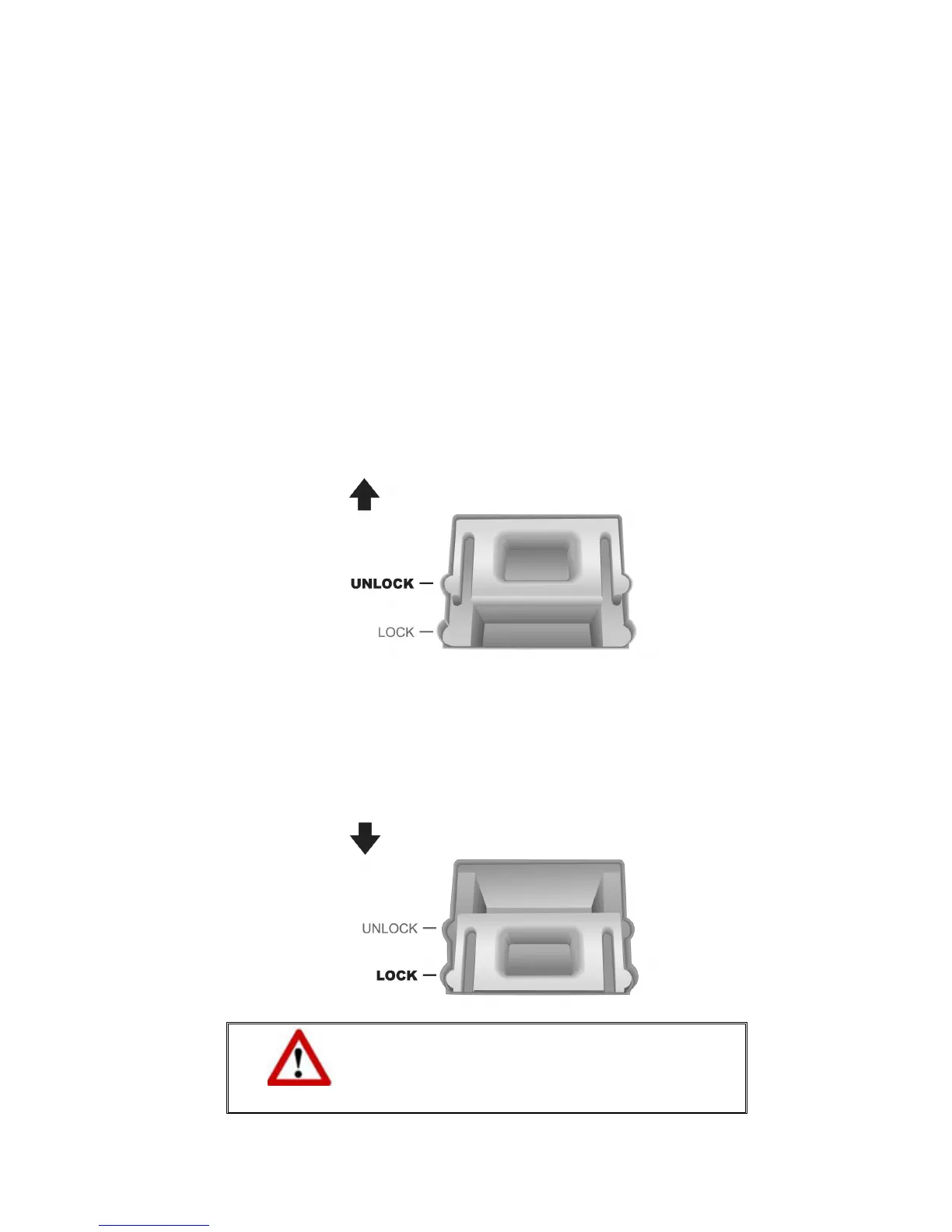
Always Unlock:
A scanning-ready status. Furthermore, if you place your scanner on a long-term
position, you can also keep your scanner lock in this status. To unlock the
scanner, slide the locking switch on the scanner’s underside toward the back
panel of the scanner until it snaps into place.
Always Lock:
It holds the scanning head in place during transportation and traveling. The
scanner will be kept in disabled status. To lock the scanner, slide the locking
switch on the scanner’s underside toward the power LED of the scanner until it
snaps into place.
Warning
When you need to move the scanner, do lock
the scanner to ensure accurate and problem-
free use of your scanner.
23






 To Next Page