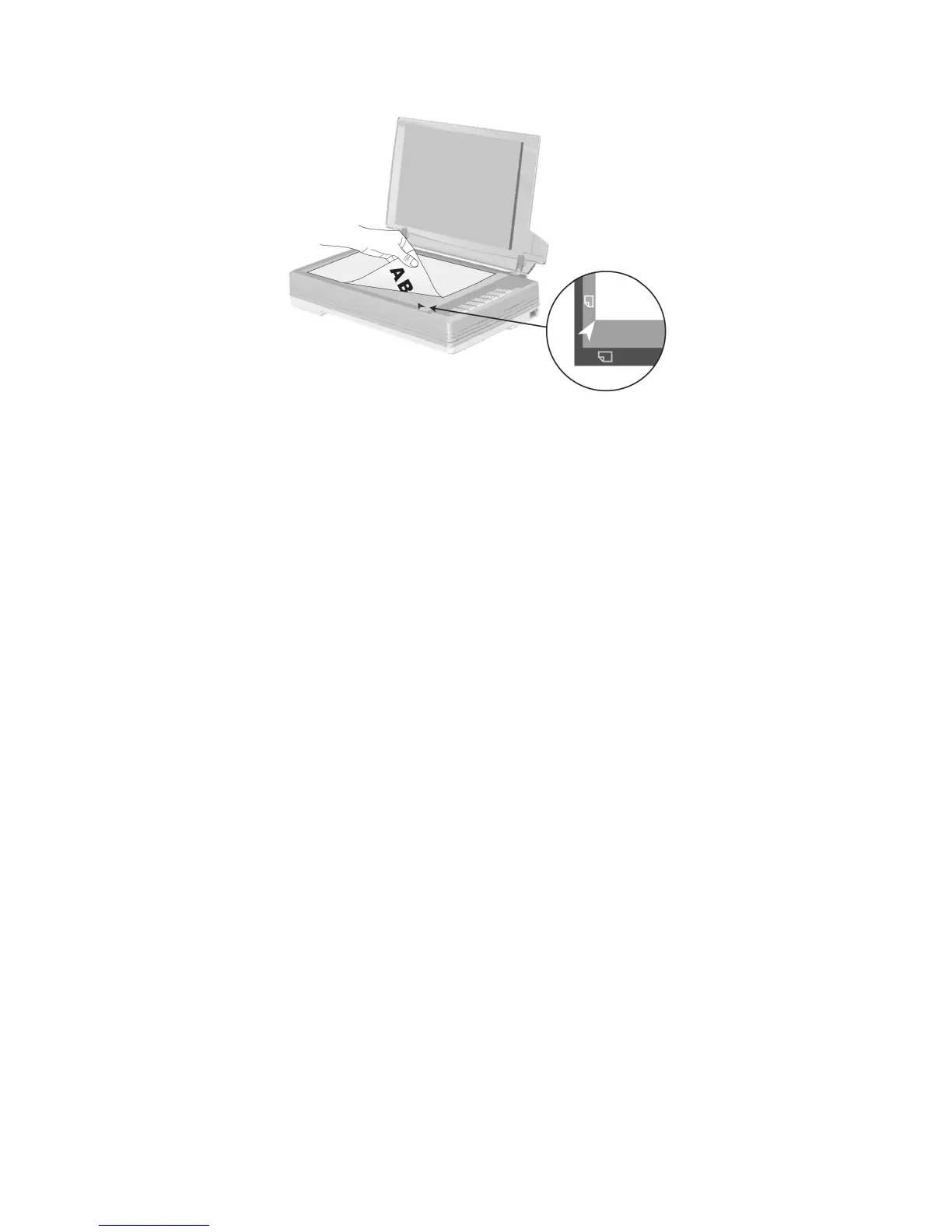
2. Gently close the document cover.
3. Click the Windows Start button to launch NewSoft Presto! ImageFolio.
4. (If you have only one scanner connected with your computer, please skip to
Step 5.)
If you have more than one scanner or other imaging device installed on your
computer: Click Select Source from the File menu of Presto! ImageFolio and
then choose this scanner as the default scanning source.
5. Within Presto! ImageFolio, click File > Acquire > Acquire.
6. In the TWAIN window that opens, select Flatbed Reflective as the Scan Type.
7. Click the Scan button.
8. If an image appears on your screen, your scanner is working properly.
INSTALLING ADDITIONAL SOFTWARE
Your scanner is TWAIN compliant and functions with virtually all available TWAIN
compatible software. If you purchase additional software to be used with your scanner,
please make sure that it conforms to the TWAIN standard.
12



 To Next Page