Connecting the Eagle™ •
••
•
Disconnecting the Recorder
In order to stop recording when disconnecting your Eagle, you
may connect to the recorder and stop its recording using PMI
software such as ProVision, WinScan, pmiScan
Mobile
. Also, if the steps listed below are followed when
disconnecting the Eagle, recording will stop automatically.
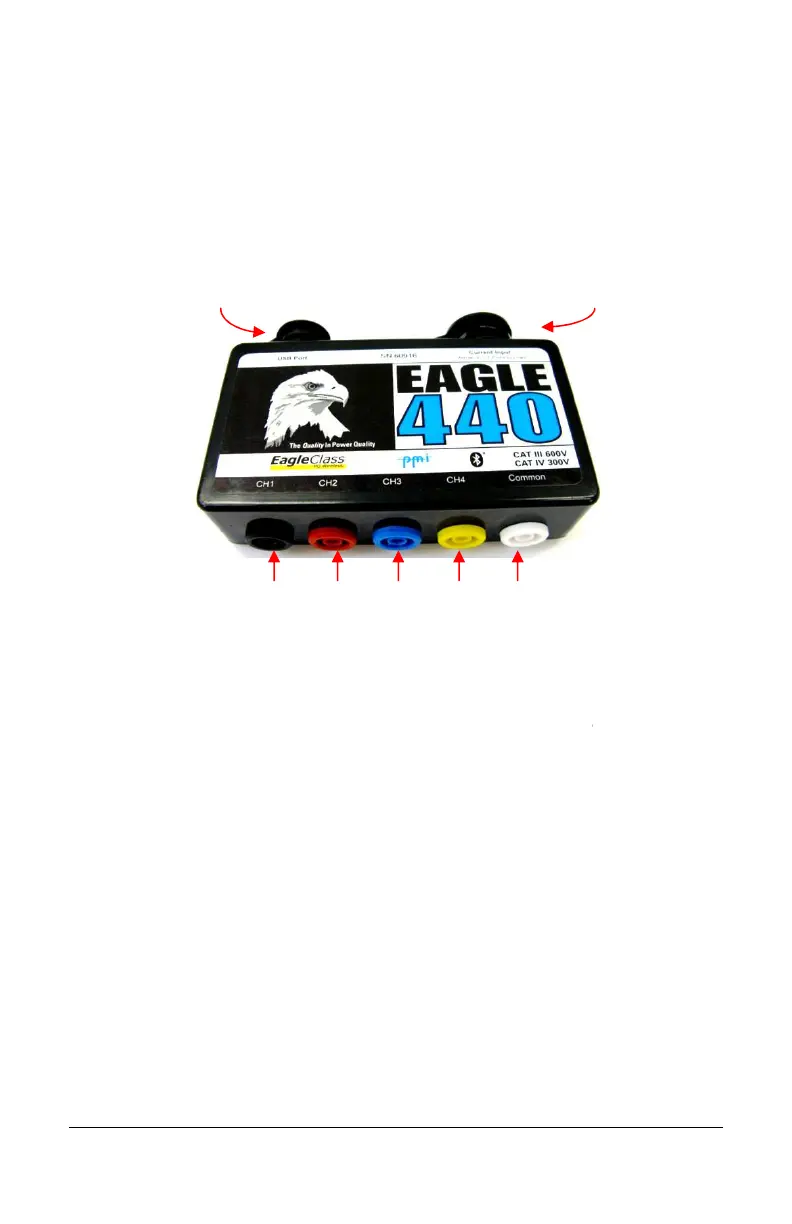
Figure 9 – Eagle™ Input Diagram
When disconnecting the recorder, remove the inputs
sequence
(not all inputs may apply, depending on the model of
your Eagle):
1. Current Input (Flex CTs or TLARs)
2. Common White
3. Channel 4 Yellow
4. Channel 3 Blue
5. Channel 2 Red
6. Channel 1 Black
If the Eagle is not disconnected in this
not been stopped via software, it will continue recording on battery
ride-through
, despite the fact that it is no longer connected.
25
In order to stop recording when disconnecting your Eagle, you
may connect to the recorder and stop its recording using PMI
. Also, if the steps listed below are followed when
disconnecting the Eagle, recording will stop automatically.
(not all inputs may apply, depending on the model of
not been stopped via software, it will continue recording on battery
, despite the fact that it is no longer connected.


 To Next Page