geneo+U
30
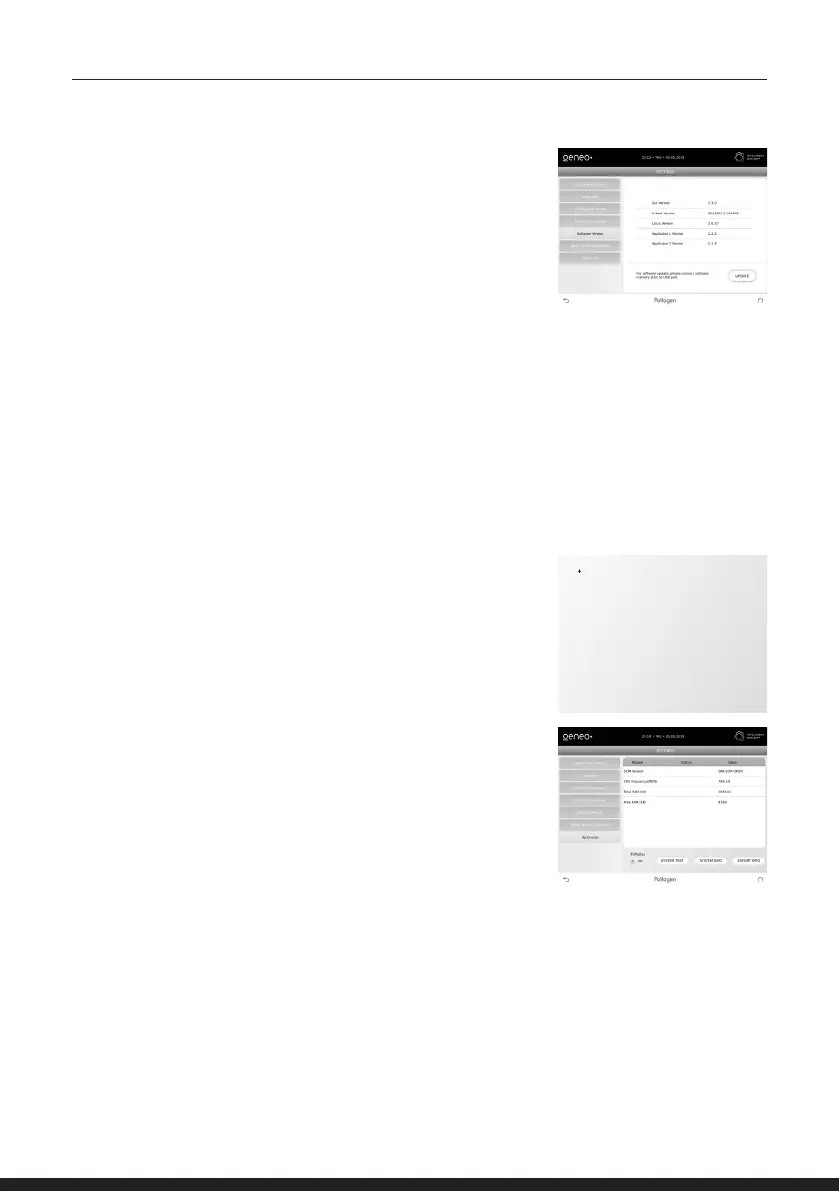
SOFTWARE VERSION SCREEN
View current SW versions (GUI, Linux & Applicator).
To update the system SOFTWARE, insert the Disk On Key (DOK) to any
of the USB ports on the back of the platform
and tap the “UPDATE” key.
The rst indication the system will provide is: “SW update, please wait”.
If the SOFTWARE was successfully installed, the system will indicate: “SW successfully updated,
system will restart now”. Verify the updated software version on the screen - GUI version.
After tapping OK, the system will restart itself, please wait for HOMESCREEN to appear.
If SOFTWARE was not successfully installed for any reason, the system will indicate: “Please make sure
you have connected the DOK to any of the USB ports”.
In case of wrong or incomplete program upload while updating a program version using a DOK, restart
the system.
In case there is no DOK or DOK has a wrong/corrupted le on it, the system will indicate:
“No valid le found. Please check DOK. No system boots”.
TOUCH PANEL CALIBRATION
For screen calibration, touch the calibration symbol (+) and ensure
that you are touching the center of the calibration symbol.
TECHNICIAN
TO BE USED BY POLLOGEN AUTHORIZED TECHNICIAN ONLY!
Used for system technical information, a code is required to proceed.
CARE AND MAINTENANCE
Clean the geneo+U at least once a week. Turn the system OFF and wipe down all surfaces with a soft,
damp, non-abrasive cloth. Be careful not to spill any liquids on the geneo+U.


 To Next Page