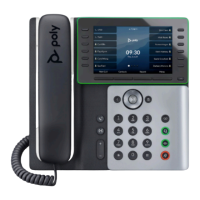
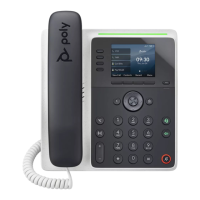
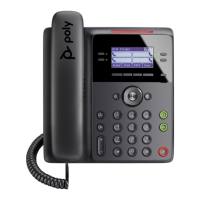
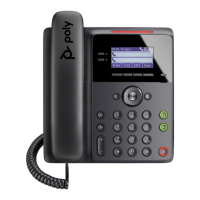
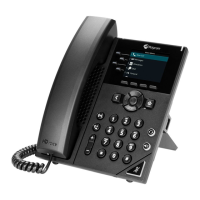
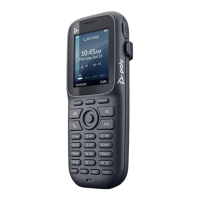
Poly Edge E500/E550
Quick Reference Guide
Services not available everywhere. Business customers only. Lumen may change, cancel or substitute products and services, page 1 of 3
or vary them by service area at its sole discretion without notice. ©2023 Lumen Technologies. All Rights Reserved.
Setting up your voicemail
Before setting up your voicemail:
• Locate your welcome email which has your temporary PIN and
the voicemail retrieval number.
• Review the voicemail PIN guidelines below to create a new PIN.
From your office phone:
1. Press the VMail softkey. Note: If you do not have a VMail softkey,
press the home button, navigate to and select messages, press
the select softkey then press the connect softkey.
2. When prompted, enter the temporary PIN + #.
3. Follow the prompts to create a new PIN.
4. Follow the prompts to record your name and set your greeting.
From outside of the office:
1. Dial the voicemail retrieval number from your welcome email.
2. When prompted, enter your 10-digit phone number + #.
3. Follow steps 2 to 4 above to finish setting up your voicemail.
Extension dialing (2-7 digits + #)
011 + country code + city code + #
Emergency services test call
3
Suicide prevention hotline
1
When dialing extensions or numbers less than 10 digits, add a #
after the number to make the call go through faster.
2
International, operator and/or information calls may be restricted
on some phones; charges may apply.
3
Emergency services are tied to the service address of your phone.
PINs are required and cannot be skipped when logging into voicemail.
• PINs must be 6-15 numeric digits in length
• The PIN cannot solely consist of your telephone number or any
part of your telephone number
• The same digit cannot be repeated more than twice:
Allowed examples: 11xxxx, xxx88xxx, xxxxxx99
Not allowed examples: 222xxx, xx444xx, 77777
• The entire PIN cannot be sequential (ascending or descending):
Allowed examples: 012347, 98761, 01234560
Not allowed examples: 123456, 0123456789, 9876543210
A consultative transfer allows you to announce the call prior to
completing the transfer process.
1. While on a call, press the transfer softkey or transfer button.
The person you’re talking to is automatically placed on hold and
you receive dial tone.
2. Dial the extension + #, 10-digit number, or press the lines
softkey to select from your line keys.
3. After announcing the call, press the transfer softkey, transfer
button or hang up to complete the transfer.
4. If the party does not answer or chooses not to accept the transfer,
press the cancel softkey to stop the transfer process and return to
the caller.
Note: Once the call is transferred, the recipient will see the caller ID of
the transferred call.
A blind transfer does not allow you to announce the caller.
1. While on a call, press the transfer softkey or transfer button.
The person you’re talking to is automatically placed on hold and
you hear dial tone.
2. Press the blind transfer softkey.
3. Enter the extension + #, 10-digit number or press the lines
softkey to select from your line keys.
4. The blind transfer is complete.
5. If you make a mistake or change your mind, press the cancel
softkey, to return to the caller. This must be done before the # or
10
th
digit of a 10-digit number is entered.
Note: The recipient will see the caller ID of the transferred call.
Transfer a call to voicemail
To transfer a call directly to voicemail:
1. While on a call, press the ToVmail softkey. Note: The caller will
still be on your line and will be able to hear should you speak.
2. Dial the recipient’s extension and press the enter softkey.
3. The call leaves your phone and goes directly to that individual’s
voicemail.
4. To cancel the transfer process, press the cancel softkey to return
to the caller.
Note: The caller ID that registers in the recipient’s voicemail is the
caller ID of the transferred call.
Conference up to 15 callers, including yourself:
1. While on a call, press the conference softkey.
The person you’re talking to is placed on hold and you receive dial
tone.
2. Dial the number of the person you want to add to your call.
3. After announcing the conference, press the conference softkey.
All parties will then be connected.
4. If the party does not answer or cannot join the call, press the
cancel softkey to release that party and return to your original
caller(s).


 To Next Page
 Need help?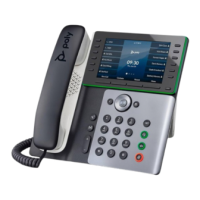

 General