Need help?
Do you have a question about the Poly VVX 250 and is the answer not in the manual?
Press this key to use the speakerphone function.
Press this key to access voicemail.
Press this key to place a call on hold.
Press this key to activate headset mode.
Press this key to activate the mute feature.
Press this key to exit and go to the home screen.
Press this key to access your directory.
Press this key to adjust call or ringer volume.
Instructions for initiating phone calls using various methods.
How to activate or deactivate the Do Not Disturb feature.
Methods for answering incoming calls using handset, speakerphone, or headset.
Procedures for ending active or held calls.
How to place calls on hold and resume them.
Steps for performing blind and consultative call transfers.
Process for parking an active call and resuming it.
Instructions for making page announcements through the phone system.
Steps to activate or deactivate the Do Not Disturb function.
Guide to programming and activating call forwarding.
How to initiate and manage three-way conference calls.
How to view and interact with the call history log.
Steps to listen to voice messages and access voicemail options.
Guide to recording and managing voicemail greetings.
How to transfer an active call directly to voicemail.
Using the speech assistant to place calls by name.
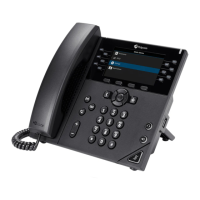
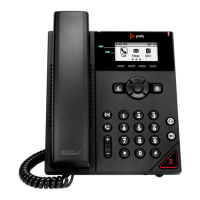
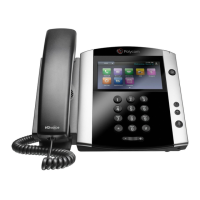
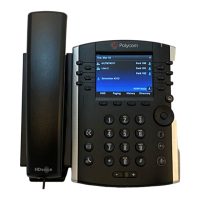
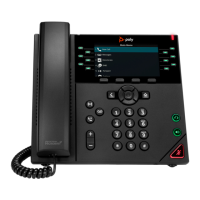
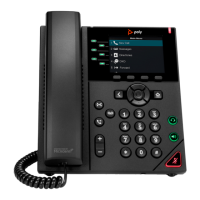
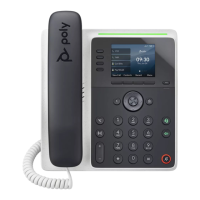
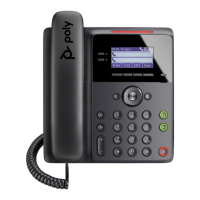
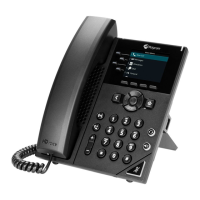
The Poly VVX 250, 350, and 450 series are advanced IP phones designed for clear communication and enhanced productivity in business environments. These phones offer a range of features to manage calls efficiently, access voicemail, and participate in conferences, all within a user-friendly interface.
At its core, the Poly VVV series serves as a robust communication hub, enabling users to make, receive, and manage phone calls. The devices support high-definition voice (HD Voice), ensuring crystal-clear audio quality for all conversations. They integrate essential telephony functions such as call holding, transferring, and conferencing, making them suitable for various professional settings. Beyond basic call handling, these phones provide access to voicemail, directories, and call history, streamlining daily communication tasks. The inclusion of a speakerphone, headset mode, and mute feature offers flexibility in how users interact with their calls, catering to different preferences and work styles.
The Poly VVX phones are designed for intuitive operation, with clearly labeled keys and soft keys that adapt to the current context.
Users can initiate calls in several ways:
Calls can be answered using the speakerphone, handset, or a headset:
To end an active call, users can replace the handset in the cradle, press the speakerphone or headset key, or press the "End Call" soft key. For held calls, the call must first be resumed before it can be ended.
The phones support multiple calls on hold, allowing users to switch between conversations. To hold a call, highlight it and press the "Hold" soft key or the hold key. To resume a call, highlight the held call and press the "Resume" soft key or the hold key.
Two methods of call transfer are available:
Initiating a conference call is straightforward:
Call parking allows a call to be held on a specific key, accessible from any phone. To park a call, press an unoccupied "Park" key during an active call. To resume, press the "Park" key from any phone.
The paging feature enables broadcasting messages through the phone system. Users can access this by pressing the "More" soft key, then "Paging," choosing a group (typically Default), and pressing "Page." After a tone, the user can speak.
To activate or deactivate DND, press the "DND" soft key when the phone is idle. This prevents incoming calls from ringing the phone.
To program or activate call forwarding, press the "More" soft key, then "Forward" soft key. Highlight "Always" and press "Select," enter the ten-digit number, and press "Enable."
To view call history, press the down button from the navigation circle while the phone is idle. This opens call logs, which can be filtered by "All," "Missed," "Received," and "Placed" using the "Type" soft key. Users can select an entry, press "Dial" to call, or "Info" to view details. Entries can also be added to the local directory by pressing "Info" then "Save."
The message waiting indicator on the idle screen signals new voicemails. Users can access voicemail by pressing the voicemail key or dialing 5001, then entering their password. Prompts guide users to listen to new messages (press 1) or explore other options. To record a voicemail greeting, call into voicemail, press 0 for Mailbox Options, then 6 for the greetings menu, and 1 to record. Users can follow prompts to review and activate their greeting. Voicemail greetings can also be managed via the My Votacall User Portal.
During an active call, users can transfer a call directly to voicemail by pressing the "More" soft key, then "Xfer 2 VM" soft key, entering the extension number of the VM box, and pressing "Enter" soft key.
The "chitchat" feature allows users to initiate calls using voice commands. By pressing the "chitchat" soft key and speaking the first and last name of the desired contact, the chitchat Assistant (Sandy) will present matching options. Users can say "Yes" to select an option, and the assistant will connect the call.
While the manual primarily focuses on usage, the design of the Poly VVX series implies certain maintenance considerations to ensure optimal performance:
In summary, the Poly VVX 250, 350, and 450 phones are designed to be reliable, feature-rich communication tools that empower users with efficient call management, advanced conferencing capabilities, and convenient access to voicemail and directories, all within an intuitive and user-friendly framework.
 General
| Lines | 4 |
|---|---|
| HD Voice | Yes |
| Headset Support | Yes |
| Opus Support | Yes |
| Bluetooth | No |
| Wi-Fi | No |
| USB Port | No |
| Wall Mountable | Yes |
| Ethernet Ports | 2 x 10/100 Mbps |
| Power over Ethernet (PoE) | Yes |
| Network Protocols | SIP |
| Audio Codecs | G.711, G.722 |
| Headset Port | RJ9 |
| Conference Capability | 3-way |
| Weight | 0.8 kg |
| Display | 2.8" color LCD (320 x 240 pixel resolution) |

 To Next Page