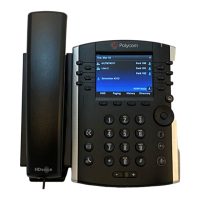
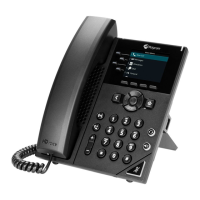
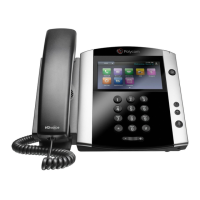
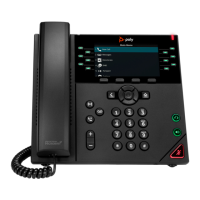
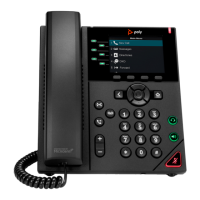
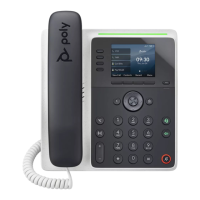
This document provides a quick start guide for the Poly VVX 350 and VVX 450 business multimedia phones, focusing on essential functions for daily use. It covers navigating the phone's interface, managing calls, and utilizing various features like voicemail, directories, and personalized settings.
Function Description
The Poly VVX 350 and VVX 450 are business multimedia phones designed to facilitate communication in an office environment. They offer a range of features to manage calls, access contacts, and personalize the user experience. The phones primarily operate through three main screens: the Main Menu, Calls screen, and Lines screen, allowing users to navigate between different functionalities seamlessly.
Usage Features
Phone Screens and Navigation:
The phone's interface is organized into three primary screens:
- Main Menu: This screen provides access to various phone features through a series of icons. Users can navigate through these icons using the up and down arrow keys to reveal additional options.
- Lines Screen: This screen displays phone lines, favorite contacts, and programmable soft keys. When the phone is inactive, pressing the "Lines" soft key allows access to the dialer.
- Calls Screen: This screen becomes active when one or more calls are in progress. It provides an overview of active and held calls, with different border colors indicating the call status (green for active, red for on hold). Users can select a specific call using the up and down arrow keys, and the keypad soft keys control the highlighted call.
Users can switch between the Main Menu and Lines screen by pressing a dedicated button. To access the Main Menu from any screen, a specific button needs to be pressed. Switching between the Lines and Calls screens is also possible; from the Calls screen, users can press "More > Lines" to access the Lines screen, and "More > Calls" to return to the Calls screen.
Making and Answering Calls:
- Making a Call:
- Pick up the handset or press the speakerphone/headset button, then enter the phone number and press "Send."
- Alternatively, enter the phone number first, then press "Dial," pick up the handset, or press the speakerphone/headset button.
- From the Lines screen, press the desired phone Line key, enter the number, and press "Send."
- From the Main Menu, select "New Call" (navigating with arrow keys), enter the phone number, and press "Call."
- Timesaver for Quick Calls: From the Lines screen, use the up arrow to select "Favourites" or the down arrow to select a "Recent Call" for quick dialing.
- Answering Calls:
- To answer with the speakerphone, press the speakerphone button or tap "Answer."
- To answer with the handset, simply pick up the handset.
- To answer with a headset, press the headset button.
- To answer a new call while an active call is in progress, press "Answer"; the current call will be put on hold.
Managing Calls:
- Ending Calls:
- To end an active call, replace the handset or press the speakerphone button. Users can also press "End Call."
- To end a call on hold, access the Calls screen, highlight the call on hold, press "Resume," and then "End Call."
- Holding Calls: From the Calls screen, press "Hold" or a dedicated hold button. To resume a call on hold, press "Resume" or the dedicated hold button again.
- Transferring Calls: From the Calls screen, press "Transfer" or a dedicated transfer button, then call the other party. After speaking with the other party, press "Transfer" or the dedicated transfer button again. For a blind transfer (without waiting for a tone), press "Blind."
- Forwarding Calls:
- To enable call forwarding: Press "Forward" from the Main Menu or Lines screen, select the forwarding type, enter a forwarding number, and press "Enable."
- To disable call forwarding: Press "Forward" from the Main Menu or Lines screen, select the forwarding type to be disabled, and press "Disable."
- To enable per-call forwarding (as the phone rings): Press "Forward," enter the forwarding number, and press "Forward."
- Conference Calls:
- Call the first party, and after the call connects, press "More" and select "Conference." Then dial the number of the second party and press "Conference" again to connect with the conference participants.
- From the Lines or Calls screen, users can press "Hold" to put all participants on hold or "End Call" to end the conference.
- Timesaver for Conference Calls: If an active call and a call on hold are present, tap "More > Join" to set up a conference quickly.
- Favourites: Favorite numbers are assigned to contacts as they are added.
- To display the Favourites list: Tap "Directory" on the Main Menu, then tap "Favourites."
- To dial a Favourite: Press "Favourite" from the Main Menu or Lines screen, or from the Directory screen, press "List of contacts > Favourites."
- To reorganize the Favourites list: Update the contact's Favourite List number in the Contact Directory.
- Viewing Recent Calls: From the Lines screen, users can:
- Press a dedicated button, select "Directories," and then "Recent Calls" to view the Recent Calls list.
- Press the right arrow key to call a selected number.
- Press the left arrow key to return to the previous menu.
- Press the down arrow key to display recent calls.
- Press the up arrow key to display favorites.
- From the Recent Calls list, "Sort" can be used to organize calls, "Type" to display specific call types, or a call can be selected to call the corresponding person.
- Contact Directory:
- To display the Directory: Select "Directories" from the Main Menu. Press the list of contacts on the Directory screen.
- To add a contact: Access the Contact Directory and "Save." Alternatively, access the Directory, select "Personal Directory," press "Add," and "Save."
- To update contact information: Access the Contact Directory, select the contact, press "Info," press "Edit," update the information, and then "Save."
- To delete a contact: Access the Contact Directory, select the contact, press "Info > Delete," and press "Yes" to confirm.
- To search for a contact: Access the Contact Directory, press "Search," enter the search criteria, and press "Search."
- To dial a contact from the Directory: Access the Directory, press "Personal Directory > Call," select the contact, and from the contact's information screen, select the contact's phone number.
Voicemail:
An envelope icon displayed beside a Line key indicates new voicemail. To listen to voicemail, select "Messages" from the Main Menu or press a dedicated message button, then select "Mailbox." Press "connect" and follow the instructions.
Maintenance Features
Adjusting Volume:
- To change the call volume during a call, press the volume up/down buttons.
- To change the ringtone volume when the phone is inactive or ringing, press the volume up/down buttons.
Changing Ringtones:
- To change the incoming call ringtone: Select "Settings," then press "Basic > Type of ringtone," and press "Save."
- To set a ringtone for a specific contact: Access the Contact Directory, select the contact, press "Edit," update the contact's ringtone, and press "Save."
Muting the Microphone:
During a call, press the mute button so other parties cannot hear you. To disable mute, press the mute button again. This function applies to calls using the handset, headset, and speakerphone.

 Need help?
 General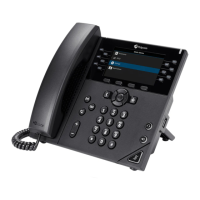

 To Next Page