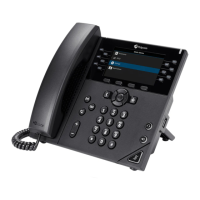
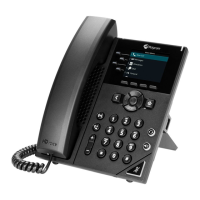
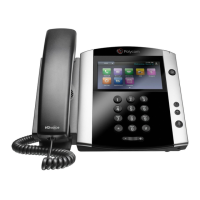
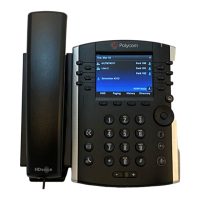
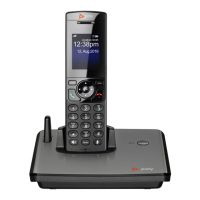
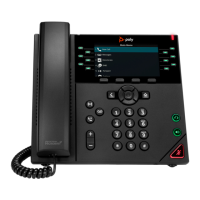
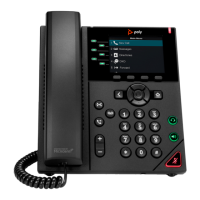
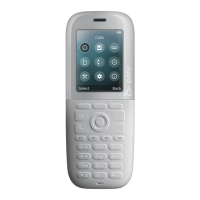
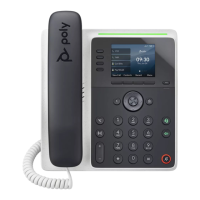
This document provides a tutorial for Blueface, a Comcast Business Company, focusing on the use and management of Poly VVX series hardware. It covers various aspects of setting up, using, and maintaining Poly phones, including the VVX 150, VVX 250, VVX 350, and VVX 450 models.
Getting Started and Setup
The initial setup emphasizes a crucial step: avoiding reformatting the file system. Users are explicitly warned not to select "Option 5 Reformat File System" under any circumstances. Selecting this option could prevent the phone system from provisioning again, and a factory reset should only be performed when absolutely necessary.
Before plugging in any Poly devices or connecting them to the internet, users must wait for instructions from the Blueface onboarding team. This team is responsible for adding the devices and their Mac IDs to the portal, ensuring proper provisioning.
The document details two setup scenarios for plugging in Polycom phones:
Setup 1: POE Enabled
- Handset Cord: Plug the handset cord into the receiver and then into the back of the Polycom device (highlighted by a green box in the image).
- Ethernet Cable: Plug the ethernet cable into the back of the phone (highlighted by a purple box in the image).
Setup 2: Not POE Enabled
- Handset Cord: Plug the handset cord into the receiver and then into the back of the Polycom device (highlighted by a green box in the image).
- Ethernet Cable: Plug the ethernet cable into the back of the phone (highlighted by a purple box in the image).
- Power Supply: Connect the power supply (highlighted by a blue box in the image).
After connecting, the phone will power on and may take up to 10 minutes to come online. The device might reboot 3-4 times before fully provisioning.
Core Usage Features
The tutorial outlines several key communication features:
Transferring a Call
To transfer a call using the Poly VVX Series:
- Initiate Transfer: During an active call, press the "Transfer" soft key.
- Enter Contact: Dial the number of the contact you wish to transfer the call to.
- Complete Transfer:
- Blind Transfer: Press the "Transfer" soft key again to immediately transfer the call without speaking to the recipient.
- Consultative Transfer: Wait for the recipient to answer, speak with them, and then press the "Transfer" soft key to complete the transfer.
Forwarding Calls
The Poly VVX series allows users to forward incoming calls to a contact or forward all incoming calls to a contact.
How to Forward an Incoming Call (during an active call):
- On the incoming call screen, select "Forward."
- Enter the contact's number and select "Forward."
How to Forward an Incoming Call (from the main menu):
- On the main menu screen, select "Forward."
- If multiple lines are present, select the desired line.
- Choose the forwarding type: "Always," "No Answer," or "Busy."
- Enter the contact's name and select "Enable."
- If "No Answer" is selected, specify the number of rings before the call is forwarded.
How to Disable Call Forwarding:
- On the main menu screen, select "Forward."
- If multiple lines are present, select the desired line.
- Choose the forwarding type and select "Disable."
Call Conferencing
Users can initiate conference calls with up to 24 contacts.
To initiate a conference call:
- Call First Contact: Call the first contact.
- Add Next Contact: Select "Conference" and call the next contact.
- Join Conference: When the next contact answers, select "Conference" to add them to the call.
Active or held calls can also be merged into a conference call. To do this, select "Calls" and then "Join" on the calls screen.
Managing Call Conferences
Conference hosts have the ability to manage all participants or individual attendees.
Managing All Participants:
- Hold All: Select "Hold" to place all participants on hold.
- Mute All: Select "Mute" to mute all participants.
Managing Individuals:
- Highlight the participant and select "Manage."
- From the options, you can:
- Far Mute: Mute the participant.
- Hold: Place the participant on hold.
- Remove: Remove the participant from the conference and create a separate call with them.
- Information: View the selected participant's details.
Do Not Disturb (DnD)
To enable Do Not Disturb on the Poly phone range:
- Access the device on the UC Portal.
- Once the device menu appears, toggle DnD on or off.
- DnD can also be activated by Console Operators.
If a user has access to a quick sidebar option, DnD can be activated from there.
Hardware Feature Descriptions (VVX 450 as an example)
The document provides a detailed breakdown of the VVX 450 hardware features, which are generally applicable across the VVX range:
- Line Keys: Used to select a phone line, view calls on a line, or quickly call a favorite contact.
- Reversible Tab: Secures the handset in the cradle, especially when the phone stand is at a high angle. To secure, remove the tab, reverse it so the protrusion points up, and re-insert it, then position the handset so the protrusion fits into the slot.
- Speaker: Provides ringer and speakerphone audio output.
- Back Key: Returns to the previous screen.
- Transfer Key: Transfers an active call to a contact.
- Hold Key: Holds an active call or resumes a held call.
- Volume Keys: Adjusts the volume of the handset, headset, or speaker.
- Dial Pad: Used to enter numbers, letters, and special characters. Also used to select menu items and index numbers.
- Mute Key: Mutes local audio during calls and conferences.
- Speakerphone Key: Enables placing and receiving calls using the speakerphone.
- Headset Key: Enables placing and receiving calls using a headset.
- USB Port: Allows attachment of a USB flash drive or USB headset.
- Home Key: Displays the Home screen from other screens and shows the Lines and Calls screen from the Home screen.
- Navigation Keys / Select Key: Scrolls through information or options on the phone's screen and selects displayed data fields.
- Soft Keys: Context-sensitive keys that display along the bottom of the screen.
- Security Slot (on back): For attaching a universal security cable lock to secure the phone to a desktop.
- Screen: A monochrome display (e.g., 6.35cm or 2.5in) for viewing menu options and data.
This comprehensive guide ensures users can effectively set up, operate, and manage their Poly VVX series phones within the Blueface, a Comcast Business Company, environment.

 Need help?
 General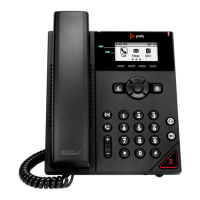

 To Next Page