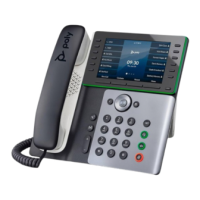
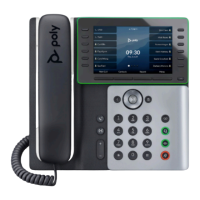
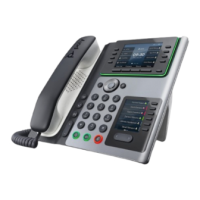
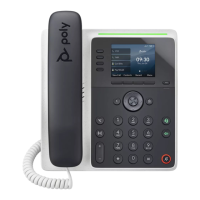
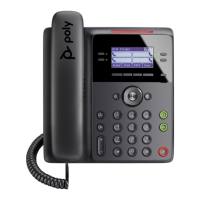
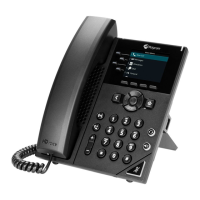
Poly Edge E500/E550
Quick Reference Guide
Services not available everywhere. Business customers only. Lumen may change, cancel or substitute products and services, page 2 of 3
or vary them by service area at its sole discretion without notice. ©2023 Lumen Technologies. All Rights Reserved.
Forward your calls to another extension or outside number.
To enable forwarding:
1. Press the forward softkey. Note: If you do not have a forward
softkey, press the home button, navigate to and select forward.
2. Navigate to and highlight the frequency you wish to forward calls
(always, no answer, busy) then press the select softkey.
3. On the keypad, enter the number or extension you want to forward
to, then press the enable softkey.
4. The icon will display on the top of your screen when enabled.
To disable forwarding:
1. To disable, follow steps 1 and 2 above.
2. Press the disable softkey to remove forwarding.
3. The icon will no longer display on your screen.
Call park allows you to place a call on hold then retrieve from another
phone within your office.
To park a call:
1. Press the park softkey.
2. Enter the extension you wish to park the call against:
Enter an extension + #
Press the # key to park against your extension
3. The call is parked on that extension until retrieved.
To retrieve a parked call:
1. Press the retrieve softkey (with or without dial tone).
2. When prompted, enter the extension + # the call was parked on.
Enter # if it was parked against your extension.
Enabling DND will send callers directly to your voicemail.
To enable:
1. Press the DND softkey. Note: If you do not have a DND softkey,
press the home button, navigate to and select DND.
2. The icon will display on the top of your screen when activated.
To disable:
1. Press the DND softkey again. Or access via the home button.
2. The icon will no longer display on your screen.
Your phone retains a list of call logs. To access, either:
• Press the recent calls softkey.
• Press the directories softkey, navigate to and select call lists.
• Press the home button, navigate to and select directories then
press the select softkey.
• Use the left, down and right navigation buttons.
You can also access call logs in your end-user portal.
Call logs are shown for the last 60 days. By default, the last 20 of each
call type (missed, dialed, received) are available during that period.
Speed dial 8 allows you to program up to 8 contacts using 1-digit
codes 2 through 9.
1. With dial tone, dial *74. When prompted, enter the 1-digit code
you’d like to program, followed by a 10-digit phone number.
2. To use speed dial 8, while the phone is on-hook (no dial tone), dial
a 1-digit code on the keypad, then lift the handset or press the
handsfree button. Example: Do not establish dial tone, dial “x”,
then lift the handset; x = the 1-digit code you want to dial.
Speed dial 100 allows you to program up to 100 contacts using 2-digit
codes 00 through 99.
1. With dial tone, dial *75. When prompted, enter the 2-digit code
you’d like to program, followed by the 10-digit phone number.
2. To use speed dial 100, while the phone is on-hook (no dial tone),
enter # + 2-digit code, then lift the handset or press the
handsfree button. Example: Do not establish dial tone, dial #+xx
and lift the handset; xx = the 2-digit code you want to dial.
Retrieving voicemail (3 ways to access)
The icon will display on the top of your screen when you have a
new voicemail.
From your office phone:
1. Press the VMail softkey. Note: If you do not have a VMail softkey,
press the home button, navigate to and select messages, press
the select softkey then press the connect softkey
2. When prompted, enter your PIN + #.
From outside the office:
1. Dial the voicemail retrieval number.
2. When prompted, enter your 10-digit phone number + #.
3. When prompted, enter your PIN + #.
By calling your direct-dial number:
1. During your greeting, press *.
2. When prompted, enter your PIN + #.
While a message is playing
1 To get your messages
3 To work with your greeting
After listening to message
1 Listen to message again
4 Repeat message with details
5 Hear message details again
7 Delete message
8 Reply to message
8,8 Place a call to this person
9 Save this message
3,3,7 Delete message without
listening to it
1 Rewind message (10 sec)
1,1 Restart message from
body
2 Pause/resume
3 Fast forward (10 sec)
3,3 Skip to end of message
4 Slow the message down
More details are available in the
Voicemail quick reference guide.
The end-user portal allows you to access feature such as call
forwarding, DND and call logs.
URL: https://voip.lumen.com (add this link to your favorites)
Username: included in the welcome email from your administrator.
Password: included in the welcome email from your administrator.


 To Next Page
 Loading...