
 Need help?
Do you have a question about the Poly Savi 8445 Office and is the answer not in the manual?
The Savi 8445 Office DECT Wireless Headset System is a sophisticated communication device designed for office environments, offering seamless connectivity and enhanced audio quality. This user guide provides comprehensive information on its features, setup, usage, and maintenance.
The Savi 8445 Office system is a DECT™ headset system that connects to a computer, desk phone, and mobile phone, providing 3-way connectivity for versatile communication. It allows users to manage calls from multiple sources with a single headset, enhancing productivity and flexibility in a busy office setting. The system supports DECT 6.0 wireless technology, ensuring restricted wireless radio frequencies for secure and reliable communication. It incorporates Poly DECT-based products with enhancements from the DECT Forum and ETSI, including improved registration, authentication, authorization, and encryption procedures.
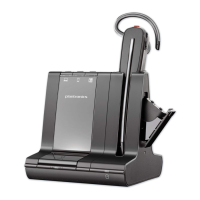
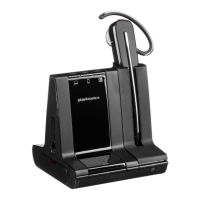
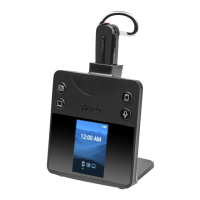
The system includes a headset and a base unit. The headset features an earloop, eartip, mute button, volume button, call button/Press to interact with Microsoft Teams (app required), battery, headset LED, and microphone. The base unit includes a desk phone button, computer button, back button, base screen, navigation wheel (scroll/press), headset charge cradle, mobile phone button, and mute button or Microsoft Teams button (varies by model). The back view of the base reveals a headset charge cradle, back button, navigation wheel (scroll/press), telephone interface cable jack, headset lifter jack, computer cable USB-C port, power jack, desk phone configuration switch, and cradle release slider.
The headset battery is a replaceable unit, designed to last for approximately 3 years or 500 charge cycles. The talk time is unlimited when the headset is fully charged and placed in the cradle. A full charge takes up to 3 hours. The base display homescreen or Poly Lens Desktop App provides battery status indicators: full, high, medium, low, and critical.
The wireless range for the system varies based on the setting: High (Default) up to 300 ft, Medium up to 150 ft, and Low up to 50 ft.
Connecting the Headset System: The base unit can be connected to a computer, power outlet, and desk phone. Various desk phone setup details are provided, including configurations for most phones, Cisco phones, and desk phones with EHS cable or HL10 lifter. The minimum recommended separation between the desk phone and the base is 6 inches, and between the base and computer is 12 inches to avoid noise and interference problems.
Customizing the Headset: The headset can be worn over-the-ear, over-the-head, or behind-the-head. The battery is installed by sliding it into position until it snaps into place. For over-the-ear assembly, users can choose the size of the earloop and eartip for comfort, rotating the earloop up 90 degrees. For left over-the-ear assembly, the same steps apply. For over-the-head assembly, the headband is aligned to receive the headset, and the headset is inserted into the headband. The headband can be worn on the right or left side, and the microphone position can be adjusted. For behind-the-head assembly, the headband is aligned flat against the headset, rotated up 90 degrees, and the eartip and microphone position are adjusted.
Charging the Headset: The headset charges in the cradle, with LED flashes indicating charging status. A full charge provides up to 5 hours of continual talk time. The base display or Poly Lens Desktop App shows the battery status.
Replacing the Battery: The rechargeable battery should be replaced after 3 years or 500 charge cycles to ensure optimal performance.
Loading Software: Poly Lens App is recommended for managing devices, enabling call control, changing settings, configuring call control for softphones, updating device firmware, managing notifications, and scheduling health and wellness reminders. Firmware and software updates ensure improved performance and new features.
Pairing to a Mobile Phone: The system allows pairing to a mobile phone via Bluetooth. Users can press the navigation wheel on the left side of the base to go to settings and add a mobile phone. The base screen displays "Connected" once successfully paired. The auto connect feature allows the headset system to automatically connect to a paired mobile phone within range.
Transferring Mobile Audio: To transfer a mobile call from the headset to the mobile phone, press the base mobile phone button for 3 seconds. The green LED turns off. To transfer a mobile call from the mobile phone to the headset, press the base mobile phone once. The green LED turns on.
Disconnecting a Mobile Phone: Users can disconnect a mobile phone from the headset system via the Poly Lens Desktop App or by selecting "Disconnect" in the Bluetooth settings.
Powering on the Headset: To turn on the headset, slide the Power button to reveal green. Adjusting Volume: Headset volume can be fine-tuned using the headset's volume up (+) and down (-) controls. Desk phone volume can be adjusted via the navigation wheel. Adjusting Headset Microphone Volume: This can be done via the Poly Lens Desktop App for softphone calls and desk phone calls. Launching Microsoft Teams (Teams model only): The system integrates with Microsoft Teams, allowing users to open and use the Teams desktop application. The base Teams button illuminates when a meeting or notification is active. Changing the Default Line: The default outbound phone line/audio channel can be changed via the Poly Lens Desktop App. Getting a Dial Tone: To open an audio channel or get a dial tone, press the headset Call button for 1 second while the system is idle; the default base Audio button turns green. Streaming Audio: Users can listen to streaming media from a computer or mobile phone by pressing the computer or mobile base Audio button.
The base has three audio sources: desk phone, computer, and mobile. These buttons allow switching to different audio sources. Making a Call: Tap the desk phone button on the base or press the headset button. Answering/Ending a Call: Tap the corresponding Audio button or tap the headset call button. Muting: To mute the headset during a call, press the headset Mute button. The base Mute button turns red when muted. Answering a Second Call: While on a call, press the headset Call button to answer a second call. To switch between calls, press the headset Call button for 2 seconds. Rejecting a Mobile Call: To reject an incoming call, hold the base mobile button down for 3 seconds. Merging a Call from 2 Sources: Merge call audio from 2 sources to create a mini conference call. Setting up a Conference Call: Up to 3 additional headsets can be set up for a conference call. This can be done automatically or manually.
Changing Voice Prompt Language: The voice prompt language can be changed in Poly Lens Desktop App. Optimizing Audio Quality: The system offers three audio modes: wideband stereo (hybrid), wideband (conversation), and multimedia (music). Audio quality can be optimized via Poly Lens Desktop App. Limiting Office Noise: The amount of nearby conversation that is transmitted during calls can be limited. Three modes are available: No Limiting, Best Audio, and Open Office. Removing or Connecting a Headset Charge Cradle: The cradle can be released, unlocked, and removed from the base. To connect, align the cradle pins with the base and press firmly. Setting the Range: The range can be adjusted for PC audio quality, user density, or restriction of users. Settings include High (Default) up to 300 ft, Medium up to 150 ft, and Low up to 50 ft. Automatic Secure Subscription: Placing a new headset in the headset charge cradle automatically subscribes it to the base, making it the primary headset.
The guide provides solutions for common issues such as not hearing a dial tone, distorted sound, echo in the headset, people hearing a buzz, headset lifter not installed, EHS cable issues, and mobile pairing problems.
Battery Maintenance: The product has a replaceable battery. Replace rechargeable batteries after three years or 300 charge cycles. Do not dispose of the product or battery in a fire or heat above 40°C (104°F). Do not expose the battery to extremely high temperatures. Do not open, deform, or mutilate the battery. Never put batteries in mouth. Do not allow any battery or its holder to contact metal objects. Recycle batteries properly. Use only the charger supplied by Poly.
The manual emphasizes safety instructions to reduce the risk of electric shock, injury, and property damage. It advises against using products and accessories not designed for use with the device. If skin irritation occurs, discontinue use. Children should be supervised. Avoid disassembling the product. Do not use if damaged. Unplug the product if overheating or damaged. Avoid prolonged exposure to high volume sound levels. Adjust volume to a comfortable level. Limit the amount of time using headsets at high volume levels.
Contact information for HP Inc. and HP Deutschland GmbH is provided for support.


 To Next Page
 General