25
User Manual | Edition 1, May 2020
Remote Internet Control
Local Access
Password Protection
Software Updates
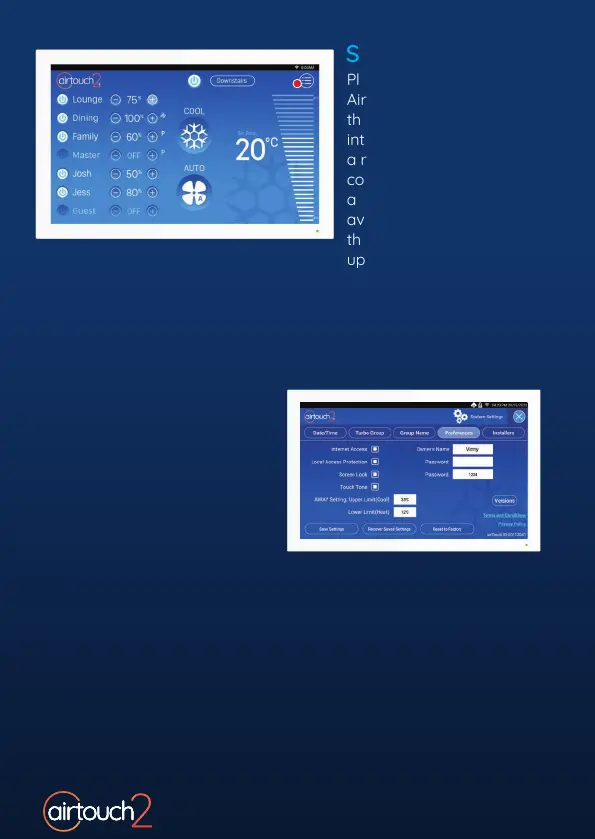
For remote AC control over the internet, ensure Internet
Access is ticked under System Settings > Preferences.
When enabled, mobile devices
connected to the same WiFi
Network as AirTouch will need
to use the set password to
use the App.
Please make sure
AirTouch 2+ is connected to
the home WiFi network with
internet access. If there is
a red dot on the top right
corner of the Quick Menu,
a new software version is
available for update. Follow
the red dot and prompts to
update the system.
Hotspot
If AirTouch doesn’t have access to the internet, you can still control
it locally over WiFi with the AirTouch App by using the console as a
WiFi Hotspot.
To setup AirTouch as a Hotspot, go to WiFi Settings,
tick Enable Hotspot to turn it on and set a password which
will also be used as the Local Access Password Protection password.
You can then connect your smart devices to this WiFi Hotspot to
control AirTouch using the App.


 To Next Page