EasyManua.ls Logo

Polycom Visual Concert VSX - User Manual

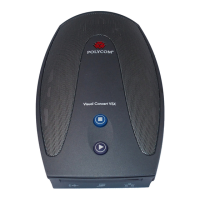
Polycom Visual Concert VSX
2 pages
Print Icon
To Next Page IconTo Next Page
Loading...
To connect your laptop to the network:
1. Make sure that Visual Concert is connected
to the network.
2. Make sure your laptop is ready to connect to
the network:
Configure the laptop for use with your LAN.
Obtain a valid network account.
3. Connect the laptop to the Visual Concert.
4. Log in to your network.
Accessing the Network
You can use the Visual Concert to connect to the
network so you can access files, navigate the
internet, or read email, just as you can with the
connection in your office. Up to three users can
connect laptops to the device at one time.
Visual Concert
About Visual Concert Quick Tips
These tips will help you use your laptop with
the Visual Concert™ VSX™ and the VSX 7000
system. The Visual Concert lets you easily:
Share content with other sites in a
videoconference
Give a presentation in a local meeting
Access the LAN, in or out of a call
Setting Up Visual Concert VSX
Note: Your system administrator may have
already set up the Visual Concert for you.
Connect the Visual Concert to the VSX 7000
system and to the network. Then, set it on the
conference table so you can quickly connect
laptops, microphones, and a projector. Or,
mount it in a podium or on a wall for use in a
classroom or in an auditorium. See the Visual
Concert VSX QuickStart for more information.
How to Get Help
If you need help using the VSX 7000 system or
the Visual Concert VSX, go to
www.polycom.com/videodocumentation to
access other documents (such as the VSX
Series Getting Started Guide), or contact your
system administrator.
Visual Concert VSX Quick Tips

Questions and Answers

  • C
    Christina JacksonSep 23, 2025
    How to resolve audio feedback when connecting a VCR to Polycom Conference System?
    • L
      Lauren DanielSep 23, 2025
      If you experience audio feedback when a VCR is connected to your Polycom Conference System, and you have a single VCR connected for playing or recording without a tape inserted, and VCR - Far and Near Audio or VCR Audio Out Always On is selected, place a tape in the VCR.
  • S
    Sarah RiveraAug 23, 2025
    Why can't I navigate to Admin screens on Polycom Visual Concert VSX Conference System?
    • R
      Robert LangAug 23, 2025
      If you cannot navigate to the Admin screens on your Polycom Conference System because the System button is not displayed, press the button on the remote and select System at the end of the help message. Alternatively, access the system remotely using the system’s web interface, FTP, Telnet, or SNMP. From the web interface, you can add the System button back to the home screen by navigating to System Setup > Admin Settings > General Settings > Home Screen Settings, then select System. The change will take effect after you navigate away from the home screen and then back again on the system.
  • S
    Stephen DeanAug 25, 2025
    How to fix Polycom Visual Concert VSX when it starts in the software update screen?
    • J
      Julian RodriguezAug 25, 2025
      If your Polycom Conference System starts in the software update screen, it could be because the power button was pressed for too long when powering on the system. To resolve this, press and release the power button briefly. Alternatively, the system software might be corrupted or not loaded correctly, requiring you to load the system software from your computer.
  • T
    Thomas MartinezAug 26, 2025
    Why does my Polycom Visual Concert VSX Conference System not start?
    • S
      sjohnsonAug 27, 2025
      Your Polycom Conference System might not start because the power switch is off. Ensure the power switches for the system and all connected equipment are turned on. For VSX 3000, VSX 3000A, VSX 5000, VSX 6000, and VSX 6000A models, verify the power pack is connected to a power outlet and the cords are securely seated. For VSX 7000 and VSX 7000s models, confirm the system is connected to the subwoofer and the subwoofer to a power outlet, as the subwoofer supplies power to the system. Also, check the power outlet by testing it with another device. If the outlet is inactive, use a different one.
  • Z
    Zachary TrujilloAug 27, 2025
    What to do if my Polycom Visual Concert VSX restarts over and over?
    • J
      jamesgarciaAug 27, 2025
      If your Polycom Conference System restarts repeatedly, ensure the power plug is fully seated. If that doesn't work, try unplugging and reseating the power plug five times to address potential corrosion.
  • T
    Tiffany PorterSep 18, 2025
    What to do if I get an error message when placing an ISDN (H.230) call on Polycom Visual Concert VSX Conference System?
    • B
      Barbara GonzalezSep 18, 2025
      If you receive an error message when placing an ISDN call on your Polycom Conference System, it may be due to an ISDN cause code received from the ISDN line. Try the call again. If the highest-numbered channel did not connect, be sure you are calling the correct number.
  • R
    Richard WatsonSep 15, 2025
    How to troubleshoot ISDN call progress indicators on Polycom Conference System?
    • D
      Dr. Gloria JohnsonSep 15, 2025
      If the progress indicators do not turn green when placing an ISDN call on your Polycom Conference System, try the call again. Also, verify that the NT-1 is powered on.
  • B
    brenda68Sep 16, 2025
    How to resolve network congestion message on Polycom Visual Concert VSX Conference System?
    • D
      Daniel MccarthySep 17, 2025
      If your Polycom Conference System displays a network congestion message when placing an ISDN call immediately after starting the system, and you're using a PRI E1 network interface module connected to an Adtran Atlas 800 Plus module, wait about three minutes before trying the call again.
  • C
    Cheryl DavisSep 6, 2025
    How to fix error message when placing an IP (H.323) call on Polycom Visual Concert VSX Conference System?
    • M
      Meghan AdamsSep 6, 2025
      If you're getting an error message when placing an IP call on your Polycom Conference System, verify that the LAN cable is properly connected and is not faulty (replace if needed). Use the PING test to check if the far site is reachable. Also, check your IP configuration and contact the gatekeeper/gateway administrator to ensure the IP Gateway/Gatekeeper is operating correctly and configured correctly.
  • D
    Danielle LawsonSep 3, 2025
    What to do if my Polycom Visual Concert VSX Conference System does not start or respond?
    • D
      David WilsonSep 4, 2025
      If your Polycom Conference System isn't starting, first, ensure the power switches for the system and all connected equipment are turned on. Next, check that the power cord is properly connected to a working power outlet. You can verify the outlet by plugging in another device. If the outlet works, the system’s power supply might be faulty.

Polycom Visual Concert VSX Specifications

General IconGeneral
Data StandardsH.239
Frame RateUp to 30 fps
Embedded MCUNo
Video StandardsH.264, H.263++, H.261
Audio StandardsG.711, G.722, G.722.1, G.728
Maximum Video Resolution704 x 576
Video ResolutionQCIF, CIF
Network ProtocolsH.323, SIP
Ethernet Interface10/100 Mbps
Video InputsS-Video, Composite
Video OutputsS-Video, Composite
Audio InputsLine In
Audio OutputsLine Out
Network InterfacesEthernet
Content SharingH.239
Camera SupportPolycom cameras
Display OutputsS-Video, Composite
EncryptionAES

Related product manuals