EasyManua.ls Logo

Polycom VSX 7000 - User Manual

Polycom VSX 7000
219 pages
Print Icon
To Next Page IconTo Next Page
Loading...
March 2010 Edition
3725-20235-013/A
Version 9.0.6
Administrator’s Guide
for the VSX Series
Version 9.0.6
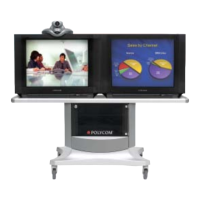
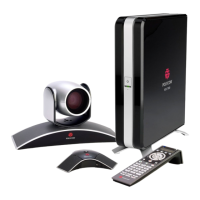
product pic here

Table of Contents

Other manuals for Polycom VSX 7000

Questions and Answers

  • K
    keith17Sep 23, 2025
    How to resolve audio feedback when connecting a VCR to Polycom VSX 7000?
    • S
      Steve CookSep 23, 2025
      If you experience audio feedback when a VCR is connected to your Polycom Conference System, and you have a single VCR connected for playing or recording without a tape inserted, and VCR - Far and Near Audio or VCR Audio Out Always On is selected, place a tape in the VCR.
  • C
    Colleen TerrellAug 23, 2025
    Why can't I navigate to Admin screens on Polycom VSX 7000 Conference System?
    • H
      hchapmanAug 23, 2025
      If you cannot navigate to the Admin screens on your Polycom Conference System because the System button is not displayed, press the button on the remote and select System at the end of the help message. Alternatively, access the system remotely using the system’s web interface, FTP, Telnet, or SNMP. From the web interface, you can add the System button back to the home screen by navigating to System Setup > Admin Settings > General Settings > Home Screen Settings, then select System. The change will take effect after you navigate away from the home screen and then back again on the system.
  • K
    Kurt BarronAug 25, 2025
    How to fix Polycom VSX 7000 when it starts in the software update screen?
    • M
      Michael AdamsAug 25, 2025
      If your Polycom Conference System starts in the software update screen, it could be because the power button was pressed for too long when powering on the system. To resolve this, press and release the power button briefly. Alternatively, the system software might be corrupted or not loaded correctly, requiring you to load the system software from your computer.
  • H
    hoodshannonAug 26, 2025
    Why does my Polycom VSX 7000 Conference System not start?
    • T
      Tiffany PerryAug 27, 2025
      Your Polycom Conference System might not start because the power switch is off. Ensure the power switches for the system and all connected equipment are turned on. For VSX 3000, VSX 3000A, VSX 5000, VSX 6000, and VSX 6000A models, verify the power pack is connected to a power outlet and the cords are securely seated. For VSX 7000 and VSX 7000s models, confirm the system is connected to the subwoofer and the subwoofer to a power outlet, as the subwoofer supplies power to the system. Also, check the power outlet by testing it with another device. If the outlet is inactive, use a different one.
  • K
    Kristen BautistaAug 27, 2025
    What to do if my Polycom VSX 7000 restarts over and over?
    • S
      Sandra WalkerAug 27, 2025
      If your Polycom Conference System restarts repeatedly, ensure the power plug is fully seated. If that doesn't work, try unplugging and reseating the power plug five times to address potential corrosion.
  • M
    michaelgomezSep 18, 2025
    What to do if I get an error message when placing an ISDN (H.230) call on Polycom VSX 7000 Conference System?
    • E
      eric22Sep 18, 2025
      If you receive an error message when placing an ISDN call on your Polycom Conference System, it may be due to an ISDN cause code received from the ISDN line. Try the call again. If the highest-numbered channel did not connect, be sure you are calling the correct number.
  • L
    Luke AndersonSep 15, 2025
    How to troubleshoot ISDN call progress indicators on Polycom VSX 7000 Conference System?
    • S
      Steven ClarkSep 15, 2025
      If the progress indicators do not turn green when placing an ISDN call on your Polycom Conference System, try the call again. Also, verify that the NT-1 is powered on.
  • P
    Patricia KempSep 16, 2025
    How to resolve network congestion message on Polycom VSX 7000 Conference System?
    • B
      Bryan StevensSep 16, 2025
      If your Polycom Conference System displays a network congestion message when placing an ISDN call immediately after starting the system, and you're using a PRI E1 network interface module connected to an Adtran Atlas 800 Plus module, wait about three minutes before trying the call again.
  • E
    Emma MontesSep 6, 2025
    How to fix error message when placing an IP (H.323) call on Polycom VSX 7000 Conference System?
    • V
      Victoria BakerSep 6, 2025
      If you're getting an error message when placing an IP call on your Polycom Conference System, verify that the LAN cable is properly connected and is not faulty (replace if needed). Use the PING test to check if the far site is reachable. Also, check your IP configuration and contact the gatekeeper/gateway administrator to ensure the IP Gateway/Gatekeeper is operating correctly and configured correctly.
  • M
    Melinda WagnerSep 3, 2025
    What to do if my Polycom VSX 7000 does not start or respond?
    • D
      Dr. Zachary TannerSep 3, 2025
      If your Polycom Conference System isn't starting, first, ensure the power switches for the system and all connected equipment are turned on. Next, check that the power cord is properly connected to a working power outlet. You can verify the outlet by plugging in another device. If the outlet works, the system’s power supply might be faulty.

Polycom VSX 7000 Specifications

General IconGeneral
Network ProtocolsH.323, SIP
Power Supply100-240VAC, 50/60Hz
Data StandardsH.239
Network Interface10/100 Ethernet
Video StandardH.263, H.264
Audio StandardG.711, G.722, G.728
Video ResolutionCIF
CameraPTZ Camera
MicrophoneSupports external microphones
Display OutputVGA
Video Inputs1 x S-Video, 1 x Composite
Video Outputs1 x S-Video, 1 x Composite, 1 x VGA
Audio Inputs3.5mm, XLR
Audio Outputs3.5mm, XLR
Audio FeaturesEcho cancellation

Related product manuals