1.2 Setup Scanner with Mobile Device
To use the scanner with a mobile device (iOS, Android, or
Bluetooth Windows device) use the instructions below.
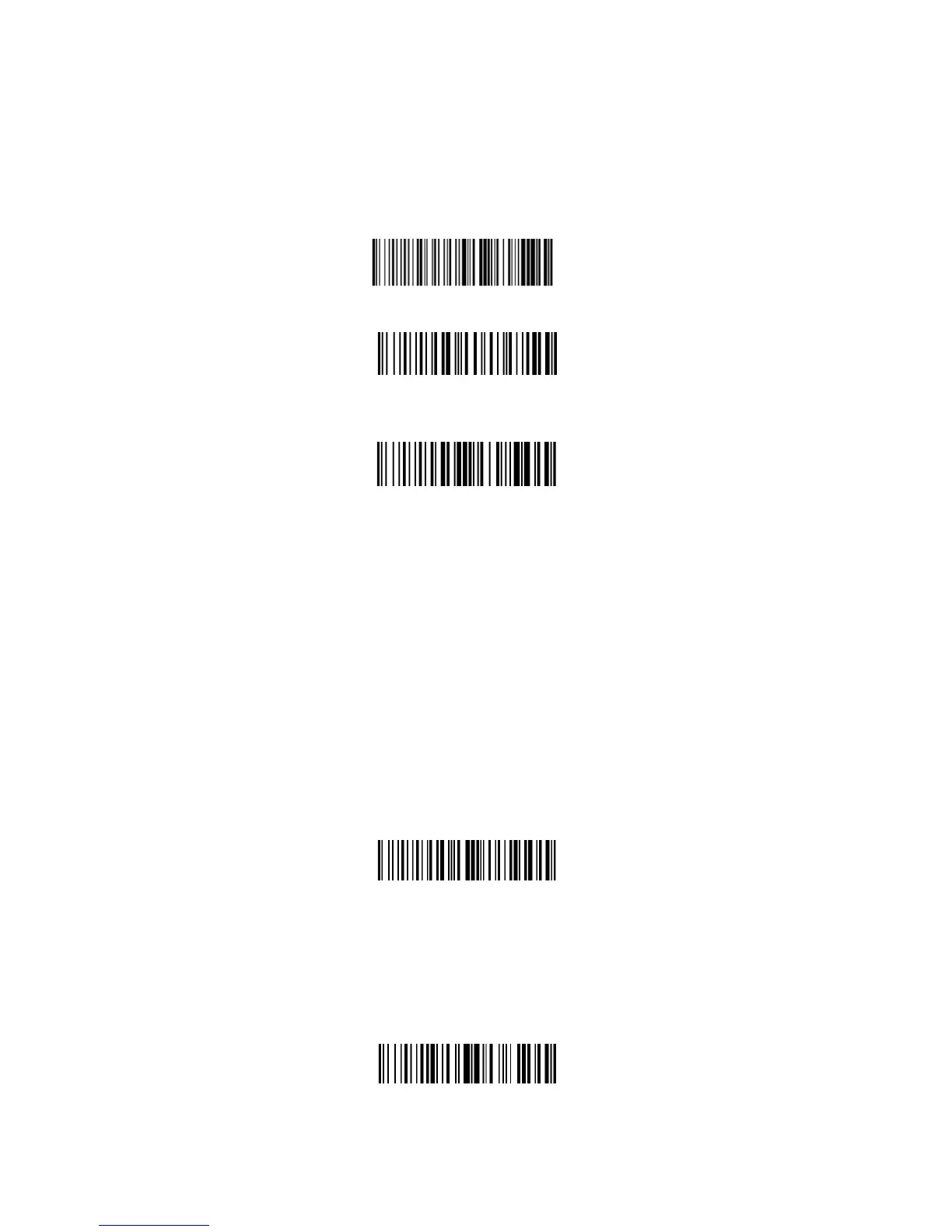
Scan HID Mode
Enable/Disable iOS Quick
Keyboard Shortcut
Toggle iOS
On-Screen Keyboard
To toggle the iOS on screen keyboard a single time, use the
barcode below.
Scan Pairing Mode
Open Bluetooth settings on your mobile device and tap on
"Bluetooth Scanner" to pair with the scanner. The Blue LED on the
back of the scanner will turn solid once it is successfully paired.
1.3 Configure iOS On-Screen Keyboard
When the scanner is connected to an iOS device, rapidly pulling
the trigger twice will toggle the iOS on-screen keyboard. If this
functionality is not needed use the barcode below to disable it.


 To Next Page