Install receivers in junction boxes
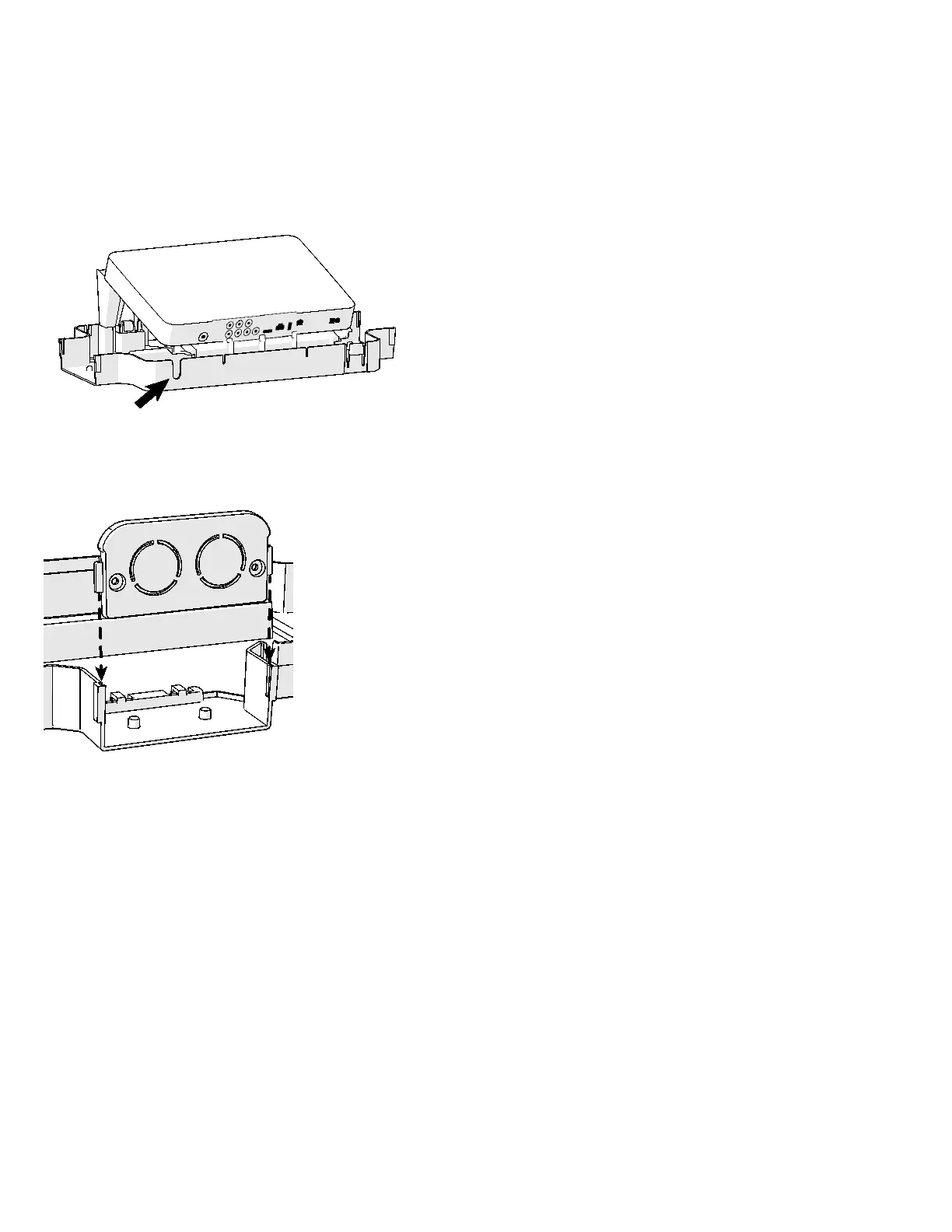
Each external receiver in your facility must be housed in a high-capacity junction box. This enclosure is a direct replacement for an
existing T-junction; its ventilation slots and elevated receiver platform keep the receiver cool during use, while space has been set aside
on its lower level for the receiver’s power supply.
When you place the receiver in the junction box, position it so that its controls face upward and its connectors face downward, as shown
in the following figure.
Note If you need to pass the HDMI and remote control cables through the back of the junction box, insert them into the slot in the
base of the box (shown in the previous figure). To close off unused raceway openings in the box, insert an end cap as shown in the
following figure.
Install and start the editor
Important The software does not support more than one installation at the same time on the same computer. If you are upgrading an
existing installation, you must remove the old version of the software before you install the new version.
To remove an old version of the software (if necessary):
1. On the Start menu, click
.
2. In the Control Panel, double-click
.
3. Scroll through the list of installed programs to find
version, where version is the version number of the
software you want to remove.
4. Select
version, then click
.
5. When asked if you are sure, click
.
6. When removal is complete, exit from the Control Panel.



 To Next Page